Decision & Confirmation
Last updated: 2023.4.14
To make decisions more efficient, you can submit drafts from the site to headquarters or within headquarters, and approvers can approve them. Draft types are general document, payment request, material purchase request, expenditure resolution, and business report.
Write a draft
- You can write a draft in the Decision & Confirmation > Draft Document menu.
- Click the [Draft] button.

- Select a document type.
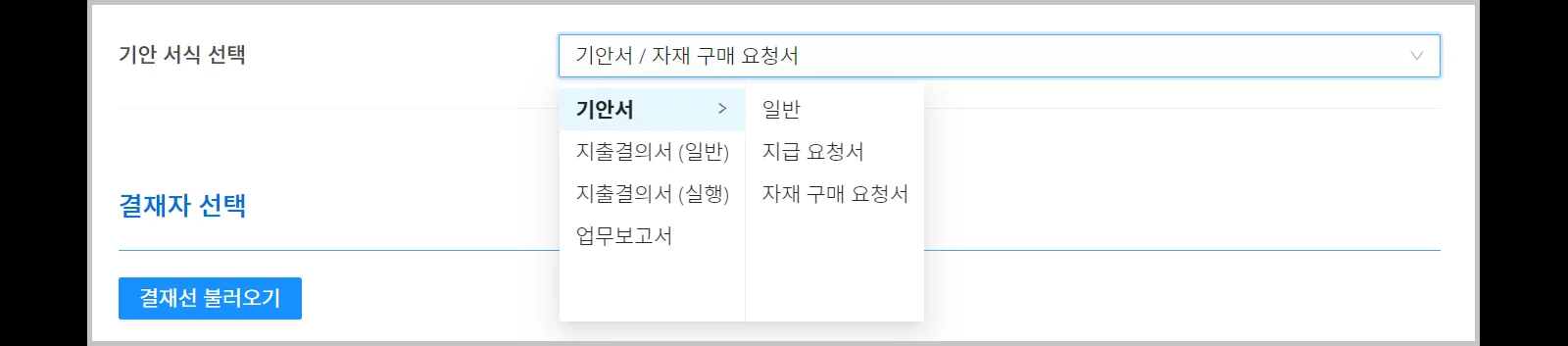
When a draft written as an Expenditure resolution (execution) receives final approval, it is automatically created as a BoQ entry.
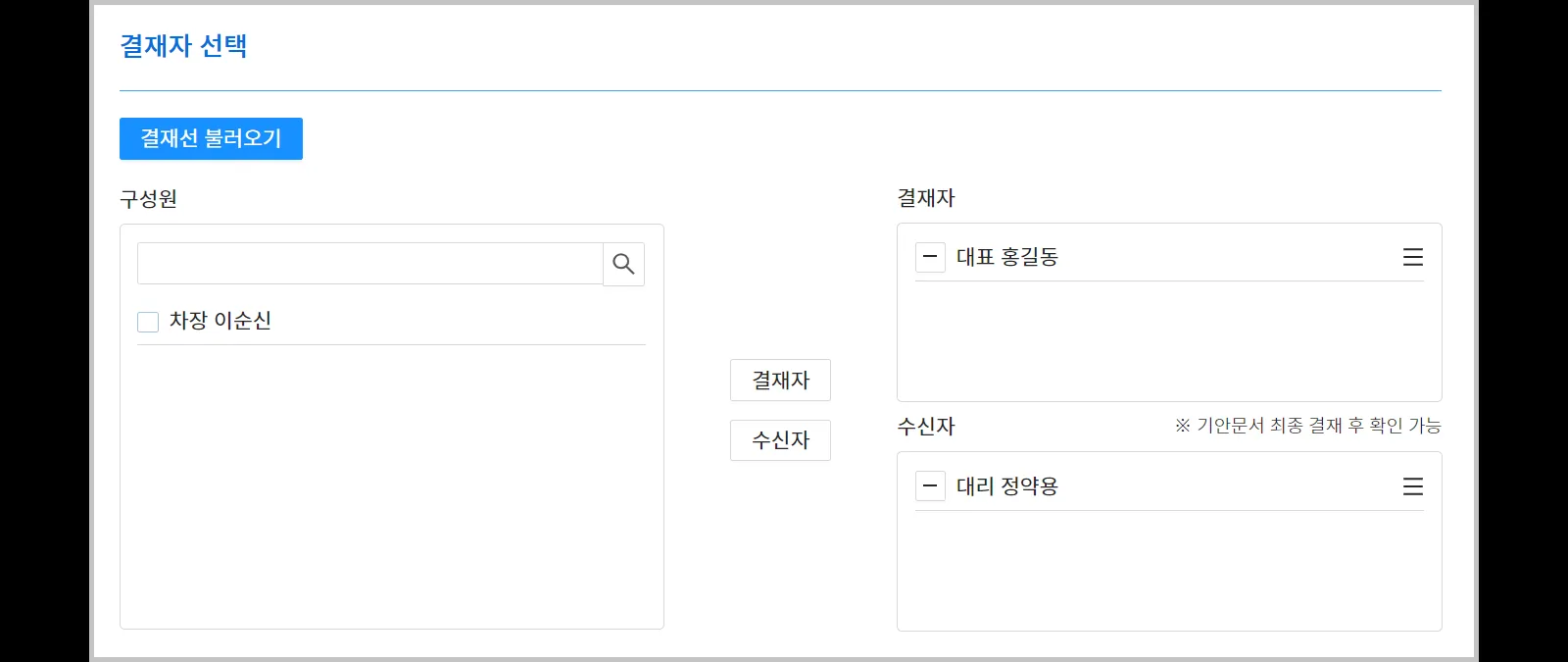
- Select the approvers.
Once the approval is complete, employees set as receivers can view the document in the Decision & Confirmation > Received Document menu.
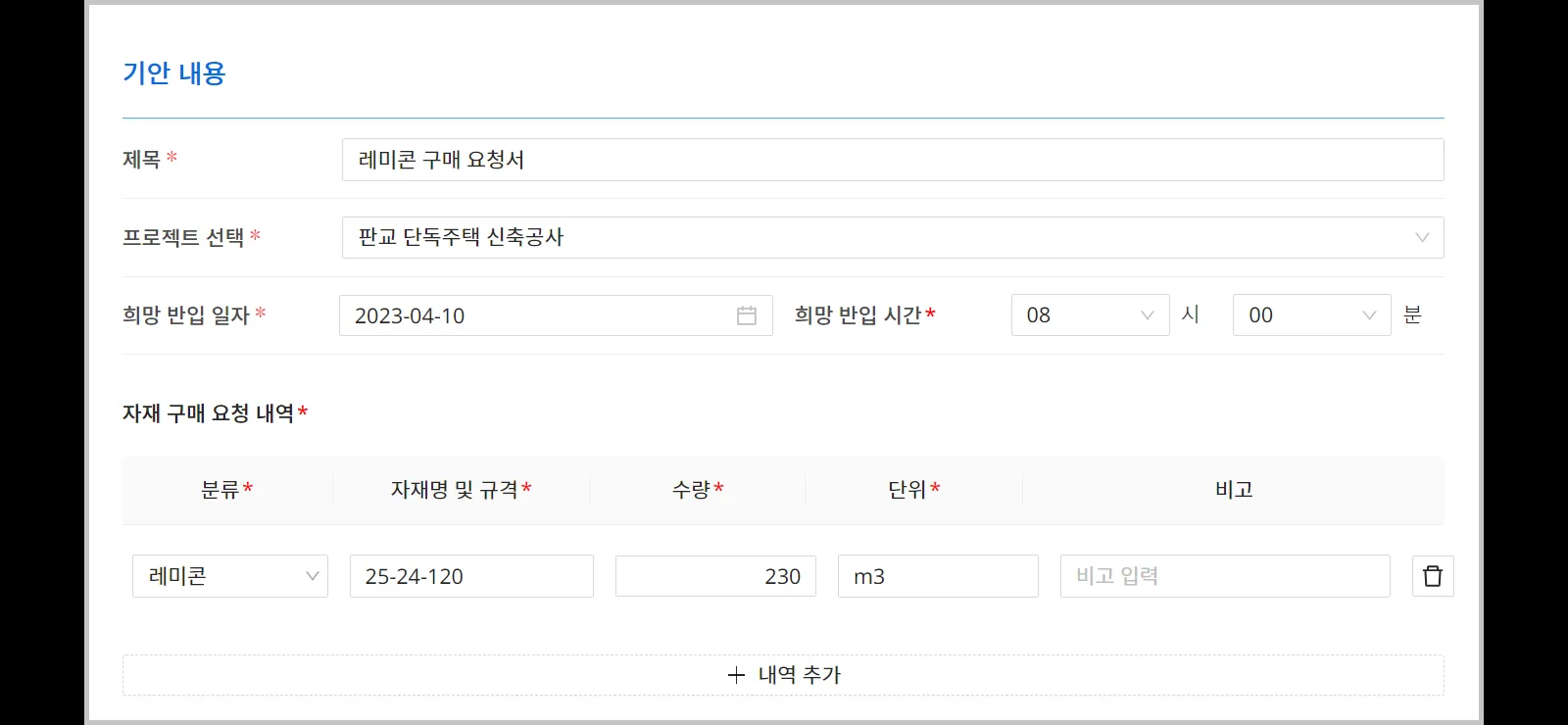
- Write the draft content.
- Click the [Submit] button.

Use the Save (draft) feature.
Only the author can view a saved draft. If you stop while writing, what you wrote so far is saved, and you can continue writing later.
Approve a draft
- In the Decision & Confirmation > Document for Approval menu, you can check approval requests and approve them.
- Click a draft marked 'Approval Request'.
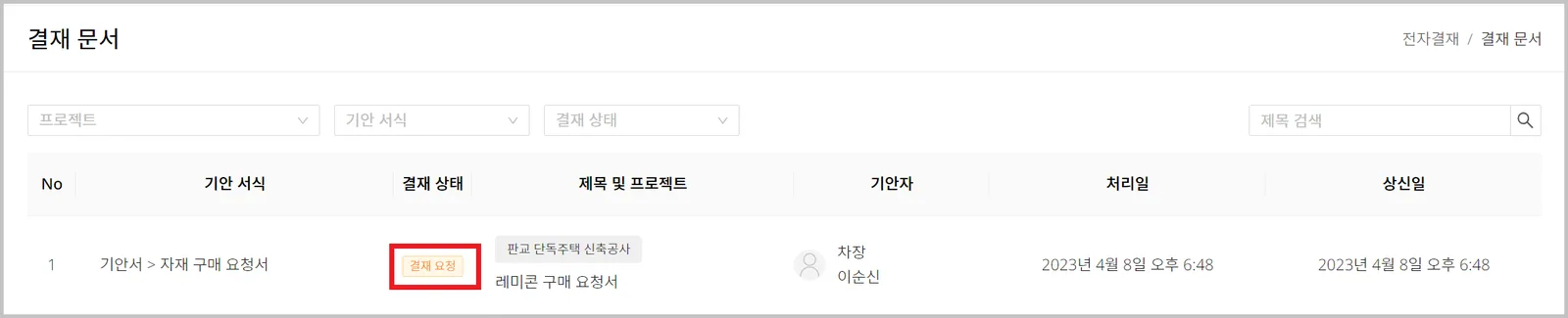
- Check the draft content, then click the [Approve] button.
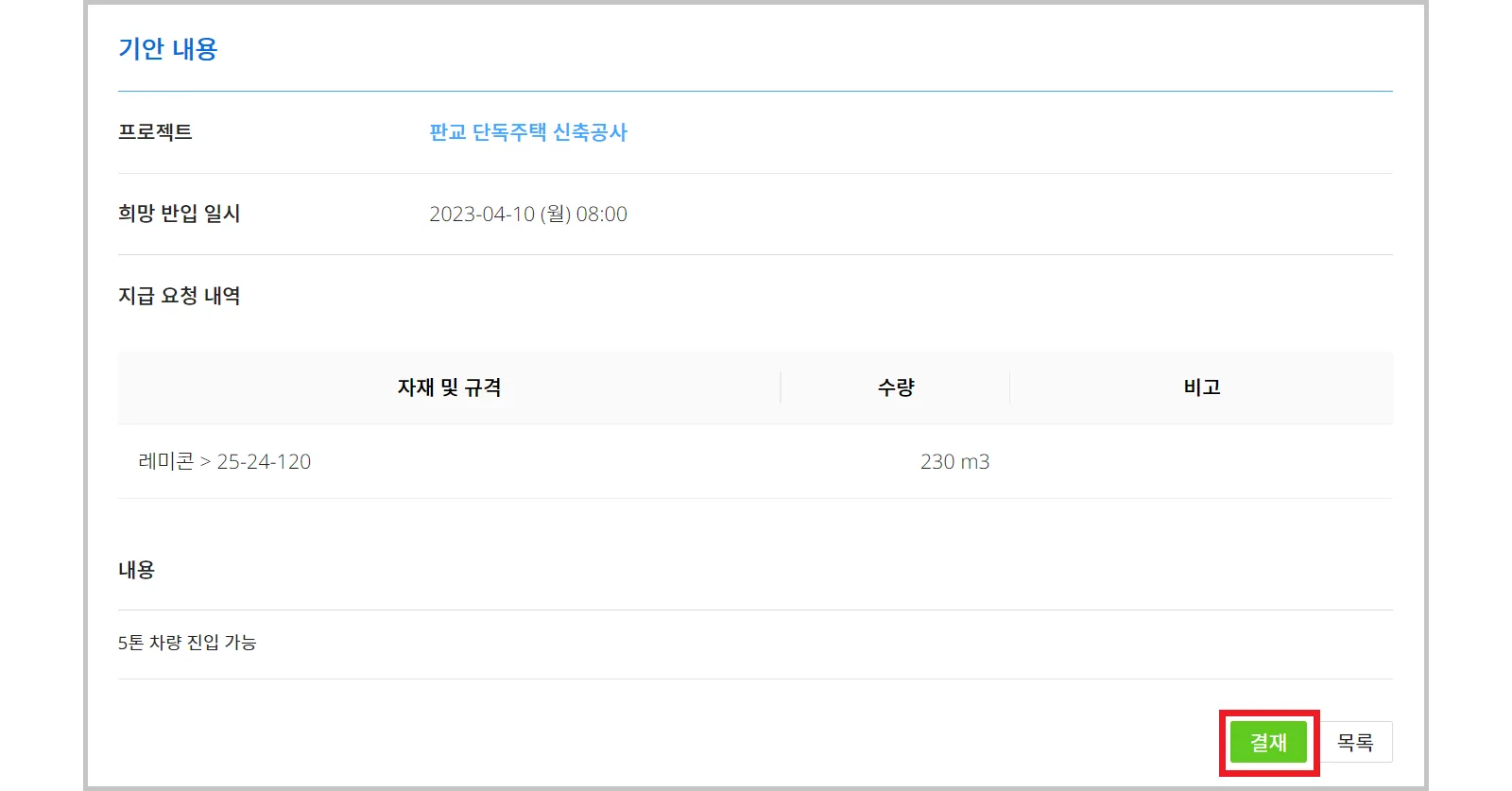
- Click the [Approve] or [Reject] button.