Company using CaasWorks for the first time
Last updated: 2026.10.15
If your company is adopting CaasWorks for the first time, create an account and then register the company. The person who registers the company becomes its company admin and can invite employees.
On the PC web, employees find the company by company name, workspace ID, or business registration number. In the mobile app, they find it by workspace only. If you register the company on the PC web, you set a separate workspace ID in English. If you register it in the mobile app, the business registration number you enter becomes the workspace as is.
Create an account
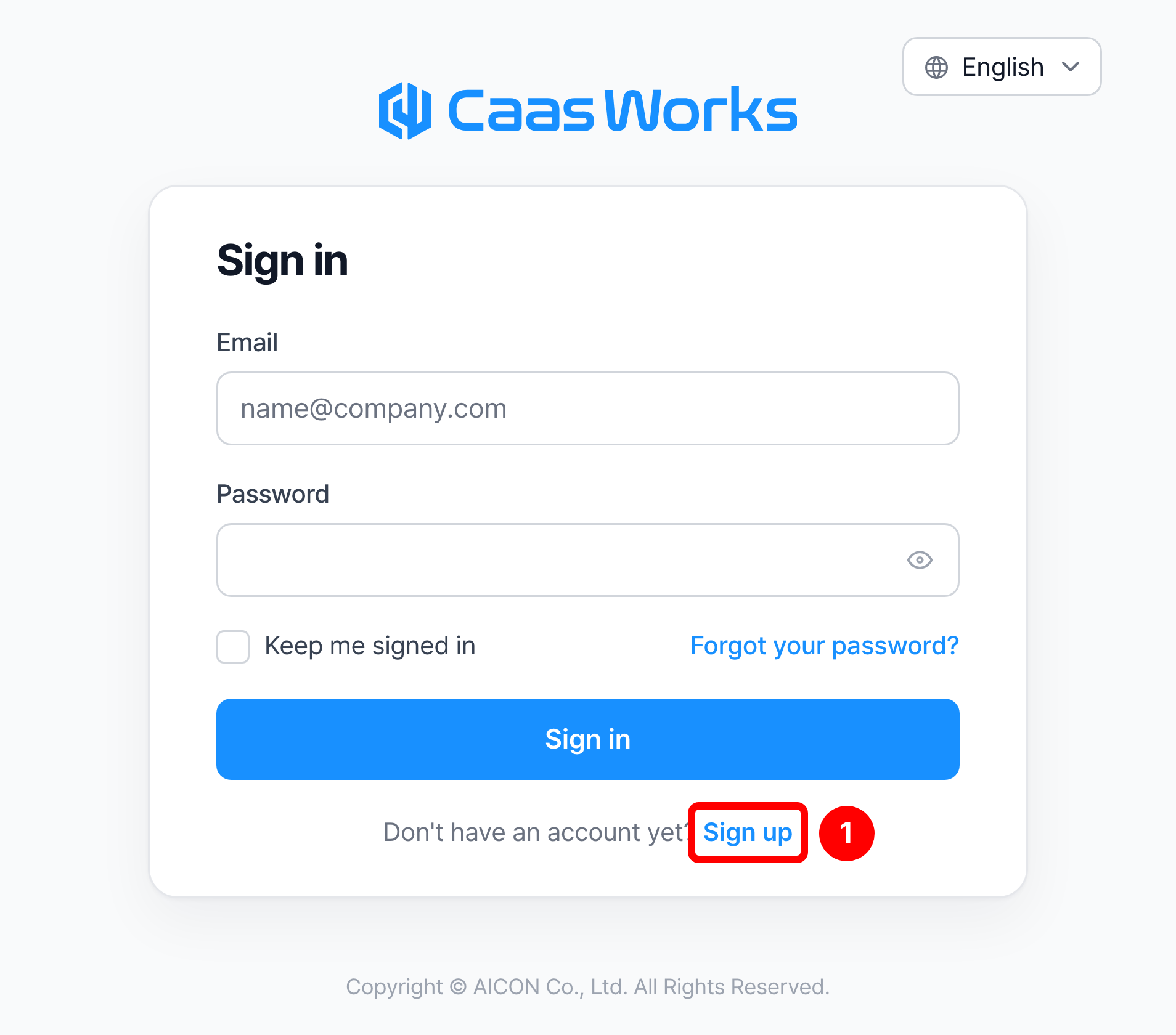
Click [Sign up] at the top right of the CaasWorks website, or click [Sign up] at the bottom of the sign-in screen.
Enter your information, agree to the terms, and click [Create account and continue].
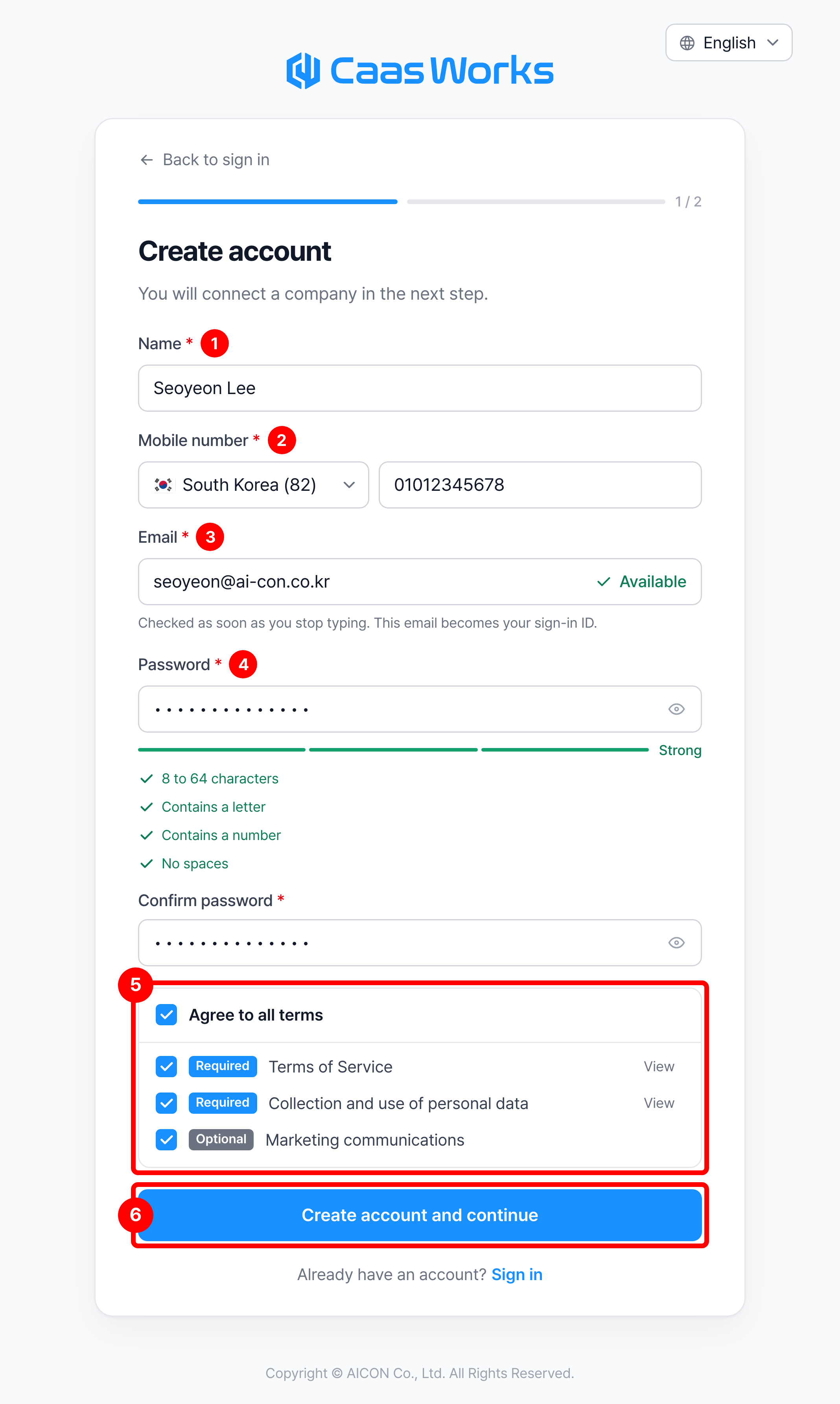
| Item | Description |
|---|---|
| ① Name | Enter your real name |
| ② Mobile number | Select the country and enter the number in digits |
| ③ Email | Enter the email to use as your sign-in ID ※ When you stop typing, it immediately checks whether the email is already registered and shows Available |
| ④ Password | Enter 8 to 64 characters including letters and numbers, with no spaces ※ All conditions in the list below must turn green |
| ⑤ Terms | Agree to the two required terms. Marketing communications is optional |
| ⑥ Create account and continue | Creates the account and moves on to the company connection step |
Register a company
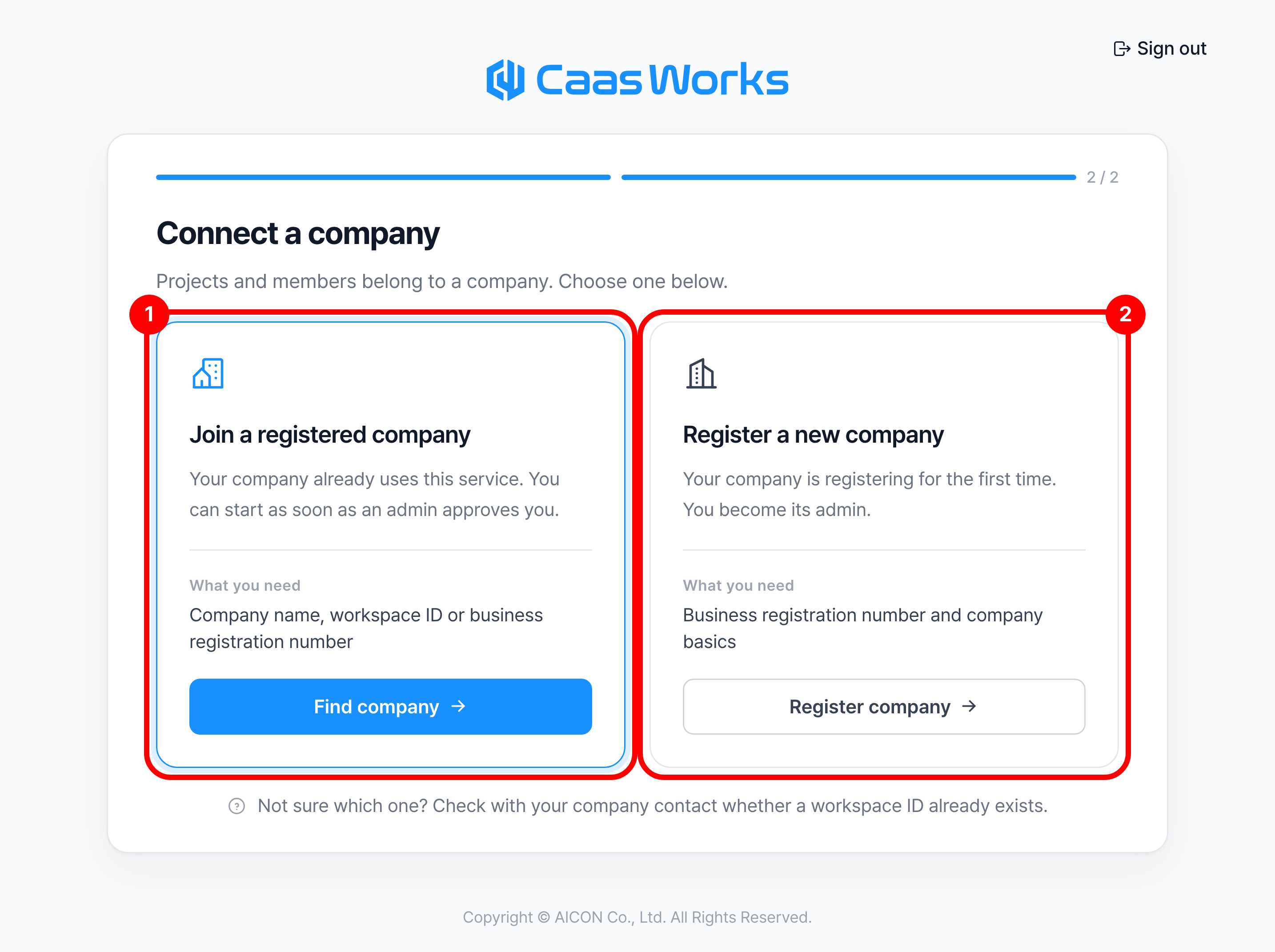
On the Connect a company screen, click [Register company].
Enter the company information and click [Register and start].
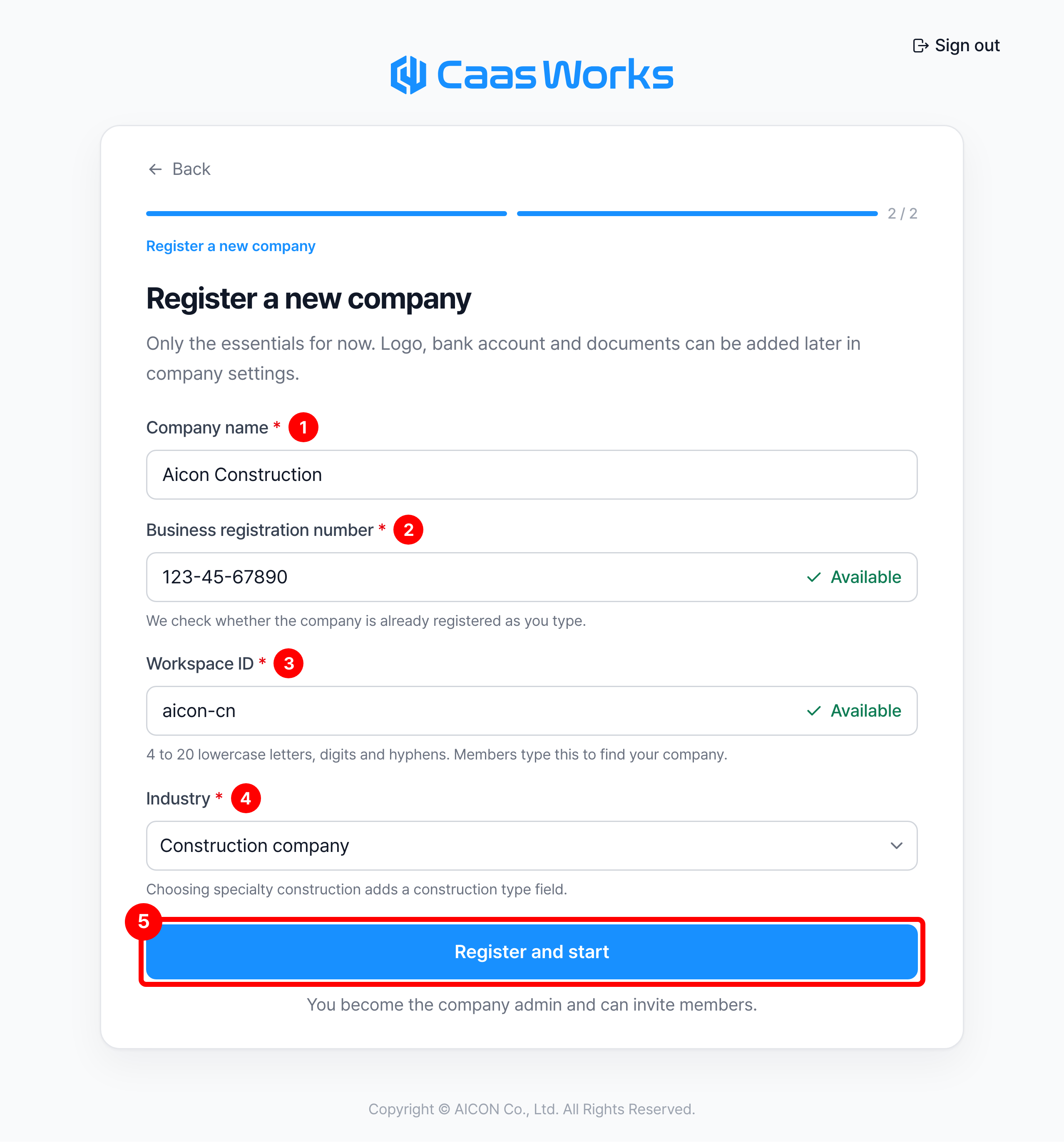
| Item | Description |
|---|---|
| ① Company name | Enter the company name |
| ② Business registration number | Enter the 10 digits. Hyphens are optional ※ It immediately checks whether the company is already registered and shows Available |
| ③ Workspace ID | Enter 4 to 20 lowercase letters, digits, and hyphens ※ Employees type this name to find the company, so choose one that is easy to recognize |
| ④ Industry | Choose from Construction company, Architect, Client, Interior, Partner, PM, Material supplier, Solution supplier, and Pro construction ※ If you choose Pro construction, you also select a construction type |
| ⑤ Register and start | Registers the company and starts CaasWorks. The person who registers becomes the company admin |
Add the rest of the company information, such as the logo, bank account, and documents, in company settings after registering.
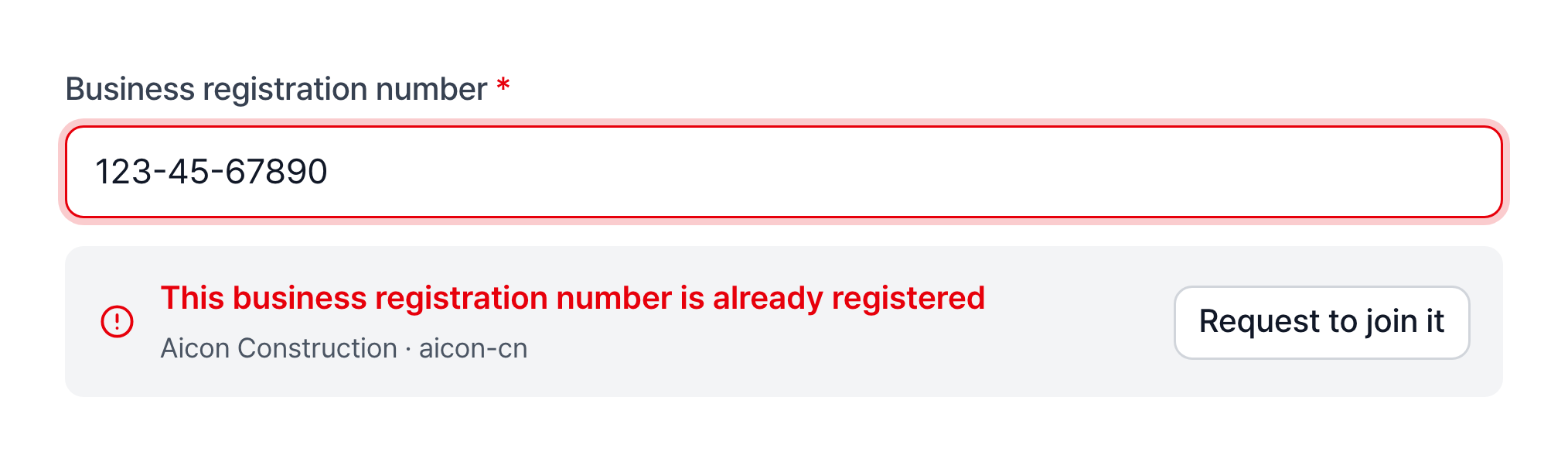
If a company is already registered with the business registration number you entered, the notice below appears. Creating the same company again splits your employees across two companies, so click [Request to join it] to join the existing company.
Once the company is registered, create a project to get started.