Company management
Manage employees
Last updated: 2023.4.14
You can view the list of employees in the company, edit employee information, and grant permissions.
Only an admin can manage employees.
Who is a CaasWorks admin? (Understanding user permissions) ➡️
Set up your company organization
- In the Company management > Staff management menu, you can set the position names and team/department names your company uses.
- Click the [Position Manage] button.

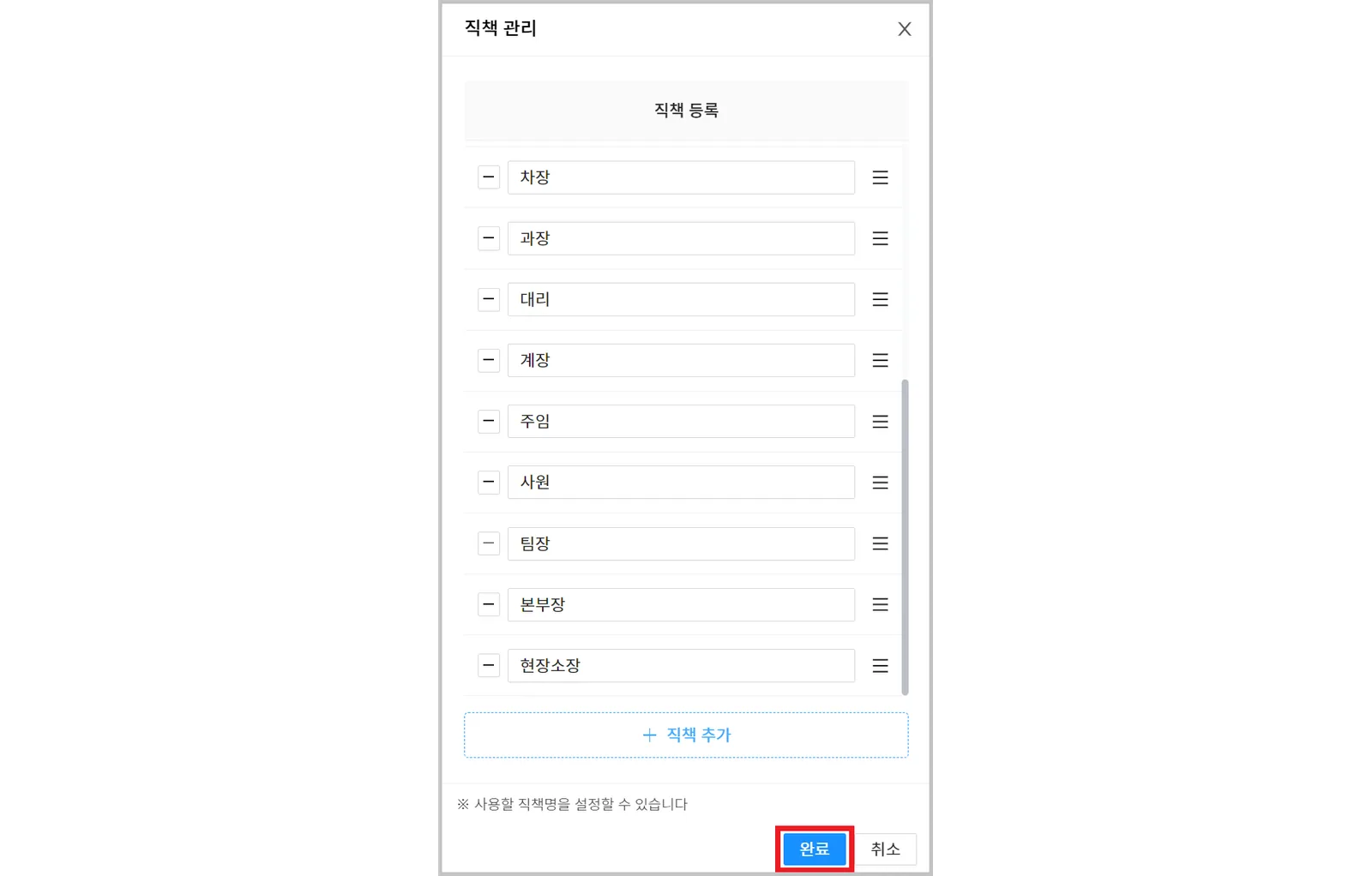
- Enter the position names, then click the [Complete] button.
16 default position names are provided, such as CEO, Executive Vice President, Director, General Manager, and Manager. You can also add new positions to suit your company or change the order of positions.
| Item | Description |
|---|---|
| ① Delete | Click the  icon to delete that row |
| ② Change order | Drag and drop the  icon to change the order |
Register teams/departments the same way.
Manage employee information
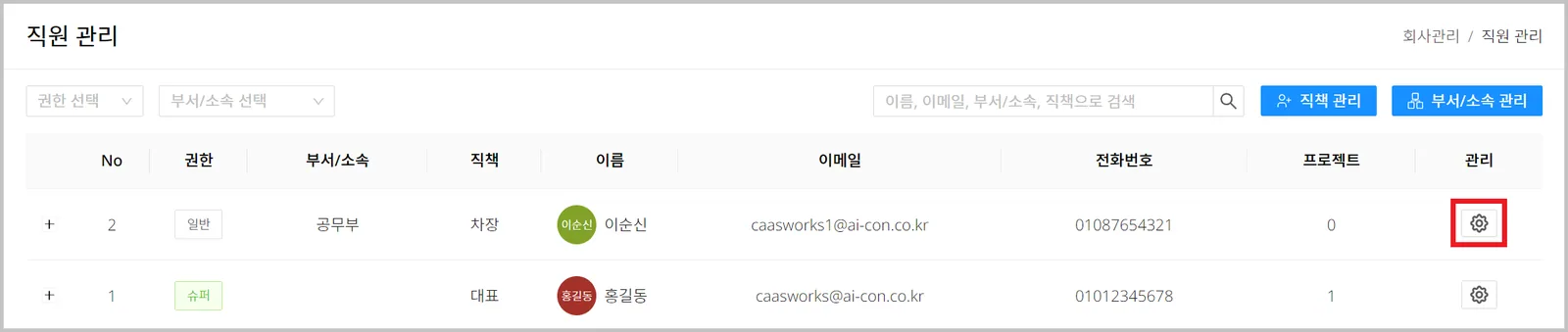
- In the Company management > Staff management menu, you can set employee information and grant permissions.
- Click the [Settings
 ] icon.
- Set the employee information, then click the [Modify] button.

| Item | Description |
|---|---|
| ① Team/Department | Select the employee's team/department |
| ② Position | Select the employee's position |
| ③ Level | Grant the employee a permission level |
| ④ Retirement | Remove the employee from the company ※ If the employee is taking part in any project, remove them from the project first and then process the retirement. |
Project assignment management
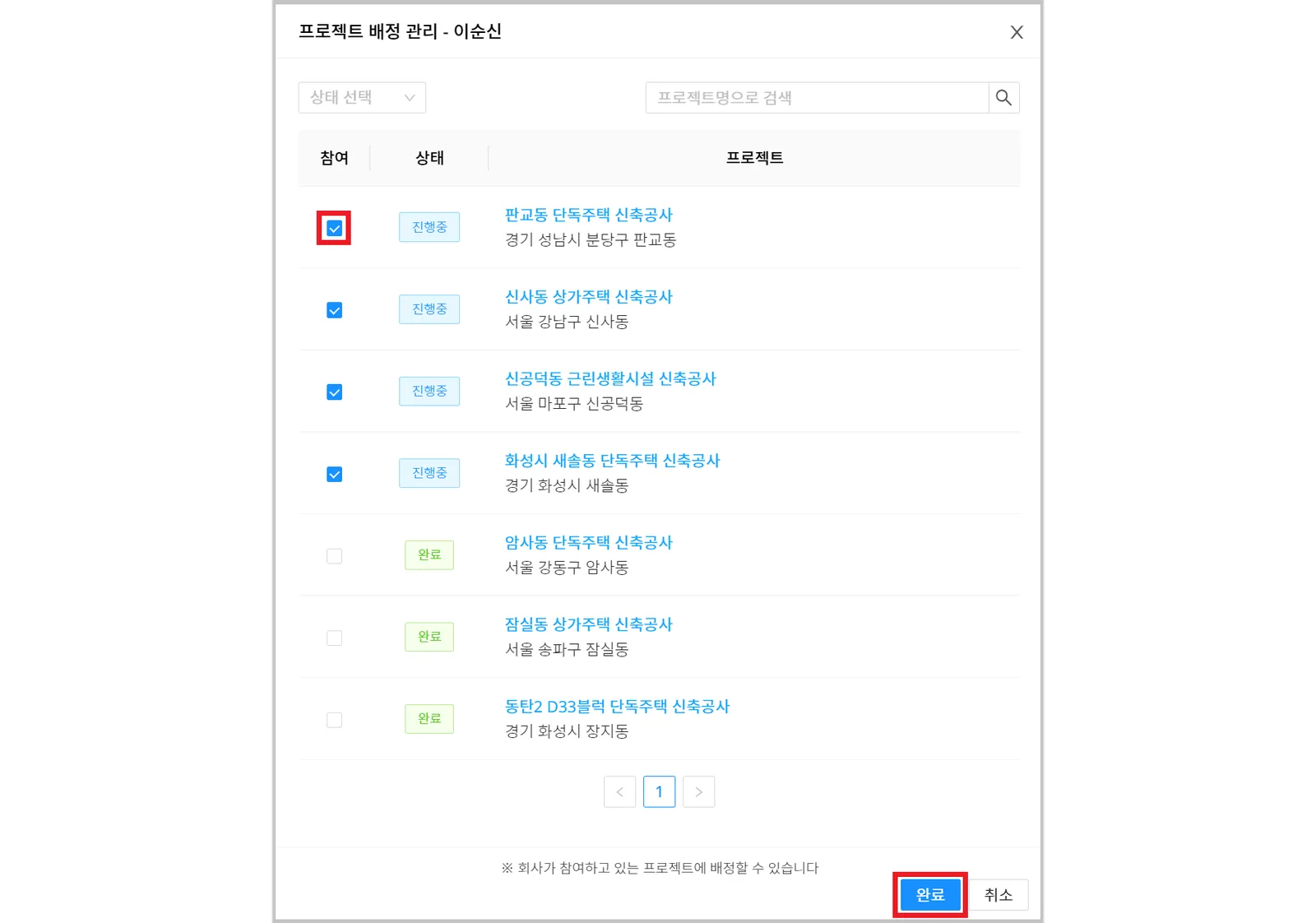
- In the Company management > Staff management menu, a super admin can check which projects employees take part in and assign them to projects in bulk.
This is useful when, for example, a new employee joins or an employee leaves. Project assignment management is available to super admins only.
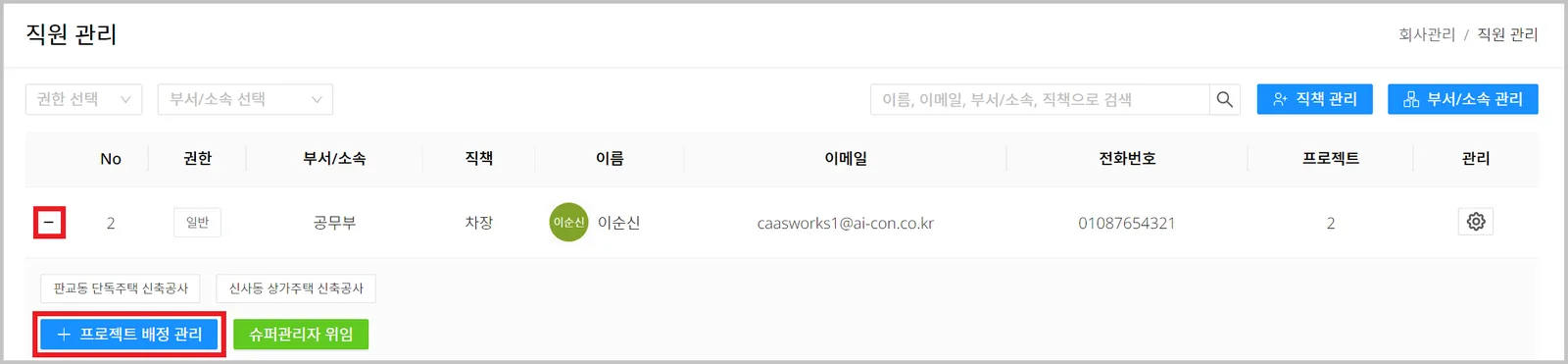
- Click the [Add
 ] icon, then click the [Project assignment management] button.
- Check the projects to assign, then click the [Complete] button.