Construction Contracts
Last updated: 2023.4.14
You can sign a construction contract with the client and keep a record of the interim payments you claimed from the client based on it. (Note that this is not an electronic signature.)
Write a construction contract
- You can write a construction contract in the Contracts and Invoices > Construction Contracts menu.
- Click the [Write a contract] button.

- Enter the basic information.
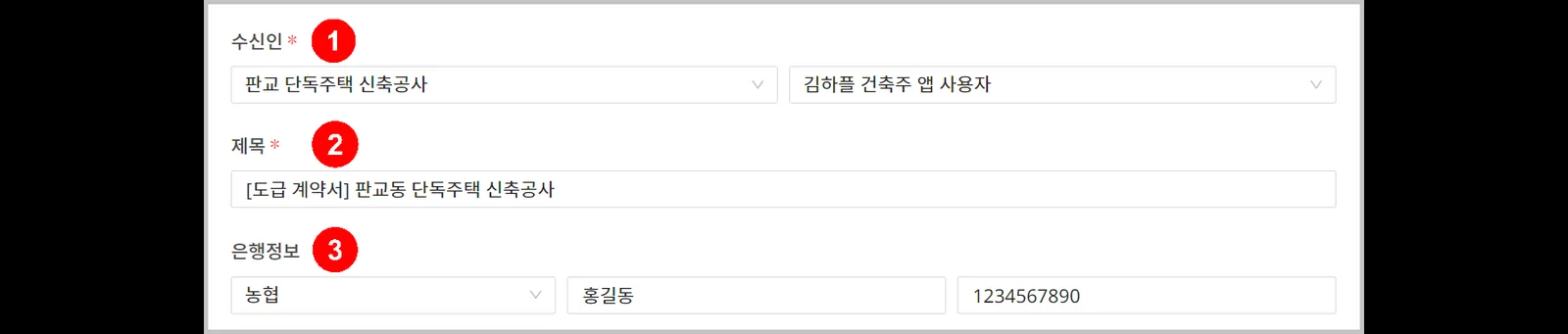
| Item | Description |
|---|---|
| ① Receiver | Select the client to sign the construction contract with |
| ② Title | Enter the name of the construction contract |
| ③ Bank information | Enter the bank account that receives payment when you claim interim payments |
- Enter the details.
3-1. Click the [Call the project process] button, check the process items to include in the contract, and click the [Confirm] button.
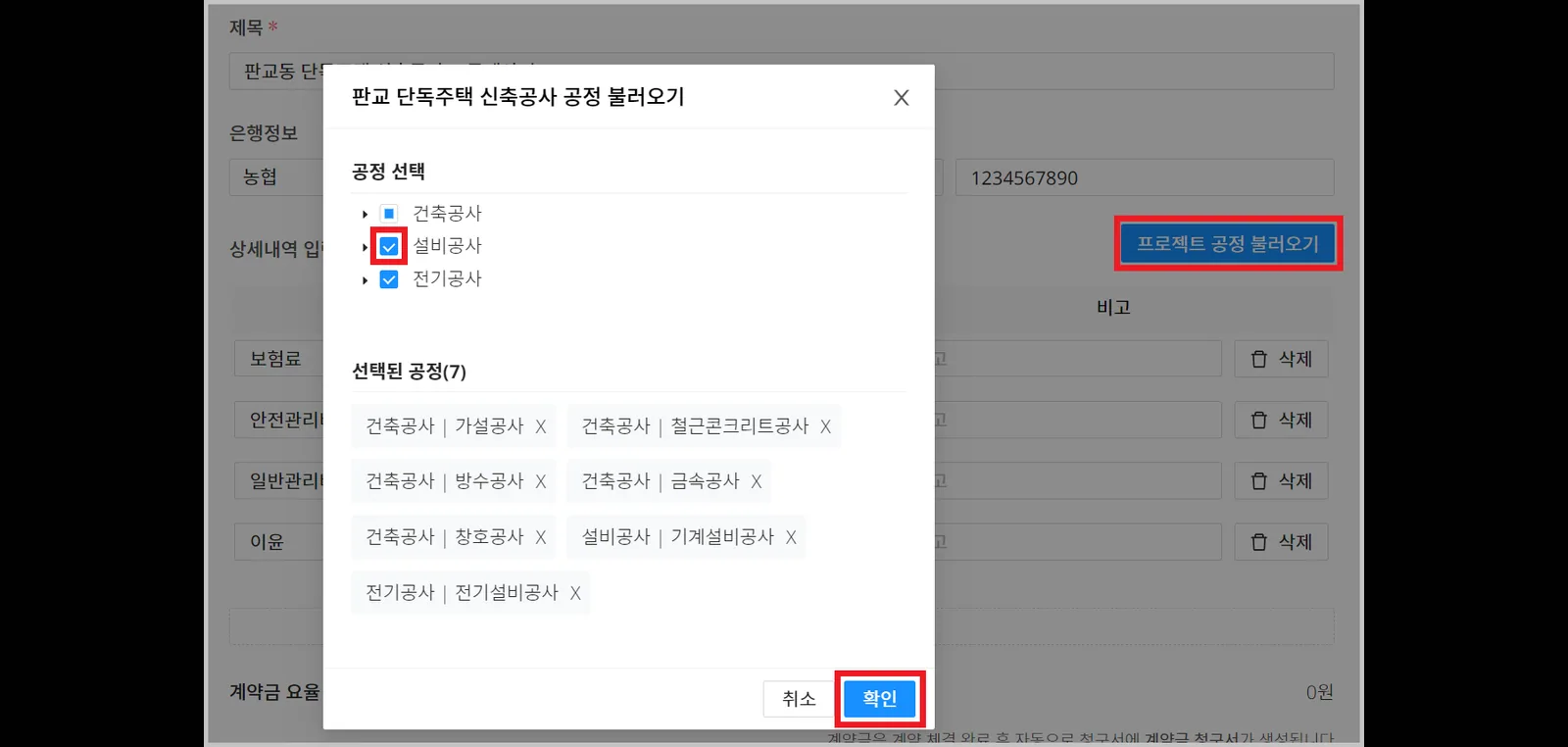
Why load processes to write the contract?
CaasWorks records data around processes. The recorded data is used to analyze process efficiency and work out improvements.
3-2. Enter items other than processes, such as expenses, general administrative costs, and profit, yourself, then enter the contract amount for each item.
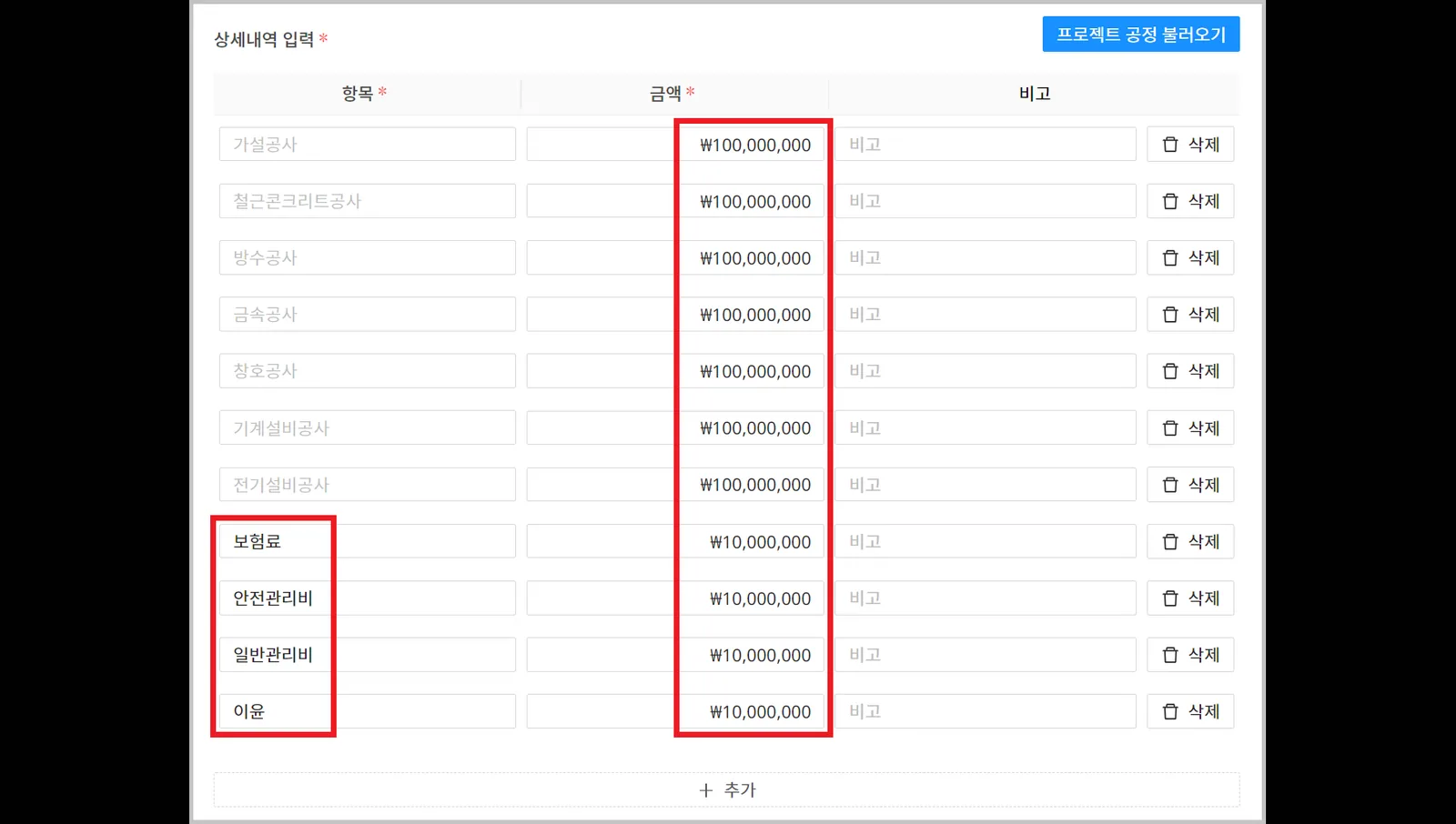
- Attach the construction contract statement.

- Click the [Contract send] button, then click the [Yes] button.
When the contract is sent, the client is notified, and the contract can no longer be edited.

Use the Save (draft) feature.
Only the author can view a saved draft. If you stop while writing, what you wrote so far is saved, and you can continue writing later.
Construction contract statuses
| Contract status | Description |
|---|---|
| Ready | When you wrote the contract and clicked [Save contract] |
| Sent | When you wrote the contract and clicked [Contract send] |
| Received | When the client viewed the contract |
| Confirm | When the client clicked [Contract signing] |
| Reject | When the client clicked [Contract rejection] |