Sign up on your own
Last updated: 2026.10.15
Create an account, then find your company and send a join request. Once your company admin approves the request, you can use CaasWorks.
Create an account
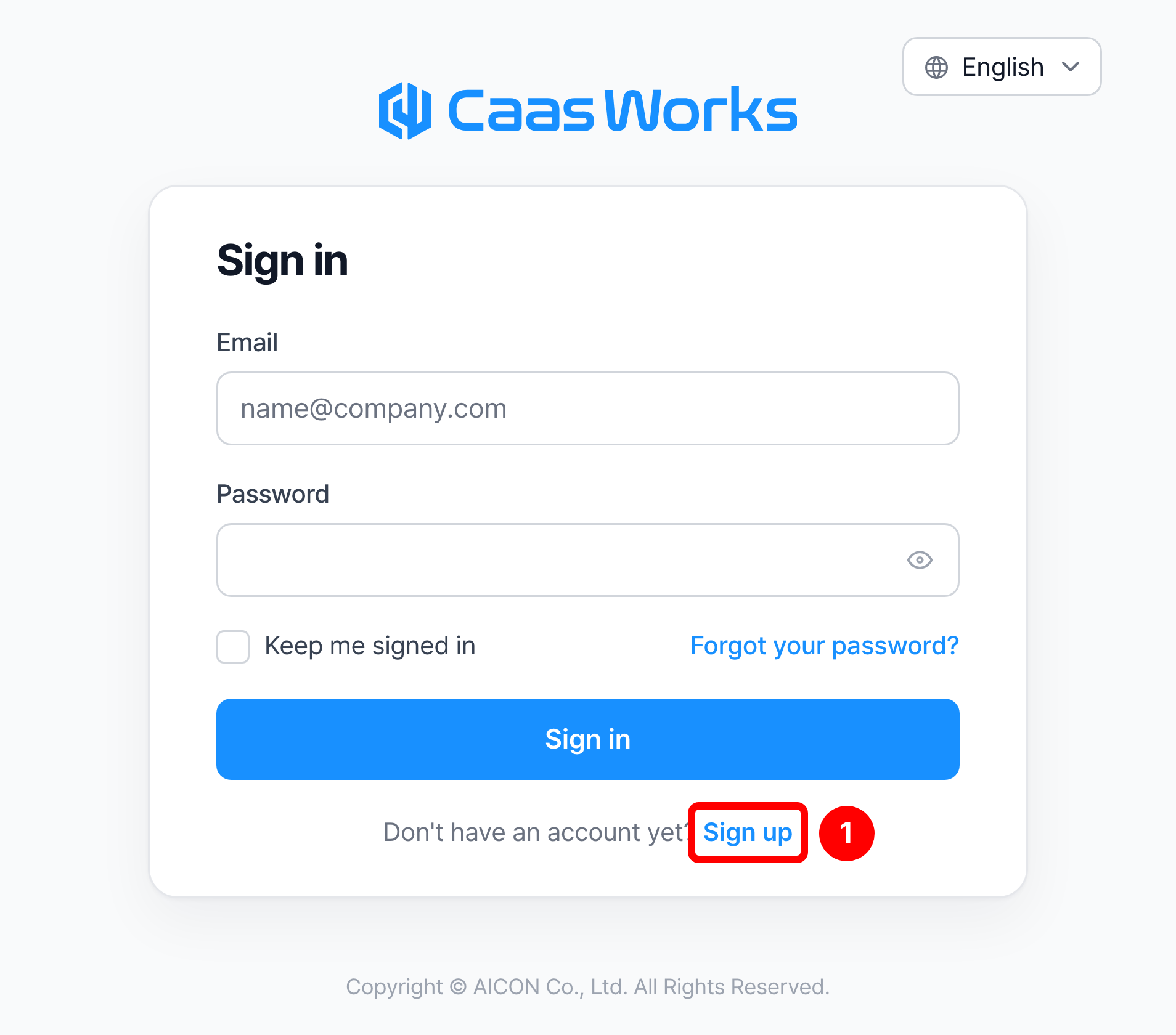
Click [Sign up] at the top right of the CaasWorks website, or click [Sign up] at the bottom of the sign-in screen.
Enter your name, mobile number, email, and password, agree to the terms, and click [Create account and continue].
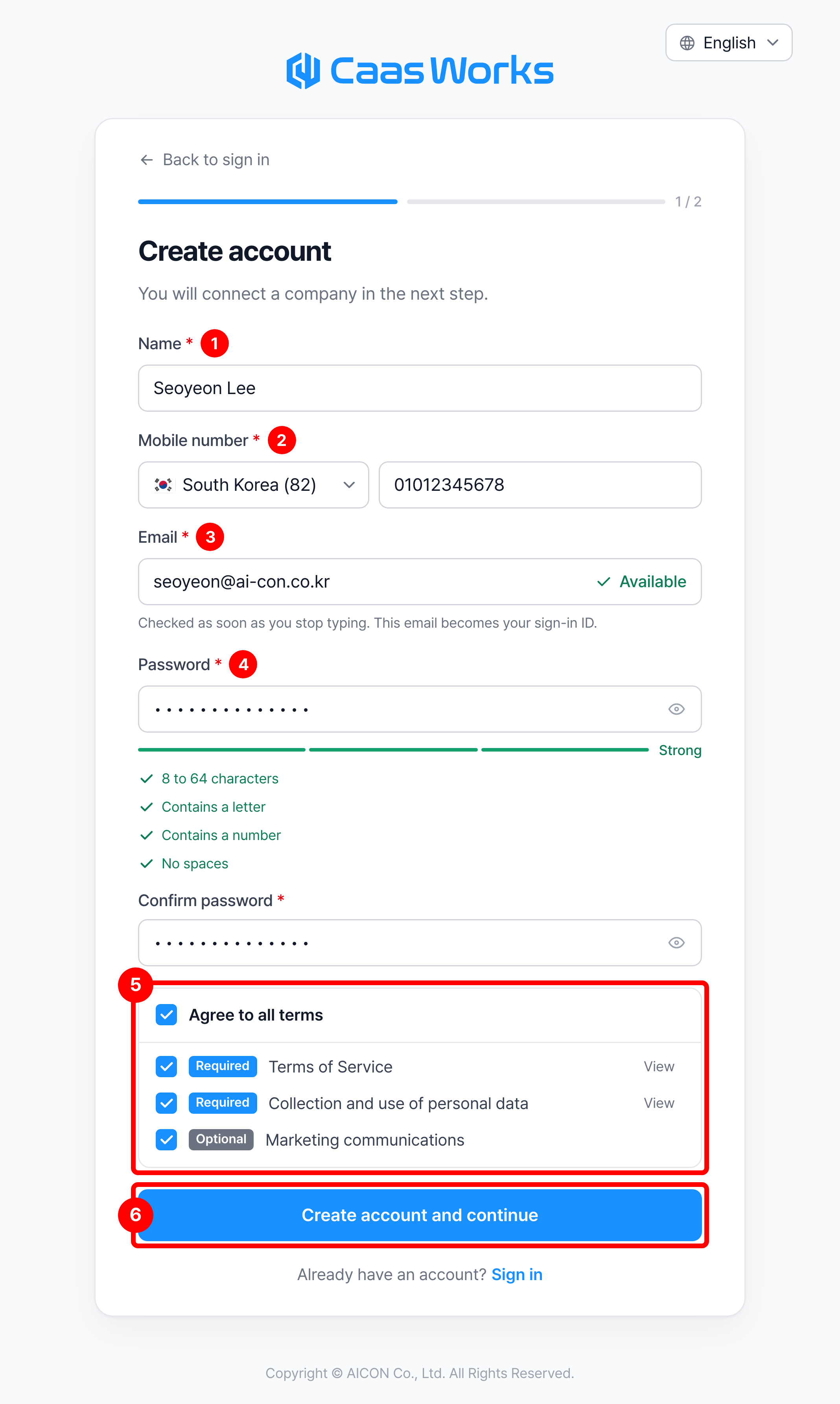
The fields are the same as described in Company using CaasWorks for the first time.
Join a company
Search by company name, workspace ID, or business registration number. The workspace ID is the most precise, so checking it with your company admin in advance saves time. In the mobile app you can search by workspace only, so check the workspace with your company admin and enter it exactly.
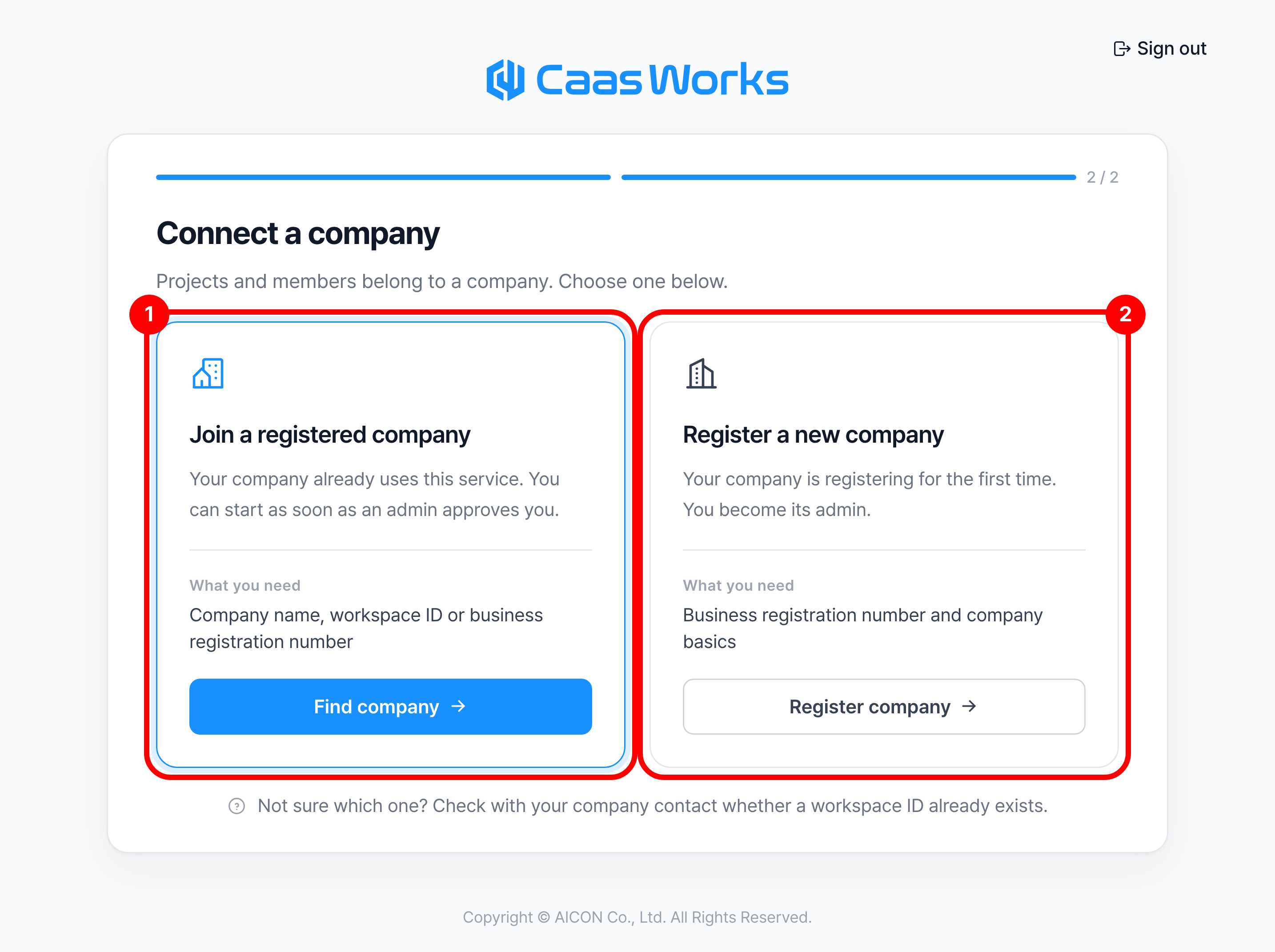
On the Connect a company screen, click [Find company].
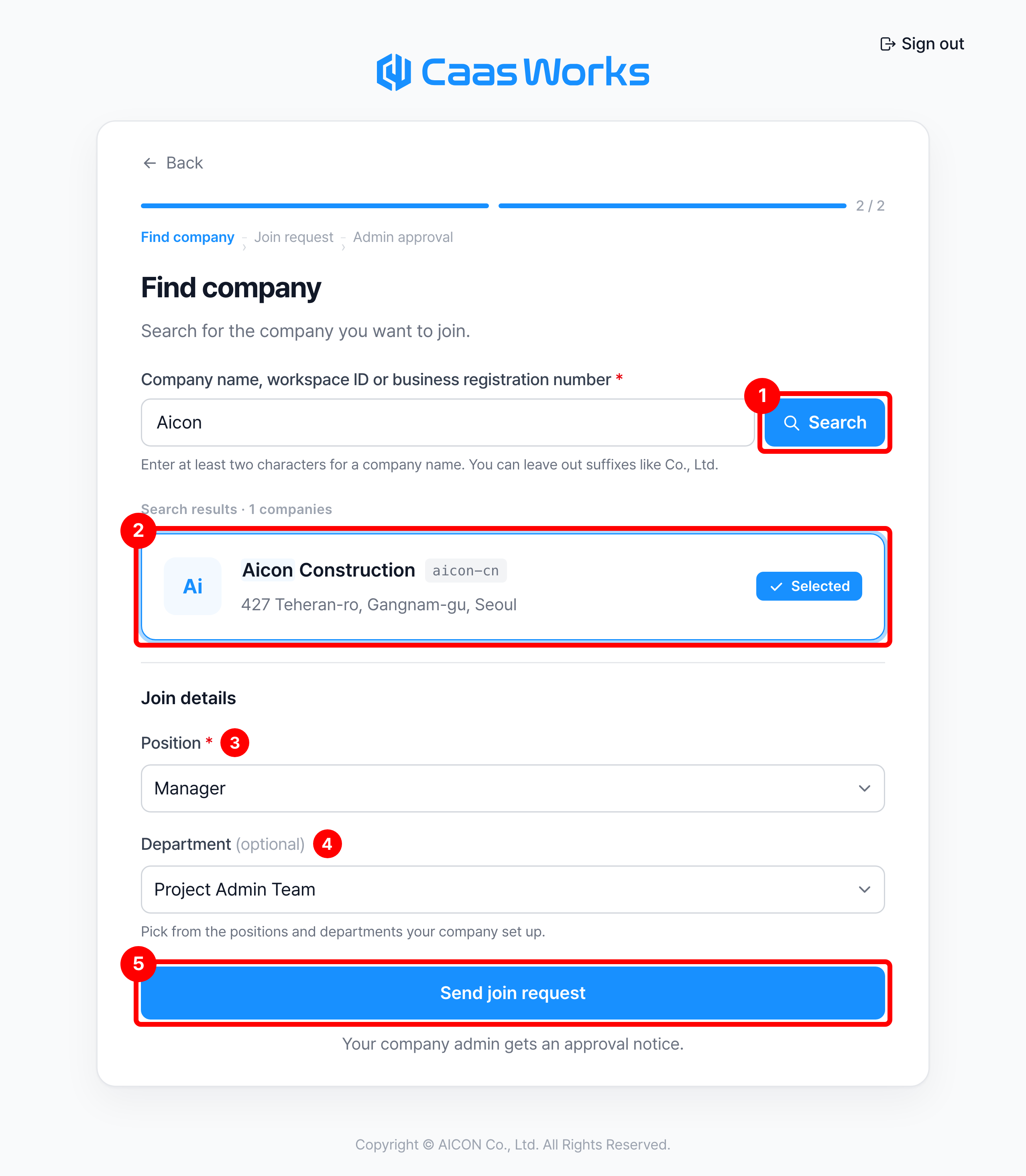
Search for and select the company, choose your position and department, and click [Send join request].
| Item | Description |
|---|---|
| ① Search | Enter a company name, workspace ID, or business registration number and search ※ For a company name, part of the name is enough if it is at least two characters |
| ② Search results | If only one company is found, it is selected right away ※ If several companies have similar names, check the workspace ID and address and pick one yourself |
| ③ Position | Select from the positions your company set up |
| ④ Department | Select from the departments your company set up. Can be left empty |
| ⑤ Send join request | Sends an approval notice to the company admin |
If there are no search results, check what you entered again. If the company is not registered yet, follow Company using CaasWorks for the first time to register it.
Wait until an admin approves.
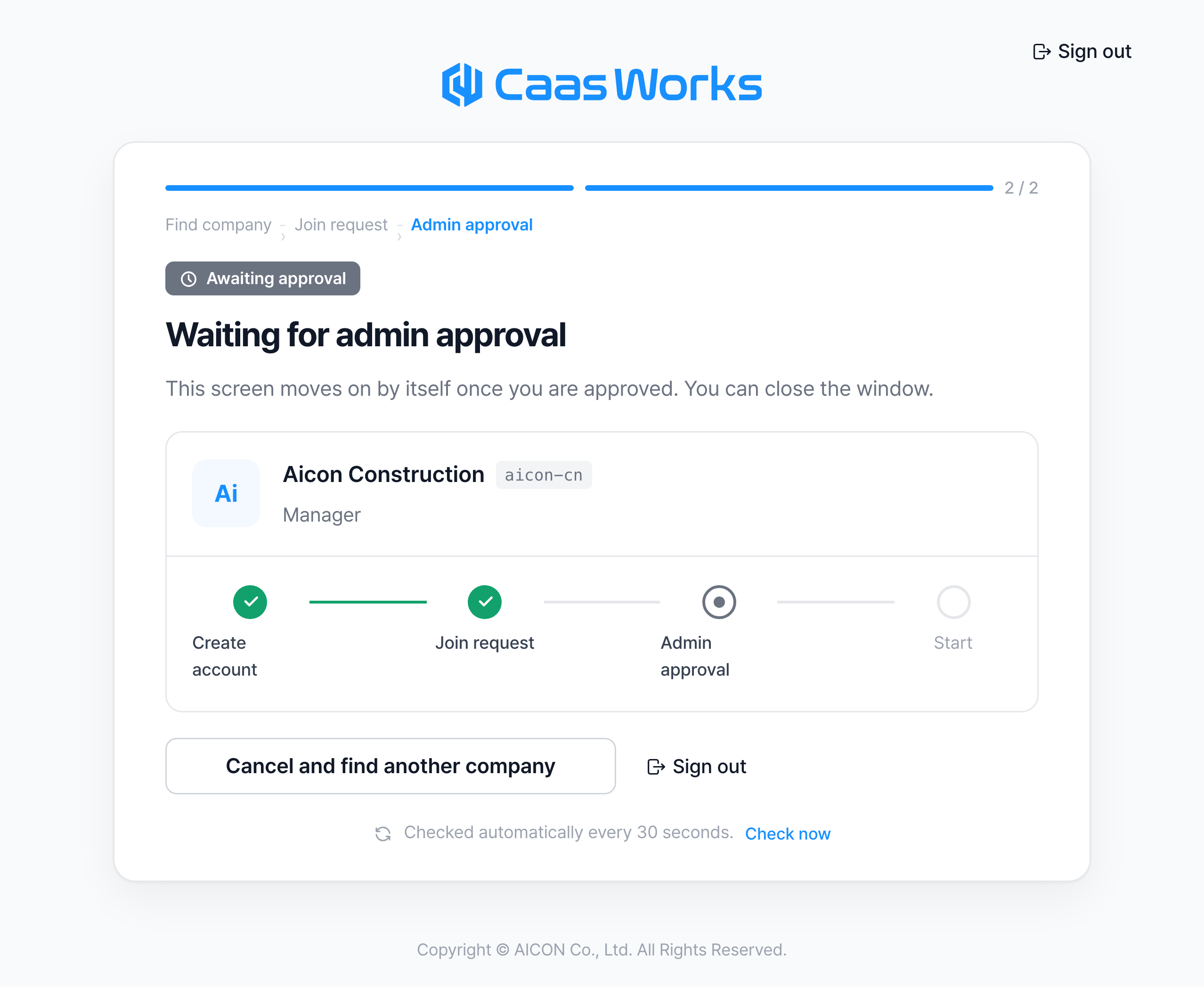
Once you are approved, the screen moves on by itself. You can close the window and sign in again later. If you sent the request by mistake, click [Cancel and find another company]. If the admin declines the request, this screen shows that it was declined, and you can request the same company again or find another company.
You can use CaasWorks only after your company approves you. If approval is taking a while, contact your company admin.
Who is a CaasWorks admin? (Understanding user permissions) ➡️