Edge AI CCTV
Connect an edge box to your CCTV and AI runs right on site. View live video, recordings, and timelapses in one place.
A video processing device installed on site. It receives camera video, streams it live, records it, and creates timelapses. Video analysis happens inside the device, so it works even on sites with slow internet.
How it is used
AI ready without installation work
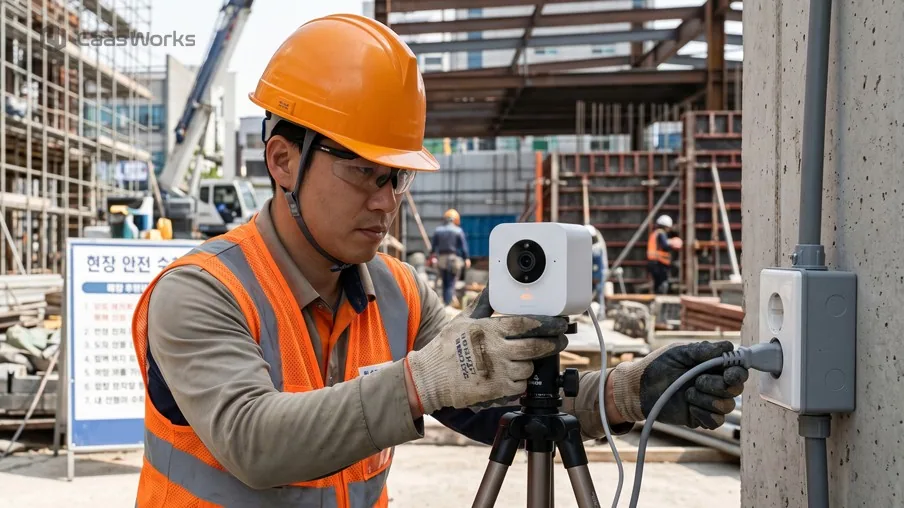
AI operation starts as soon as you connect the power. You can use it right away without removing your existing CCTV.
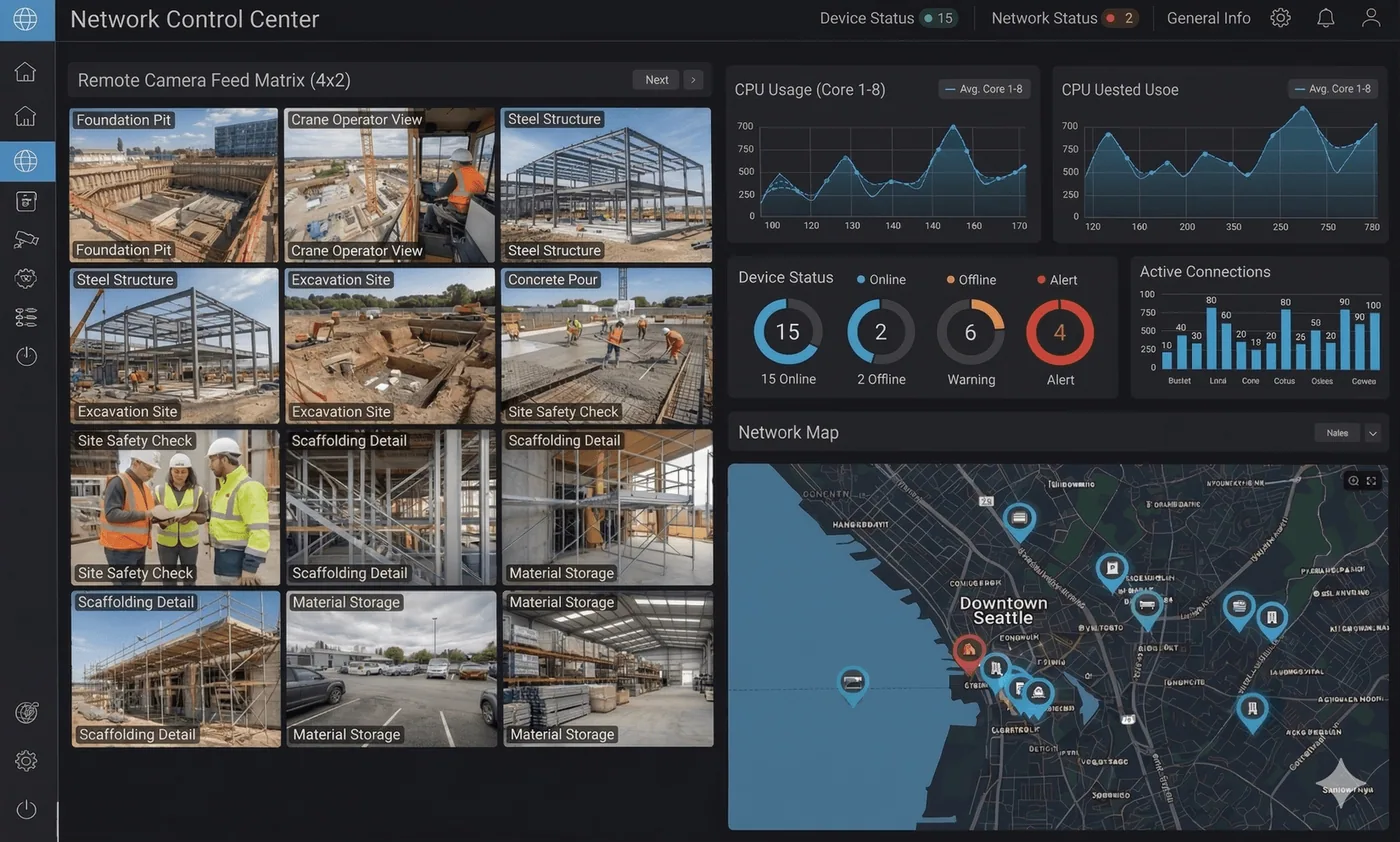
AI monitoring at a glance
AI detects hard hats, falls, and danger zones, and notifies managers right away through the app or KakaoTalk.
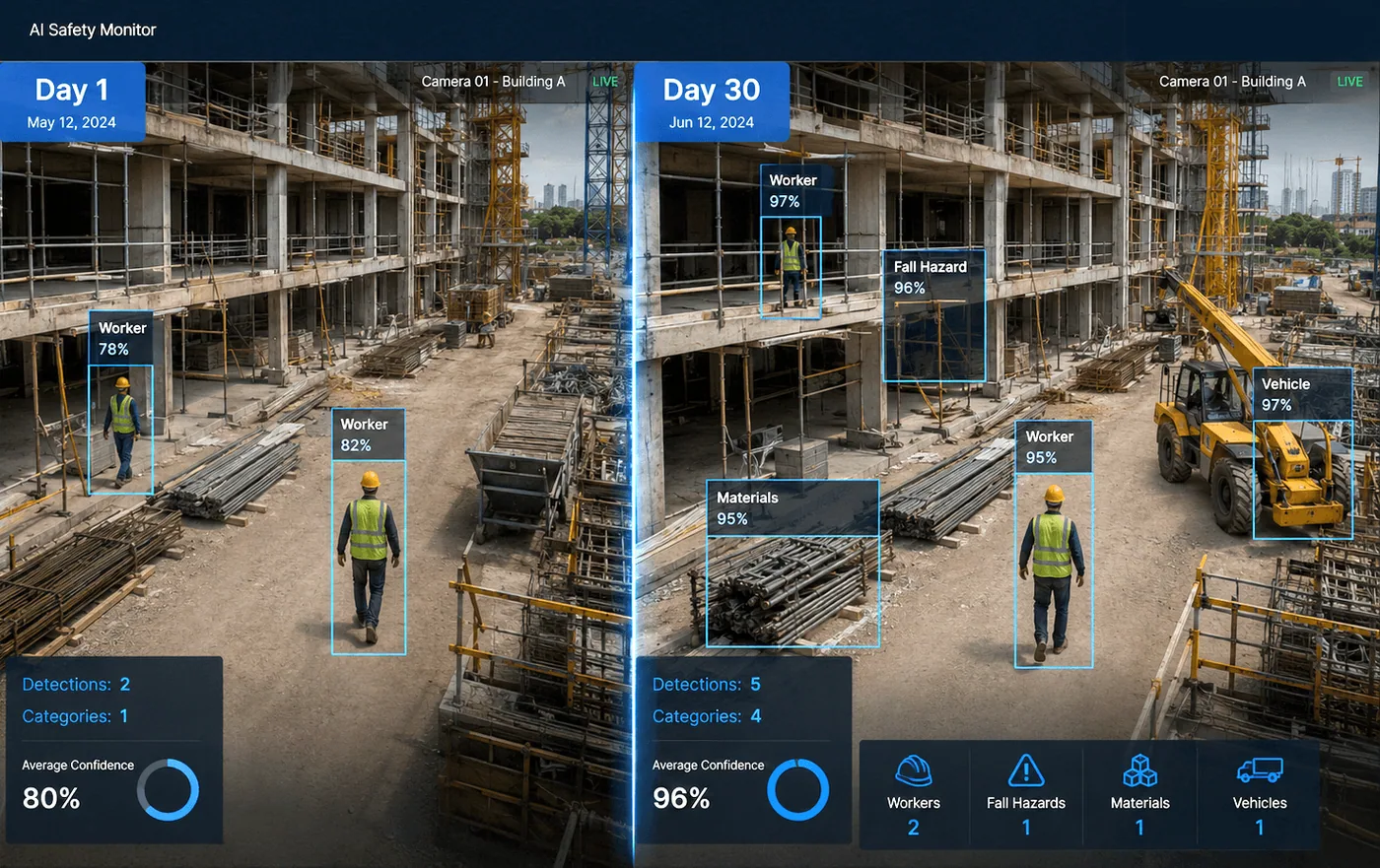
AI safety that gets smarter with use
The AI learns automatically every day, so accuracy improves the more you use it. You get AI safety management tailored to your site.
Two camera types
Choose based on site conditions. Both are viewed on the same screen.
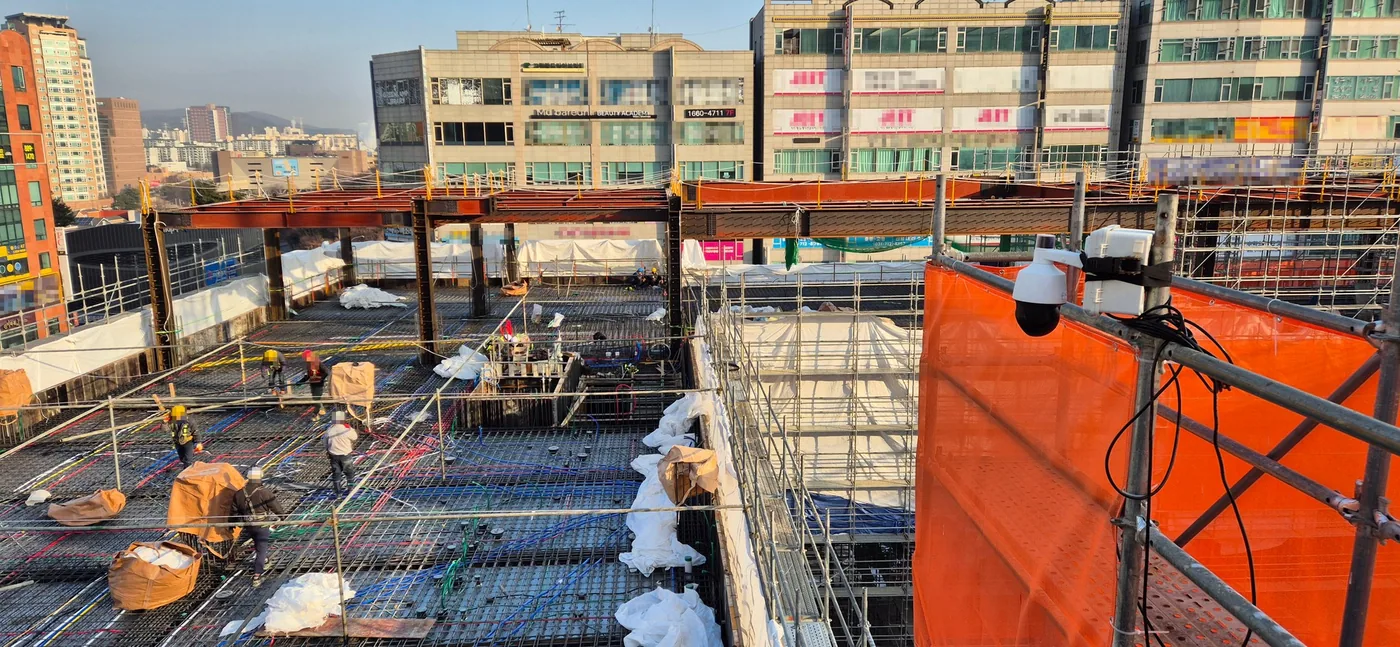
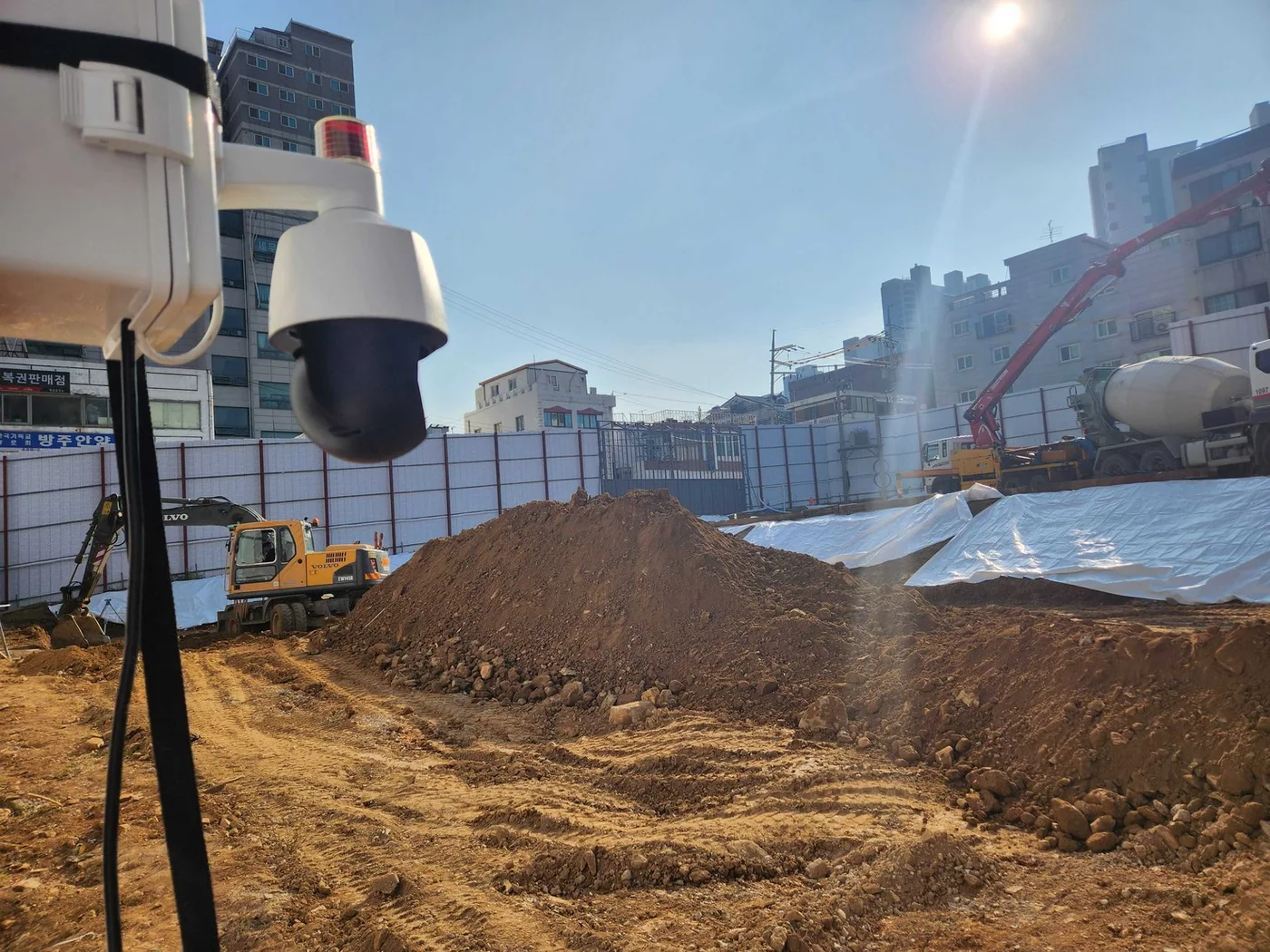
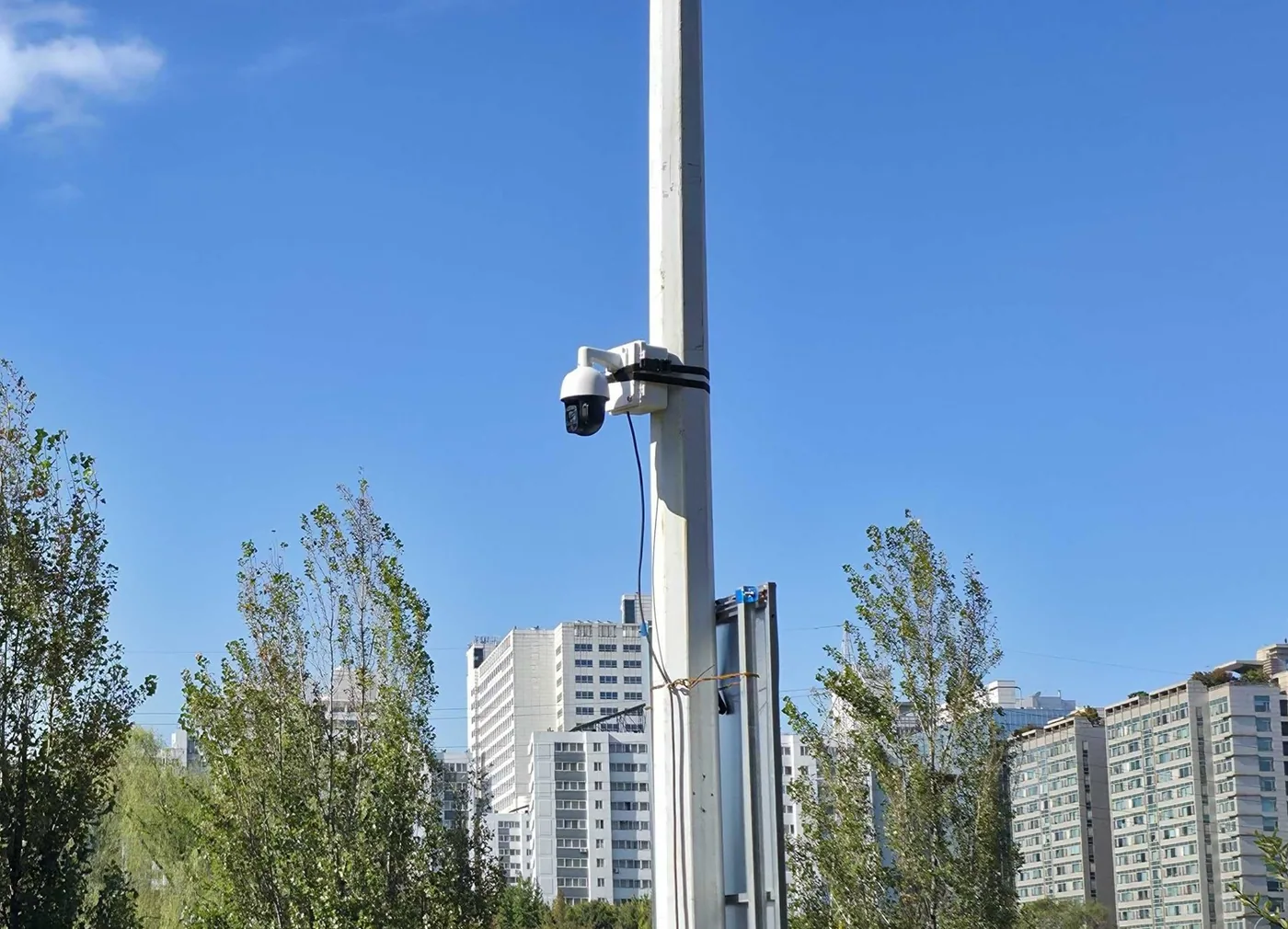
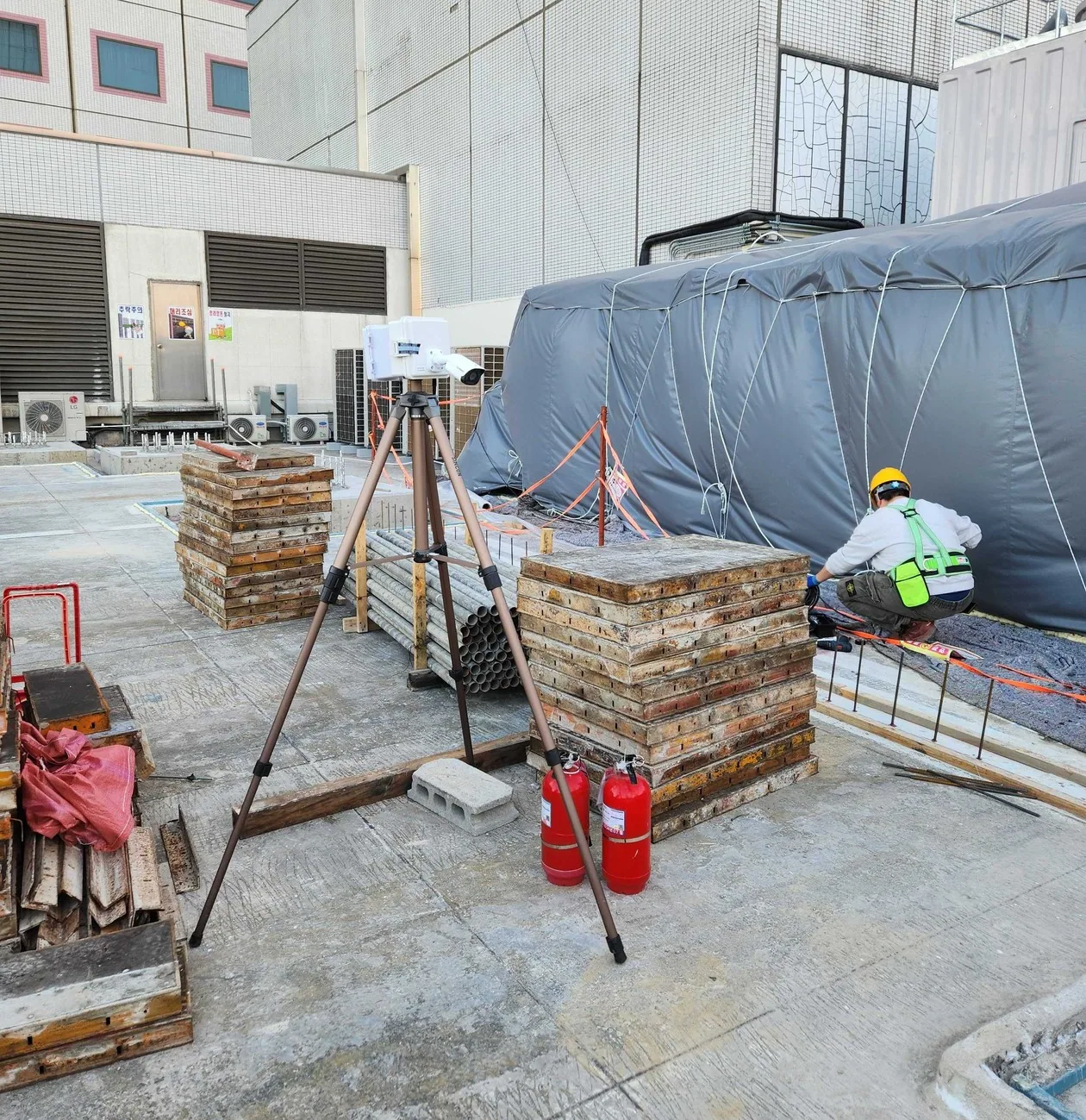
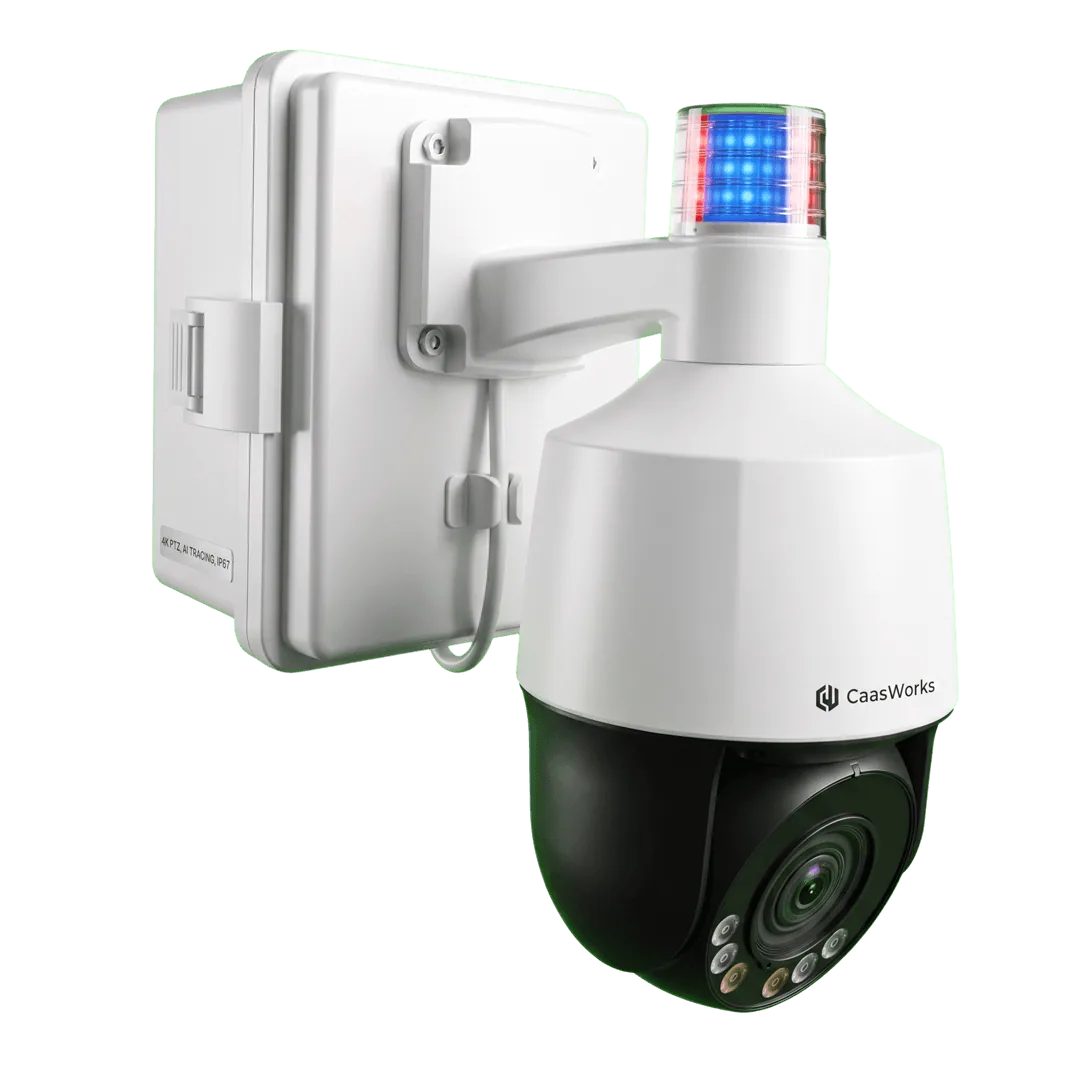
Fixed (PTZ)
A fixed PTZ-type CCTV that installs quickly over wireless communication and transmits video reliably.
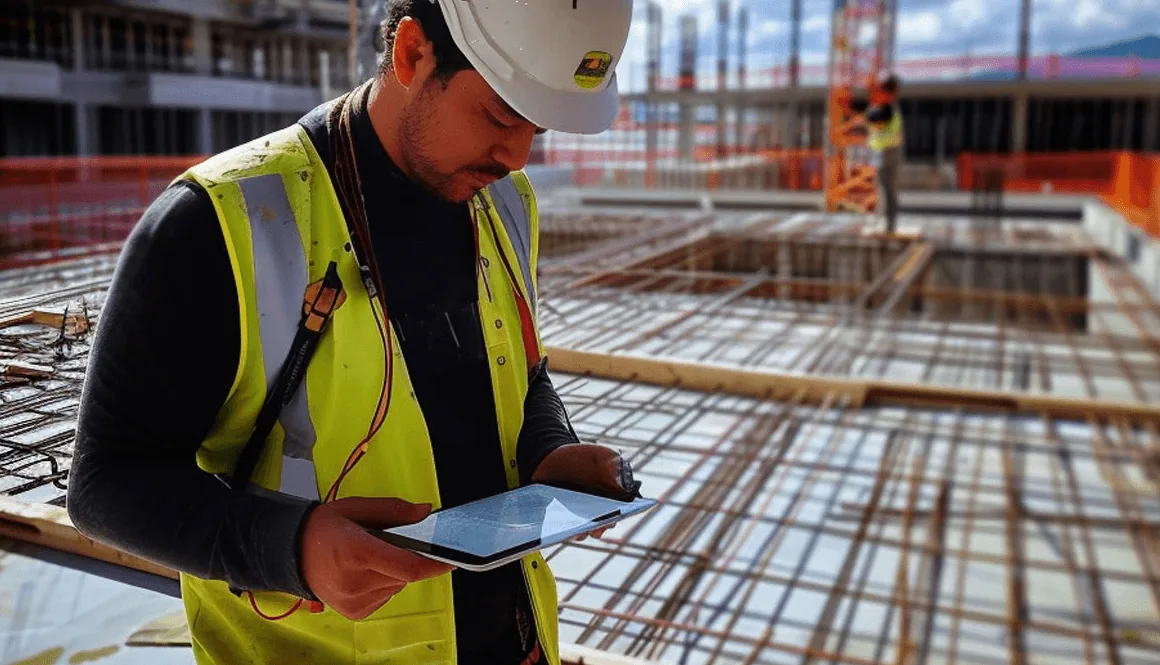
Digital transformation of construction sites
Check and manage site conditions with live video anytime, anywhere.
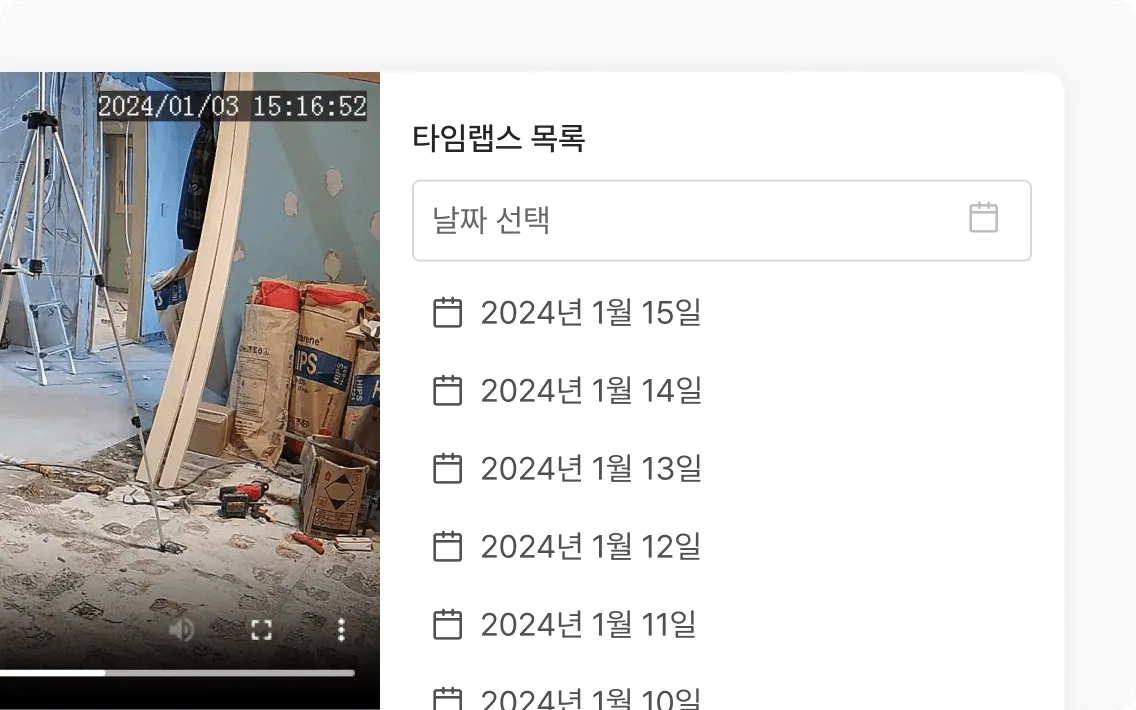
Automatic timelapse creation
Recorded video is summarized automatically every day so you can see the flow of work at a glance.
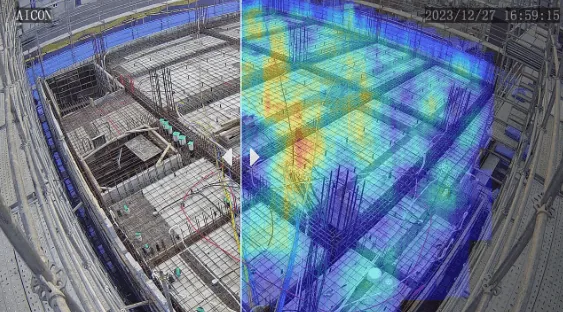
Before and after comparison
Compare before and after work with a slider, and the AI tracks worker movement and shows it as a heat map.
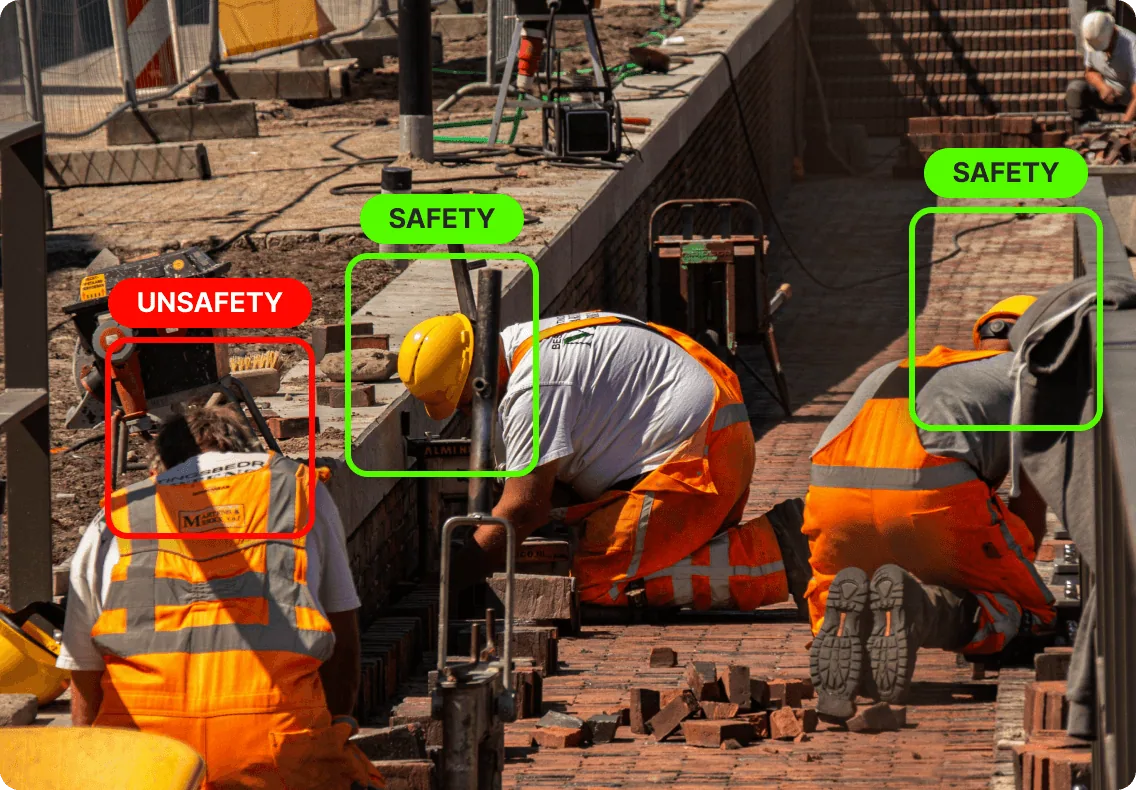
AI analysis solution integration
Detects whether workers are wearing hard hats and sends an alert to managers immediately.
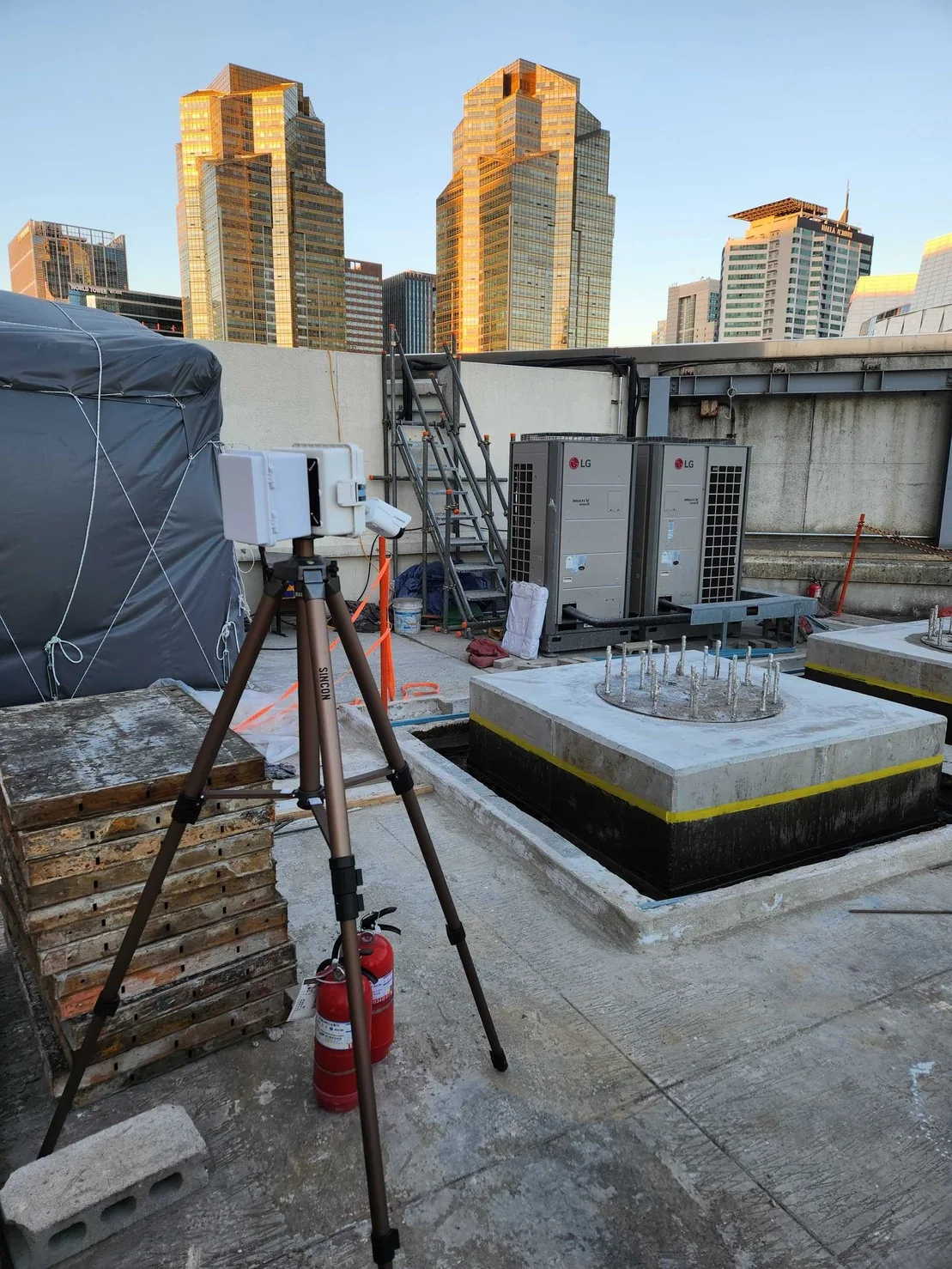
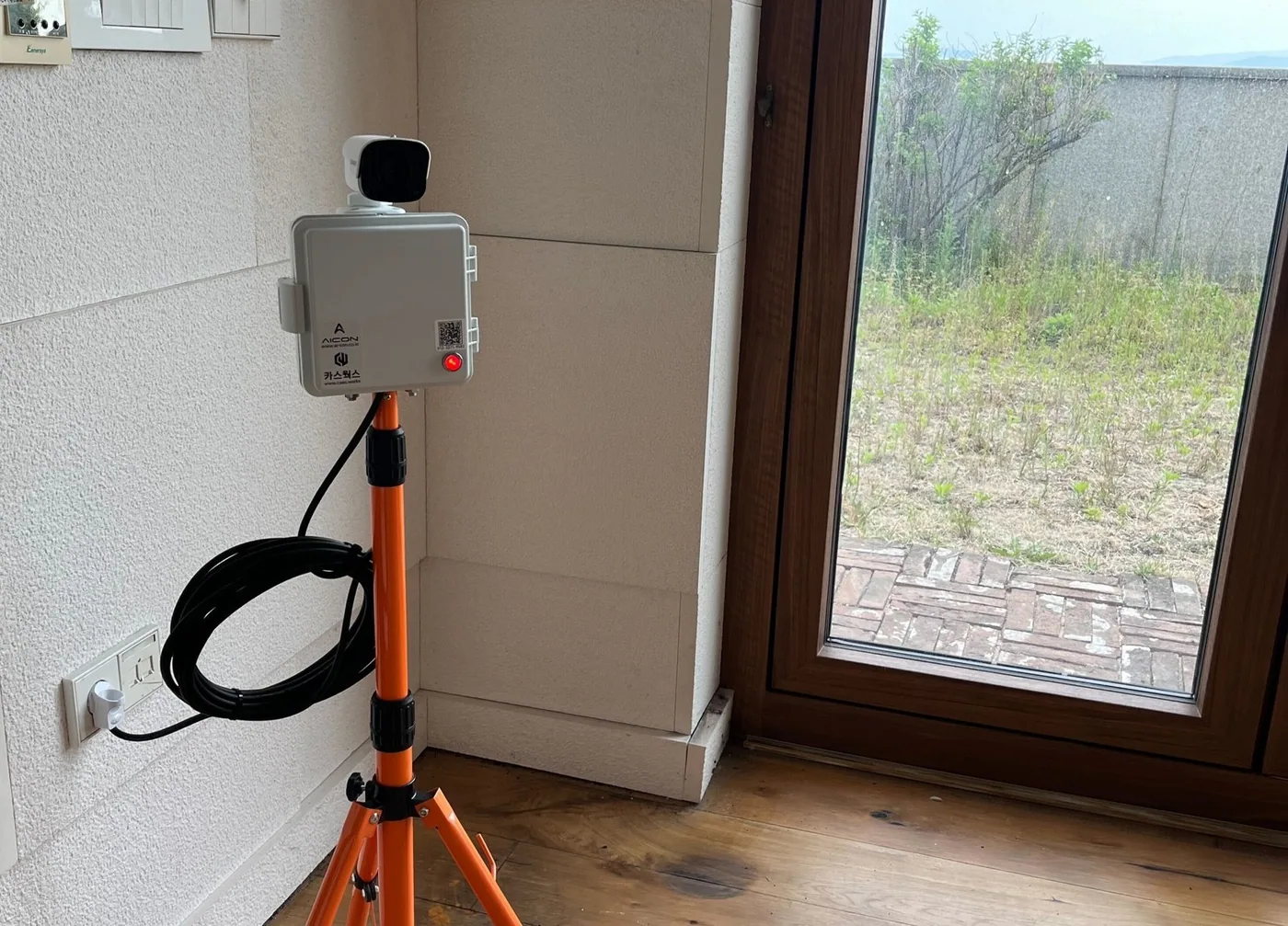
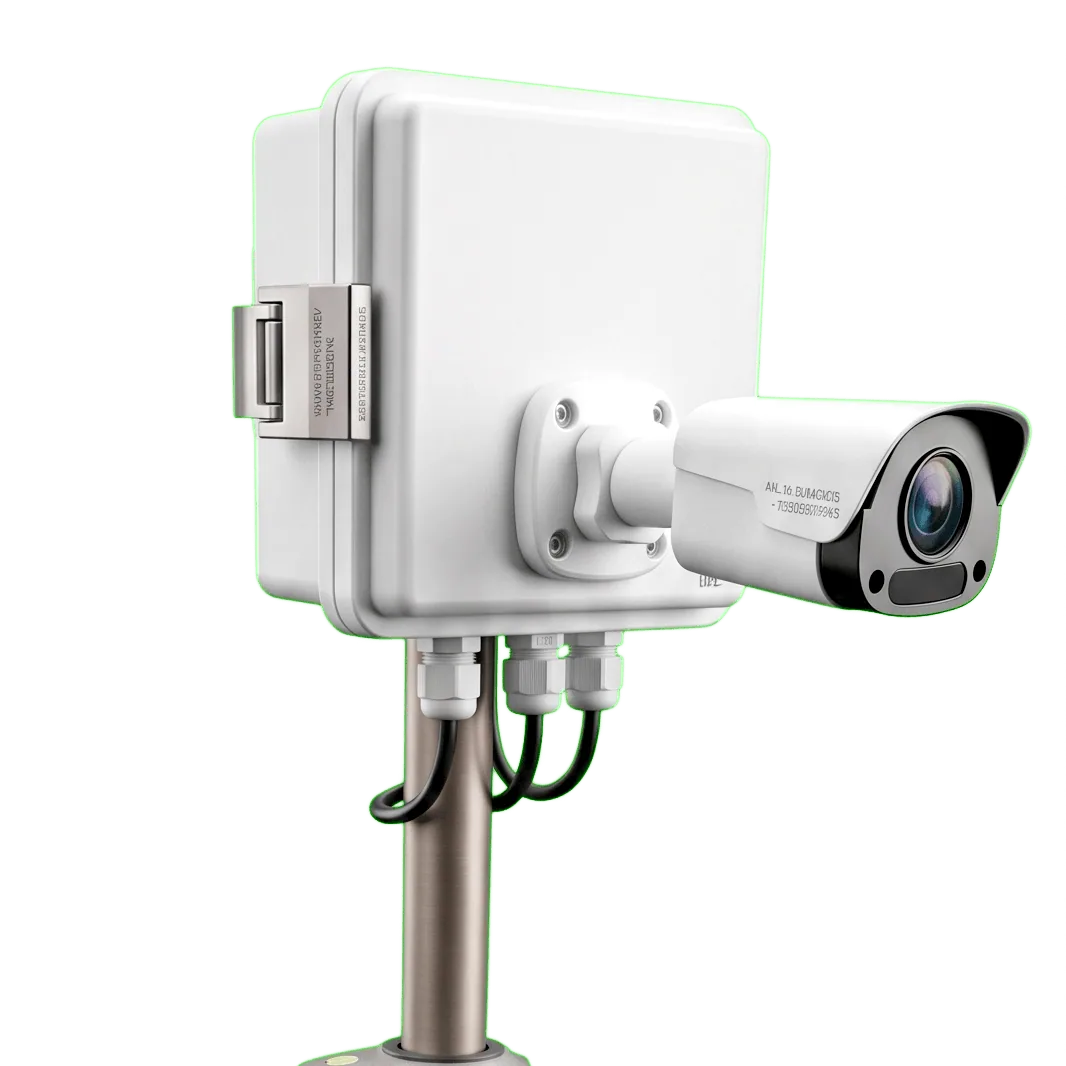
Mobile (Bullet)
A mobile Bullet-type CCTV that runs on battery and wireless communication, so it is easy to move and install.
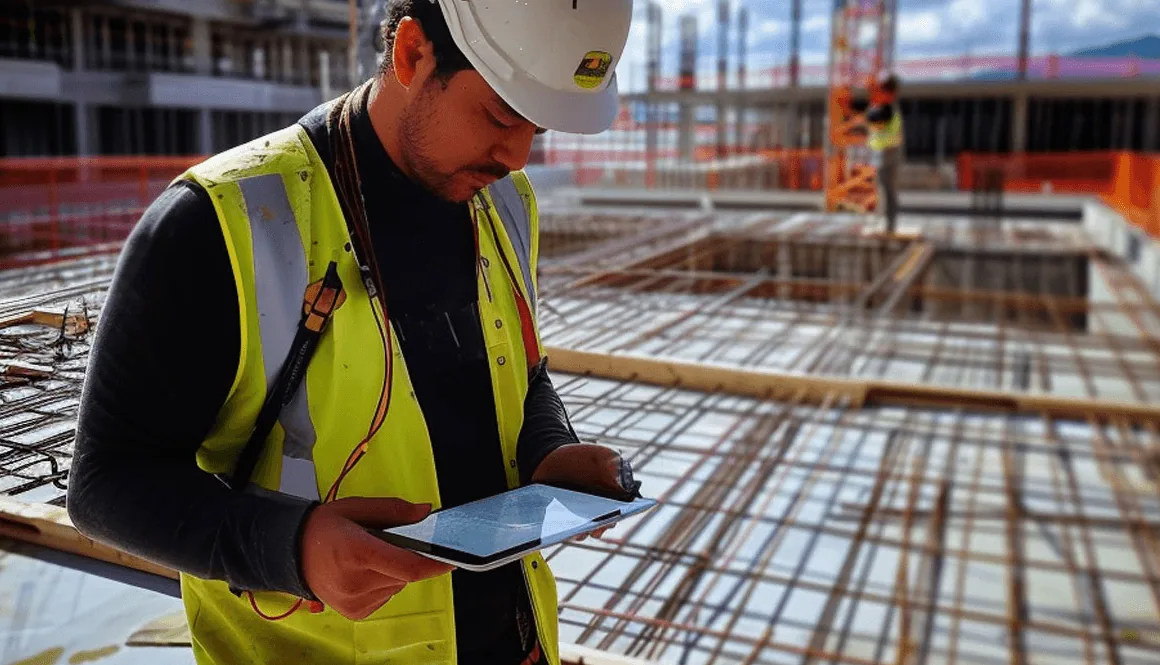
Digital transformation of construction sites
Check and manage site conditions with live video anytime, anywhere.
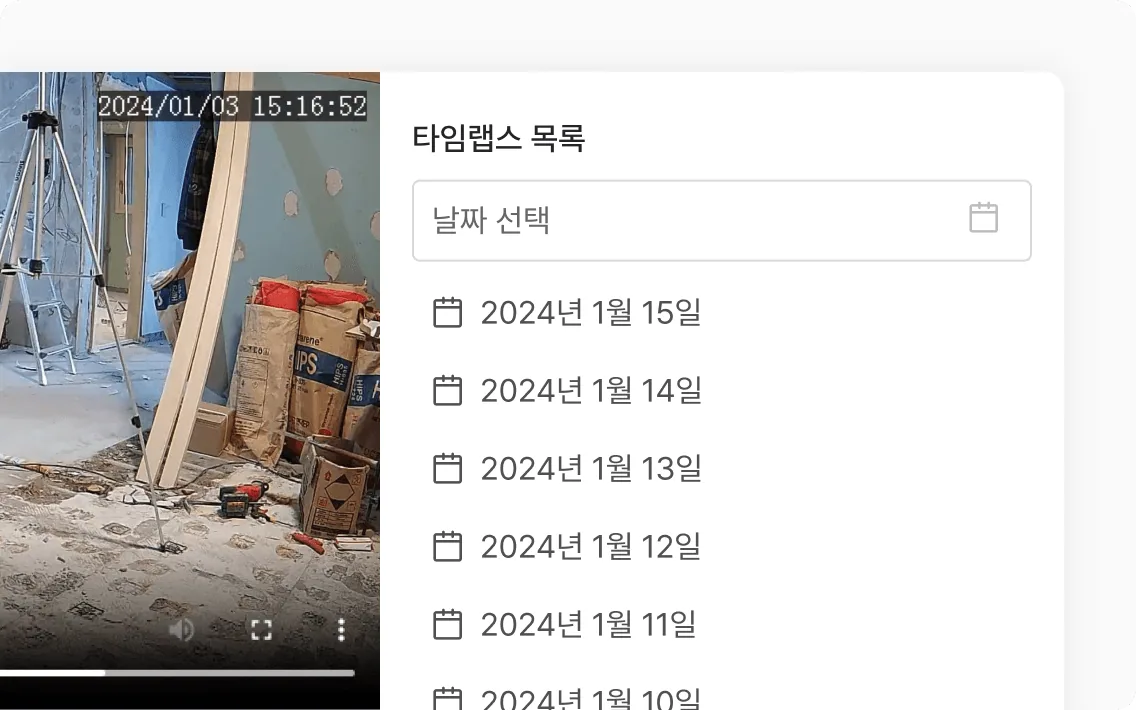
Automatic timelapse creation
Recorded video is summarized automatically every day so you can see the flow of work at a glance.
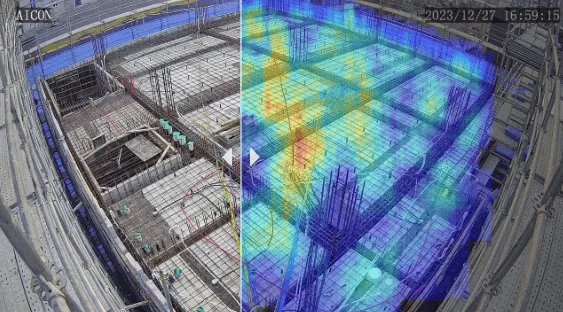
Before and after comparison
Compare before and after work with a slider, and the AI tracks worker movement and shows it as a heat map.
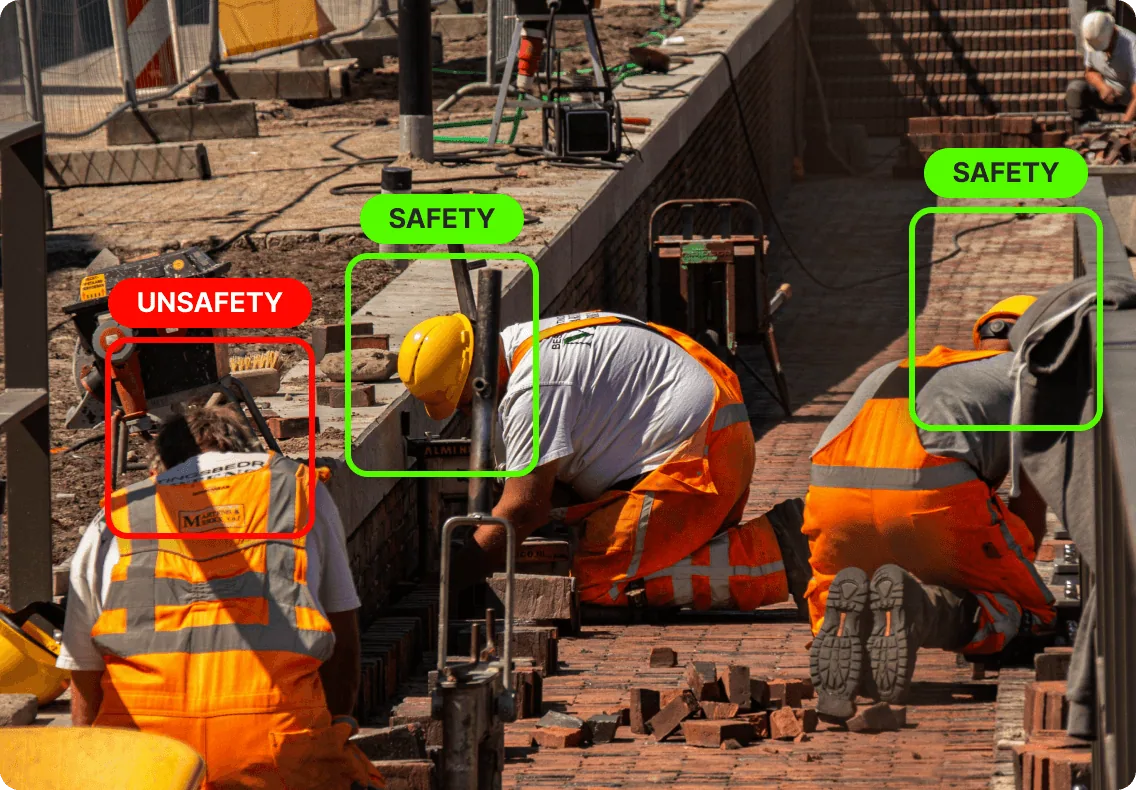
AI analysis solution integration
Detects whether workers are wearing hard hats and sends an alert to managers immediately.
Three screens
| Tab | Content |
|---|---|
| Live | Shows the current camera view |
| Device Recordings | Find and watch saved recordings by date and time |
| Device Timelapses | Watch the timelapses that have been created |
Live
Live video plays. If several cameras are connected, choose the one to watch.
If the video cuts out or shows black, check in this order.
- Device power and network
- Connection between the camera and the device
- Whether other cameras show video (whether only one camera or all of them have the problem)
Recordings
Choose a date and find the time on the 24-hour timeline. Sections with recordings are marked in color.
- Play: Watch directly in the window
- Download: Save as a file
Use it for accident investigations or checking work. Storage space is limited, so old recordings are deleted automatically. Download videos you need to keep in advance.
Timelapses
A long period is compressed into a short video. For example, a day of work becomes one minute.
- Daily, weekly, and monthly lists
- Find by date on the calendar
- Play and download
They are often used as progress report material or completion documents.
Checking device status
The device status is always shown at the top of the screen.
| Display | Meaning |
|---|---|
| Running | Operating normally |
| Connecting | Connecting to the camera |
| Retrying | The connection dropped and it is reconnecting |
| Stopped | Not running |
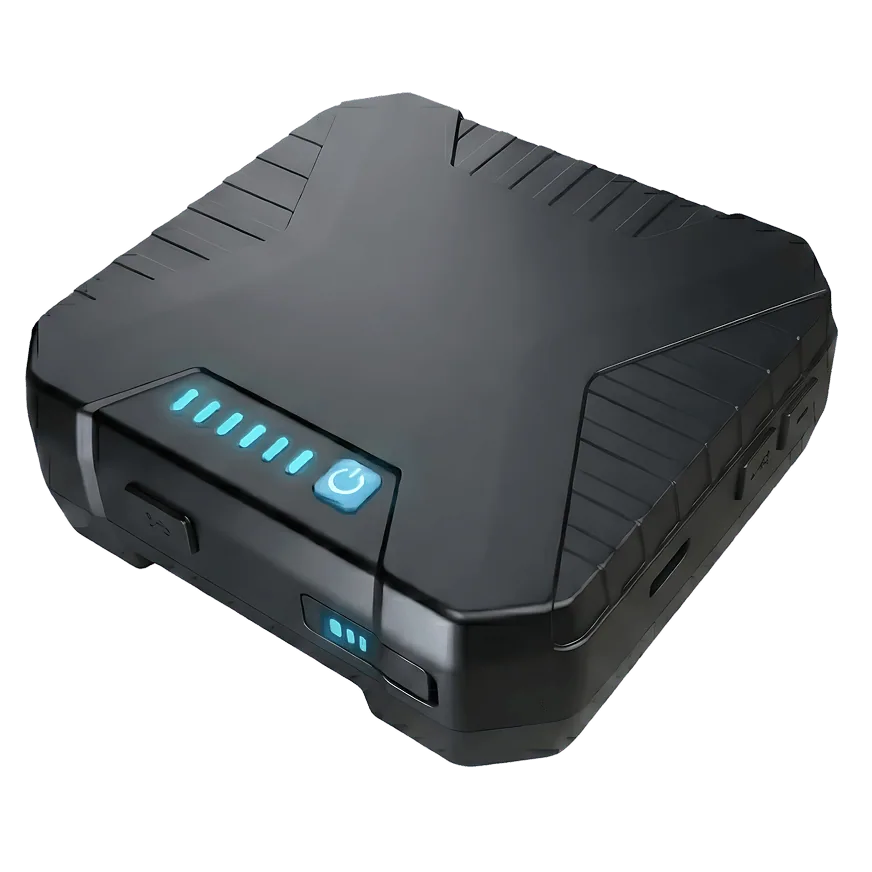
For battery-powered devices, the remaining charge and power connection status are shown too. If Retrying continues for a long time, there is a problem with the camera or network.
With other solutions
AI Real-time Hazard Detection and AI Real-time Headcount use the video from cameras connected to this device. So when this device stops, those solutions stop too.
If detection suddenly stops, check the device status here first.
Detail images