Video Edit Studio
Last updated: 2023.8.29
Load multiple videos and photos and combine them into a single video optimized for submission as a 'Seoul construction project video'.
Ordering Video Edit Studio
- You can order the product from the Smart Solution > Products menu. Order Video Edit Studio ➡️
- Click the Video Edit Studio product.

- Select a project, then click the [Product order] button.

Editing a video
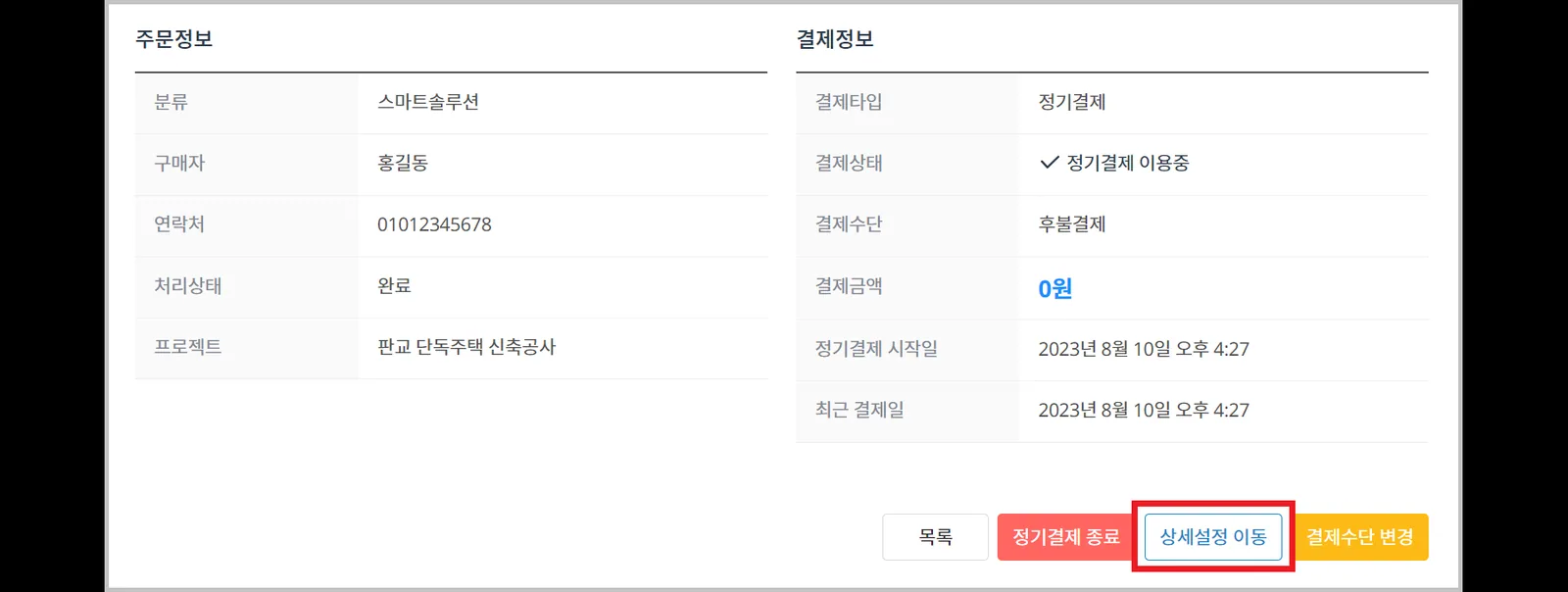
- You can edit videos in the Smart Solution > Purchase history menu.
- Click the 'Video Edit Studio' purchase history entry.

- Click the [Settings] button at the bottom of the page.
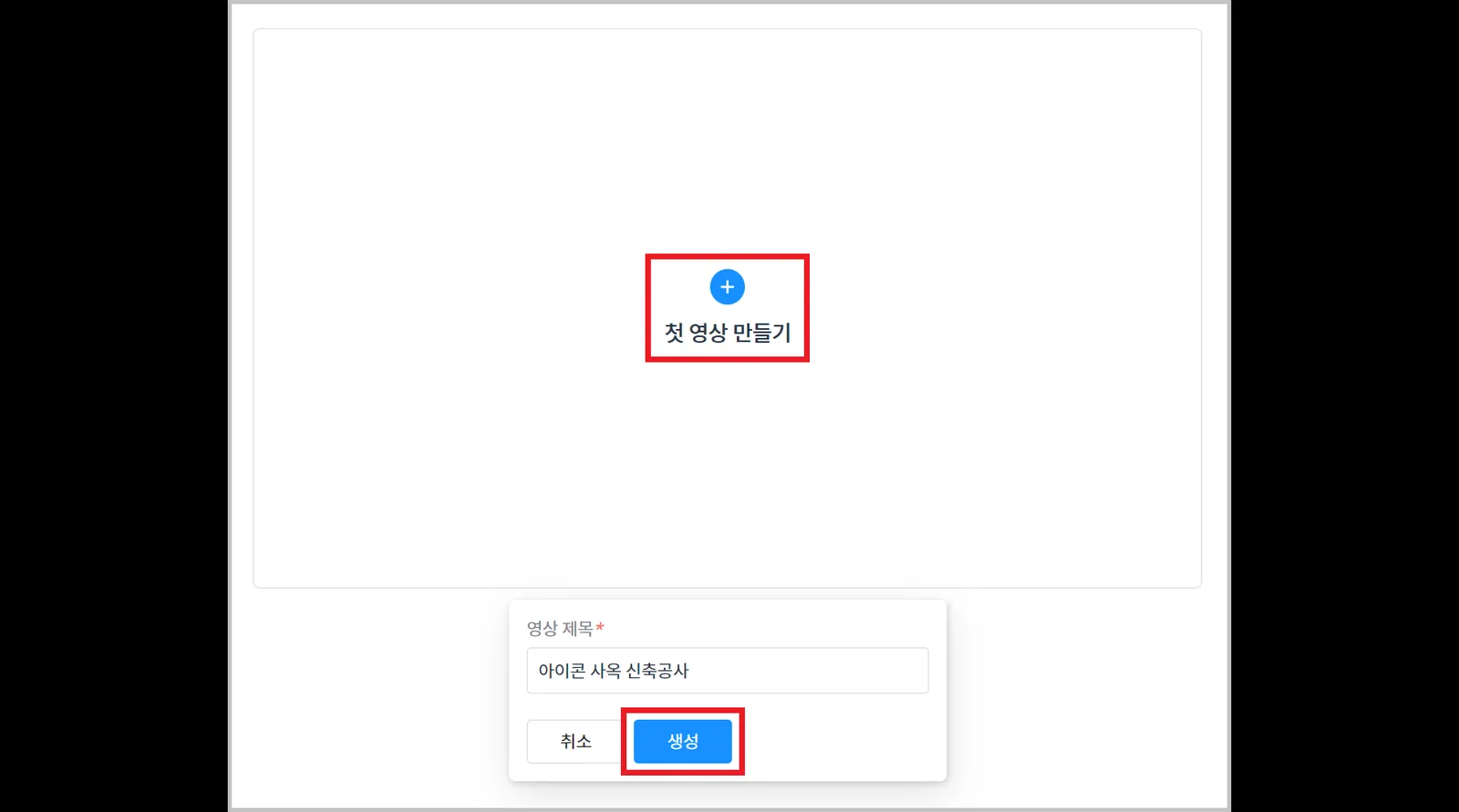
- Click the [Create first video] button, enter a video title, and click the [Create] button.
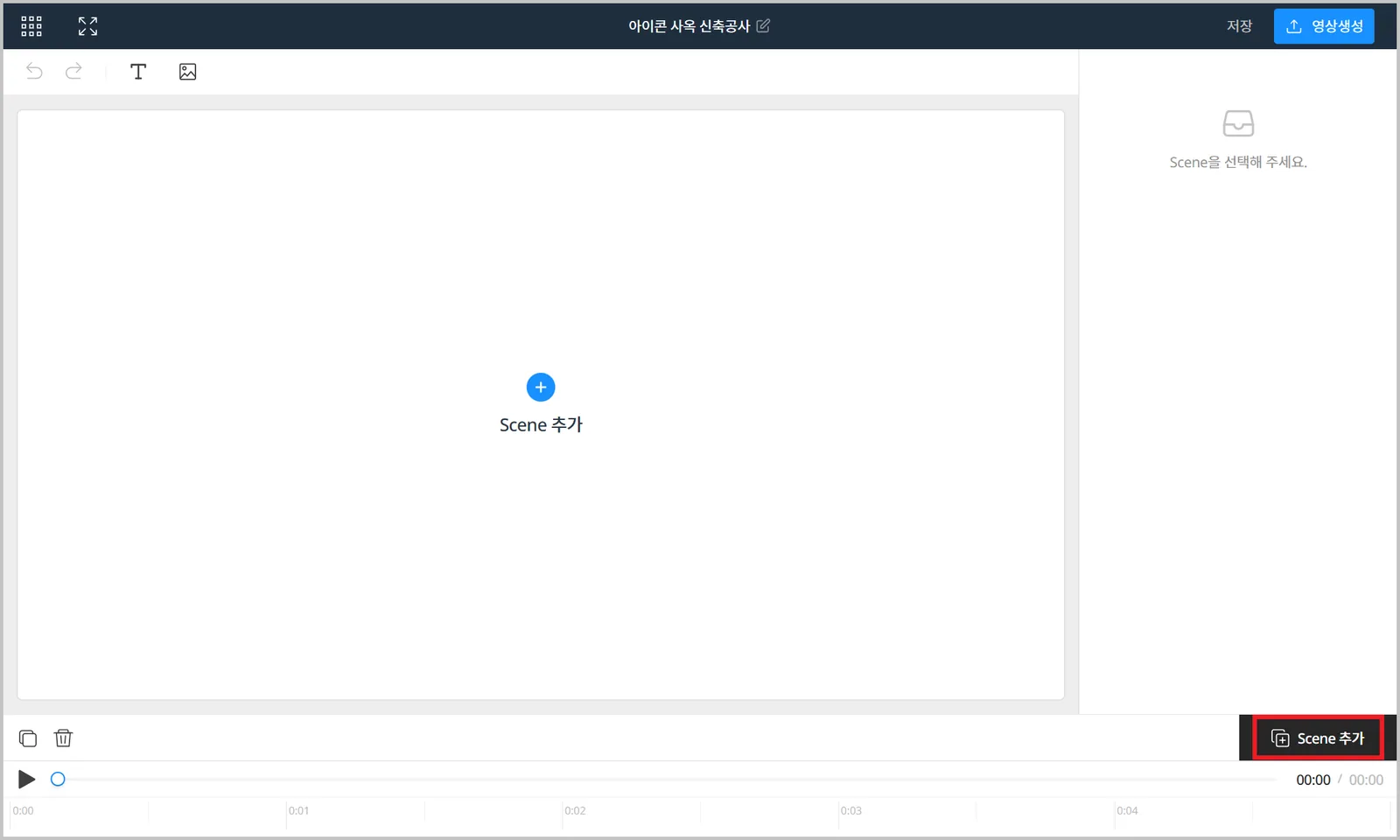
- Click the [Add Scene] button.
What is a Scene?
A Scene is the basic unit of a video. You combine and arrange multiple scenes to produce one finished video.
- Edit the video.
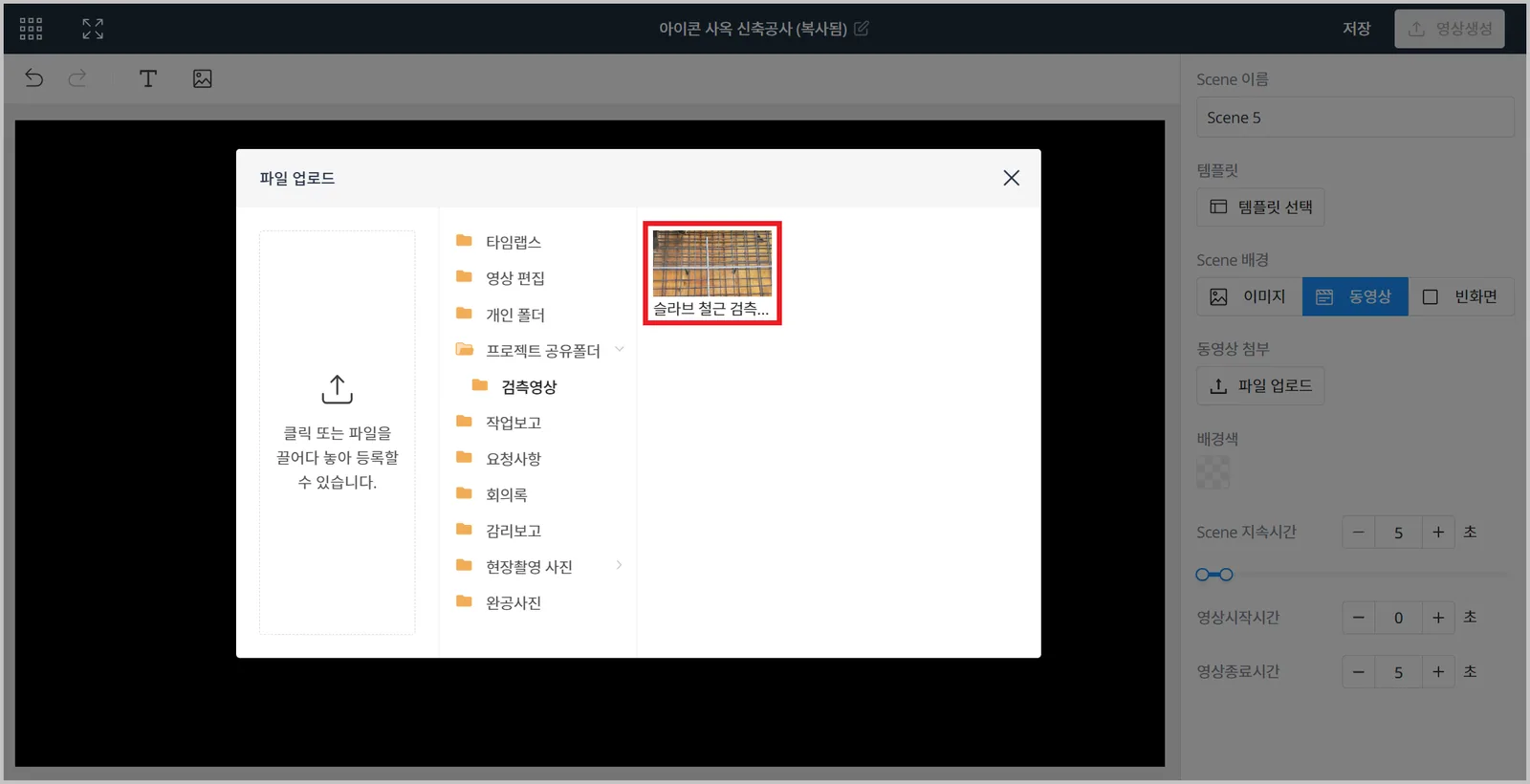
- Click the 'Scene Background' tab you want, then click the [File Upload] button.
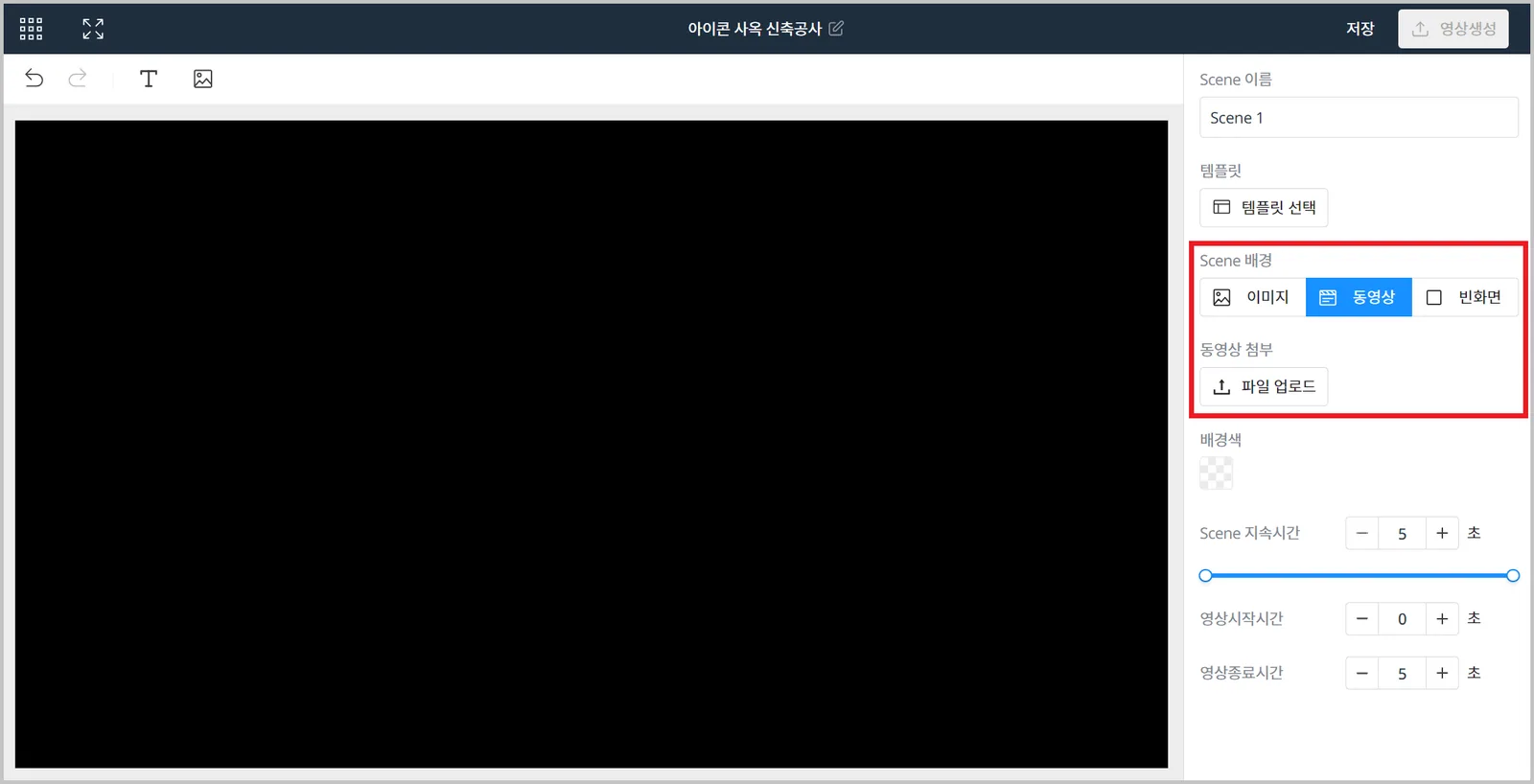
- Select the file to use as the background.
You can load files from the project Repository or files saved locally.
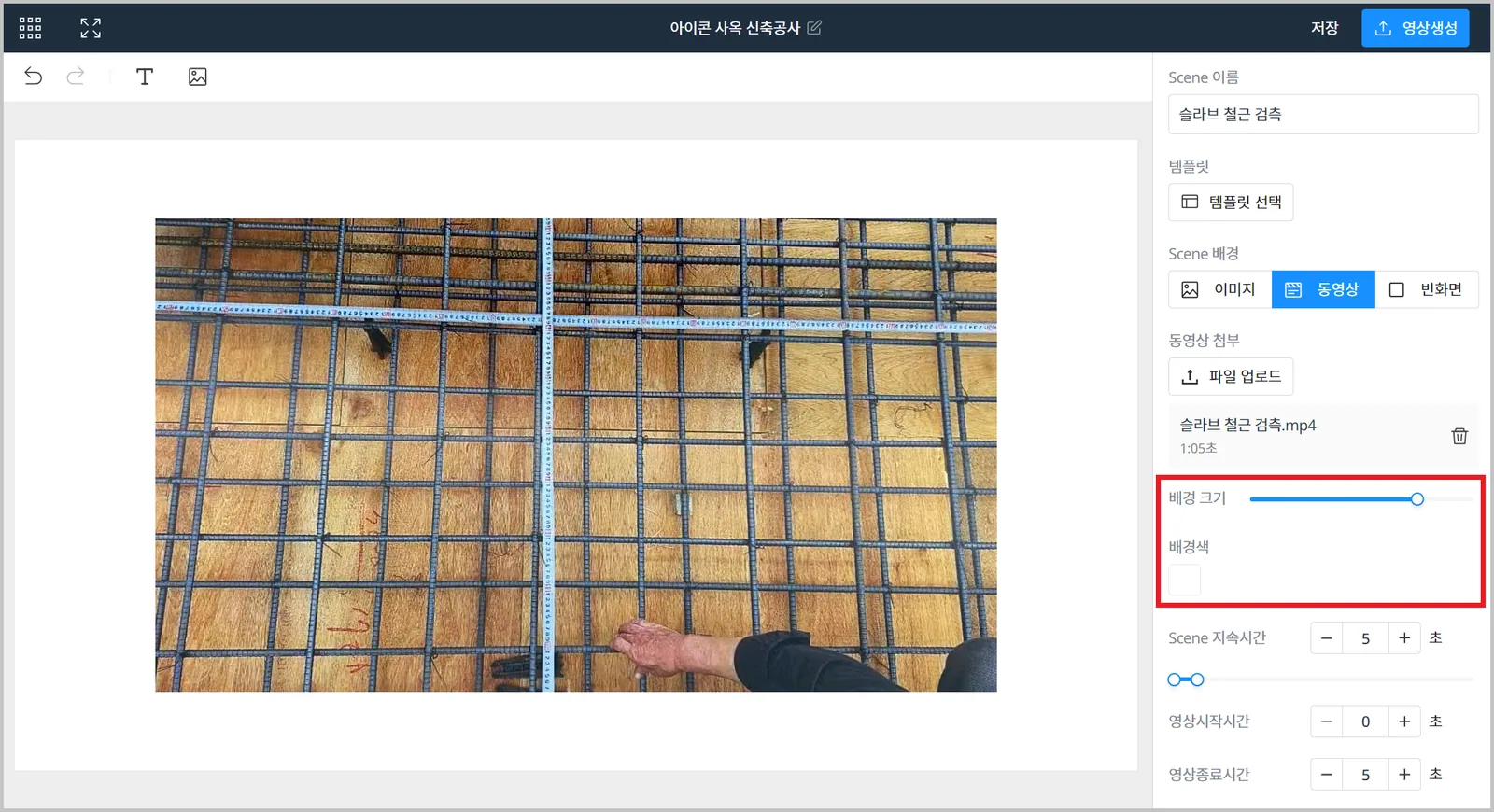
- Set the background size and background color.
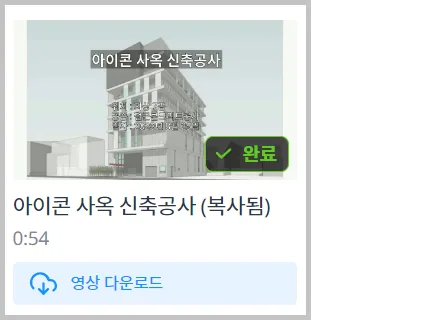
- When editing is done, click the [Generate video] button, then click the [Export] button.
You can download the video after 'Generate video' finishes.

Make use of the Save (draft) feature.
If you have to stop partway through editing, saving a draft keeps your previous work so you can continue next time.