Quotation
Last updated: 2024.03.07
You can easily issue quotations for construction and interior sites, easily check change history such as edits and progress, and apply design changes to the quotation right away.
Finished quotations can be sent straight to the customer by KakaoTalk notification or email, and you can manage the customer's viewing history, quotation confirmation, and more in one place.
Write a quotation
- You can write a quotation in the Company > Quotation > Quotation menu.
-
Click the [Create quotation] button.

-
This is the quotation writing screen.
A quotation consists mainly of basic information, recipient information, quotation details, total, notes, and attachments.
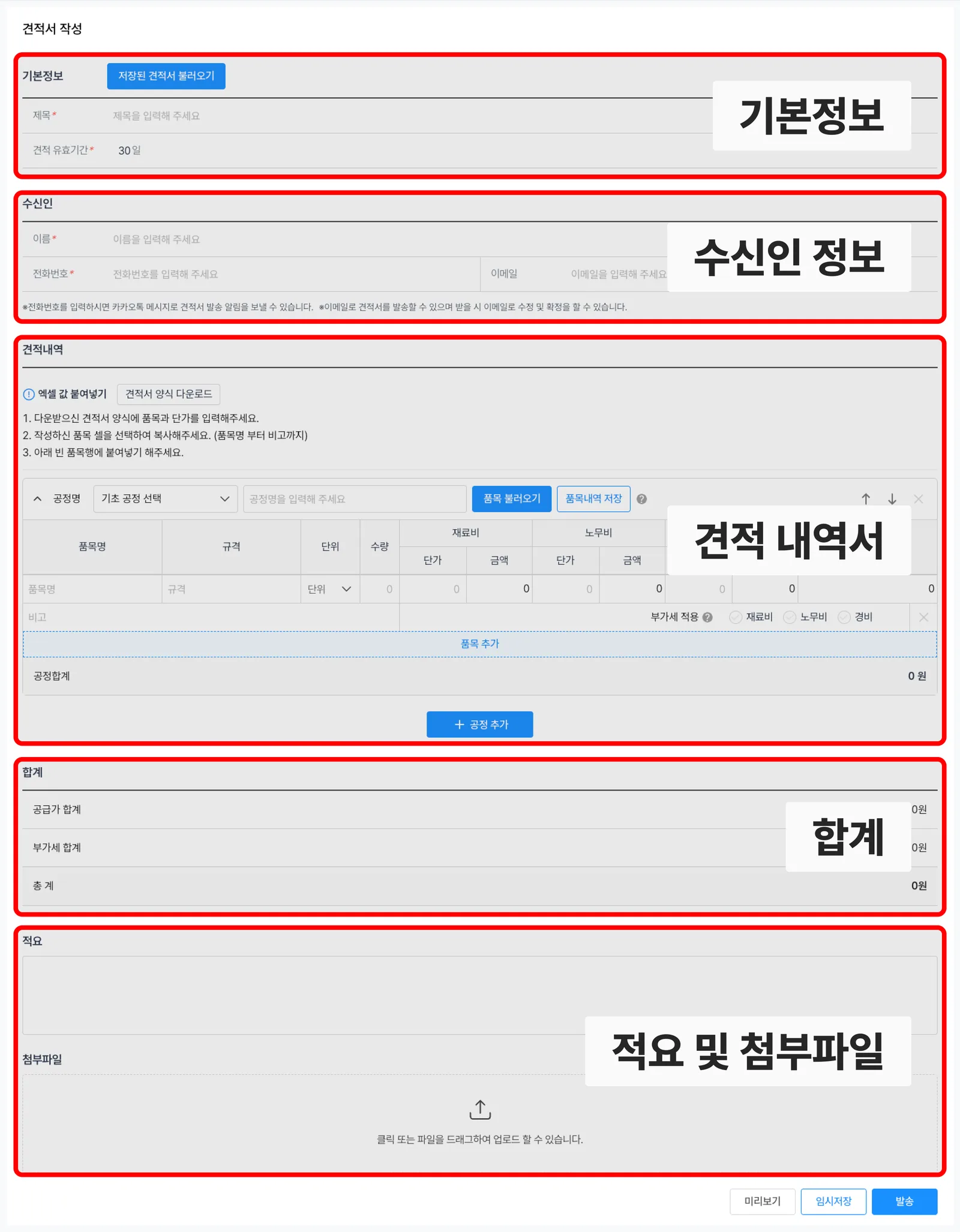
- Enter the quotation title[Figure 1] and validity period[Figure 2]. (If you have a quotation created before, click the Load button to load it.)

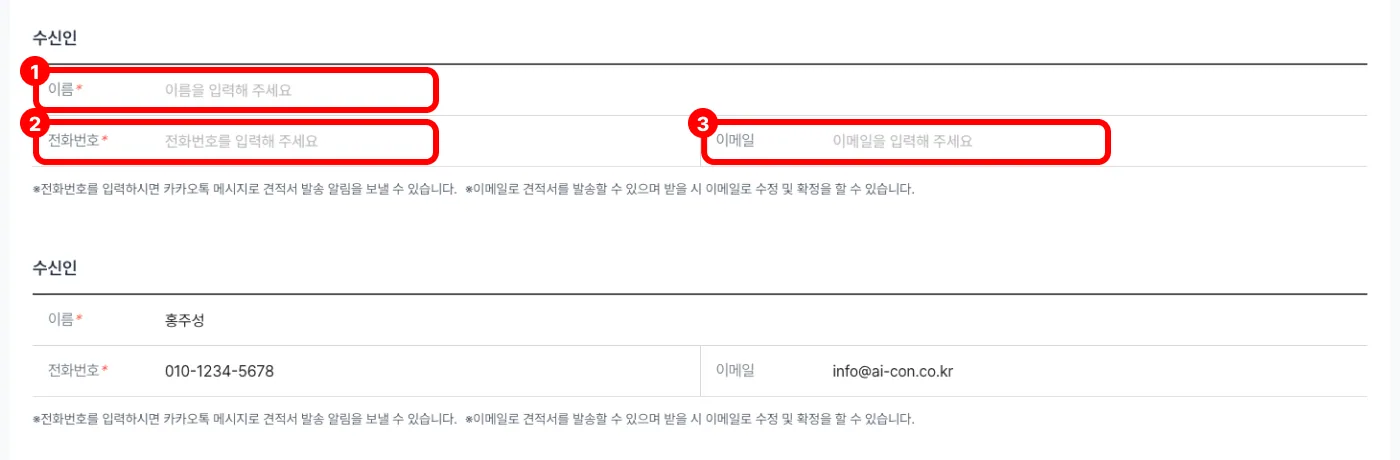
- Enter the information of the recipient who will receive the quotation notification. (Name and phone number are required.)
- Enter the quotation details.
You can enter quotation details in two ways.
Direct entry
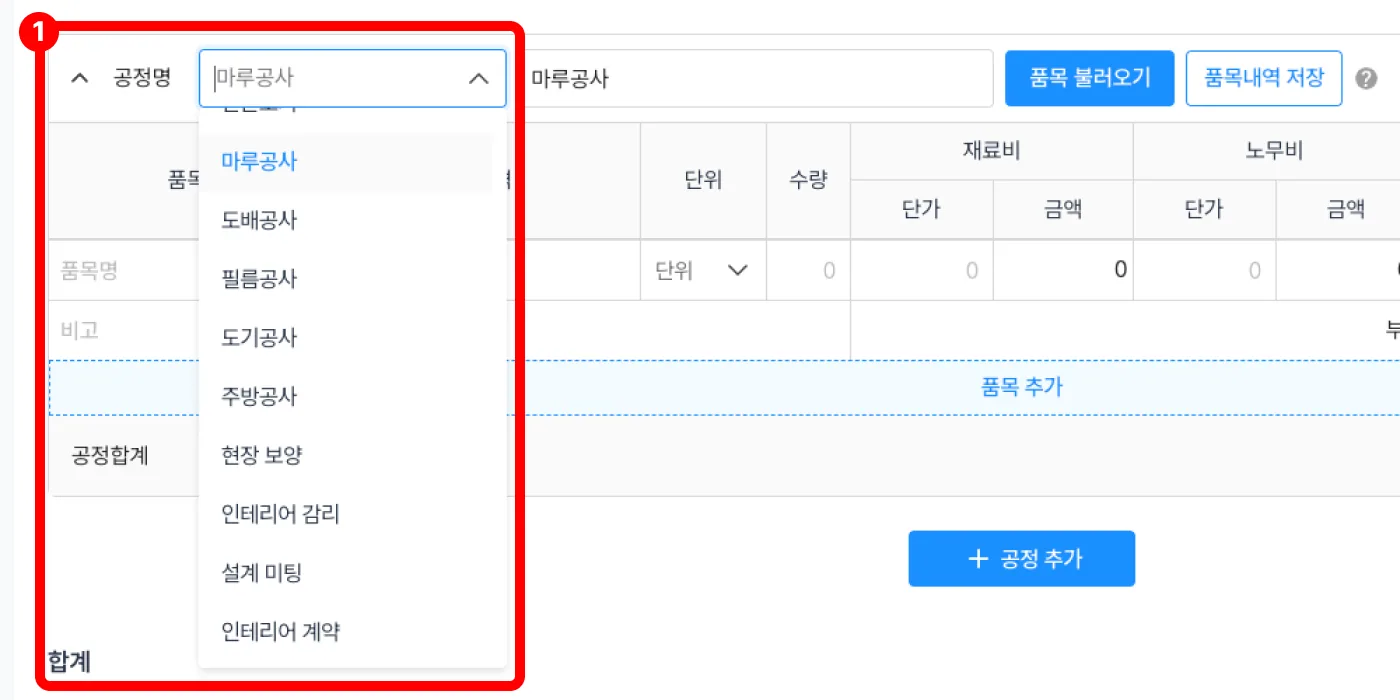
- Select a process name from the list in [Figure 1].
If the process name is not there, select [Not selected] and enter the [process name] yourself.
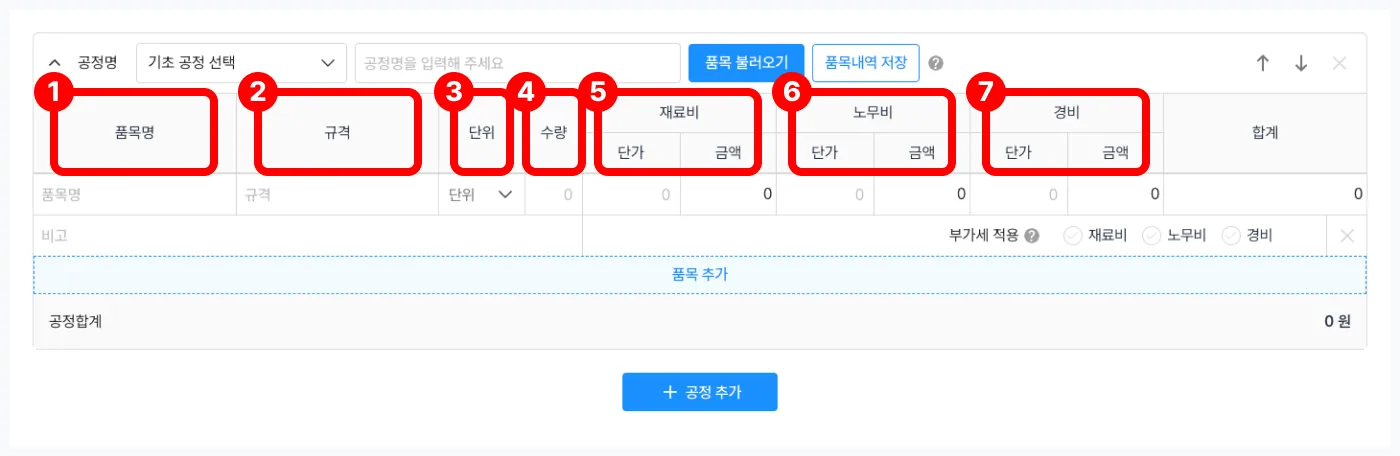
- Enter the item name, specification, unit, quantity, material cost, labor cost, and expenses in Figure [1~7].
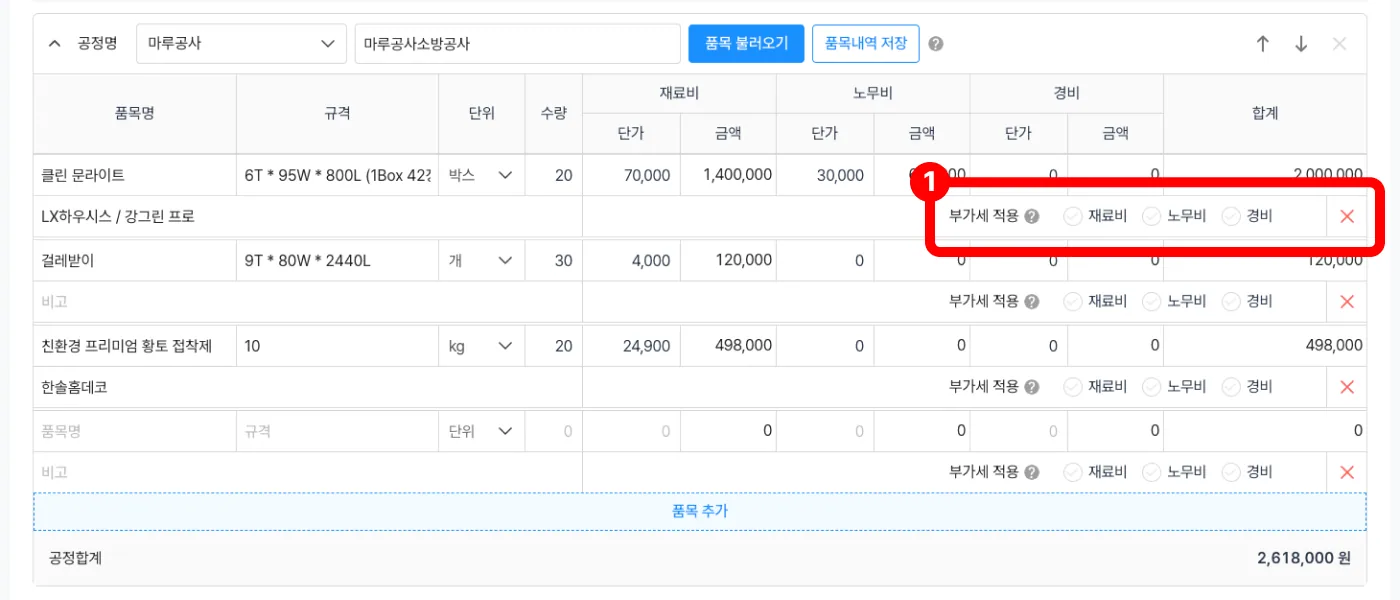
- In [Figure 1], select the items to apply VAT to.
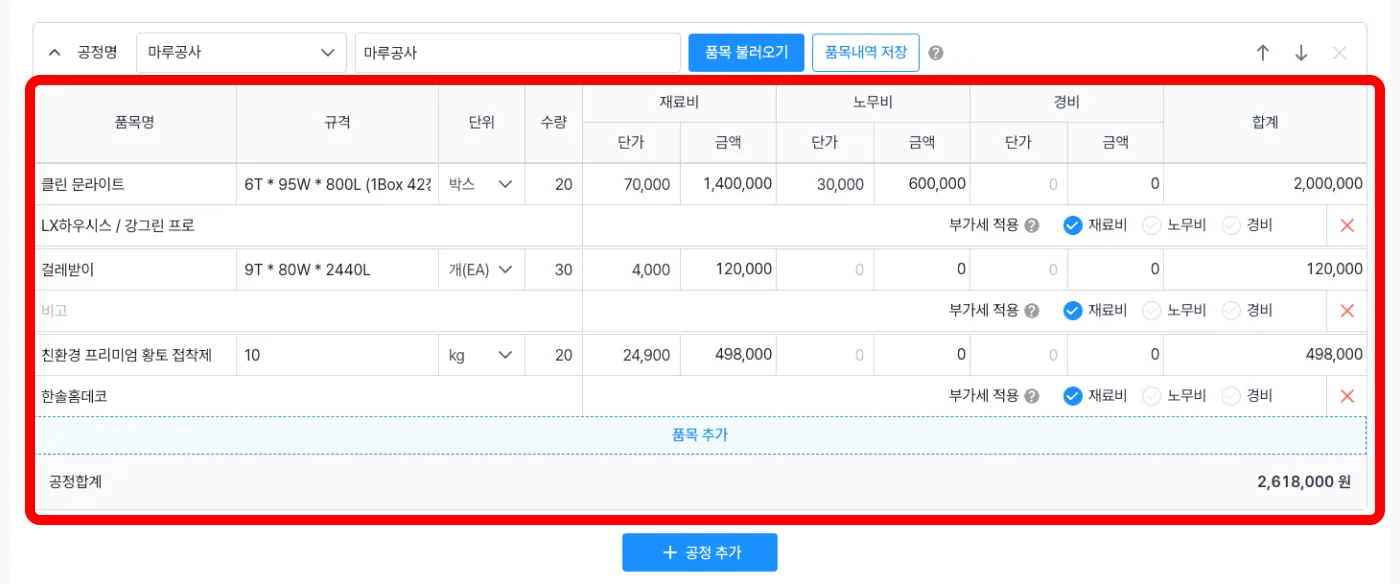
You can check the VAT for each item in the total.
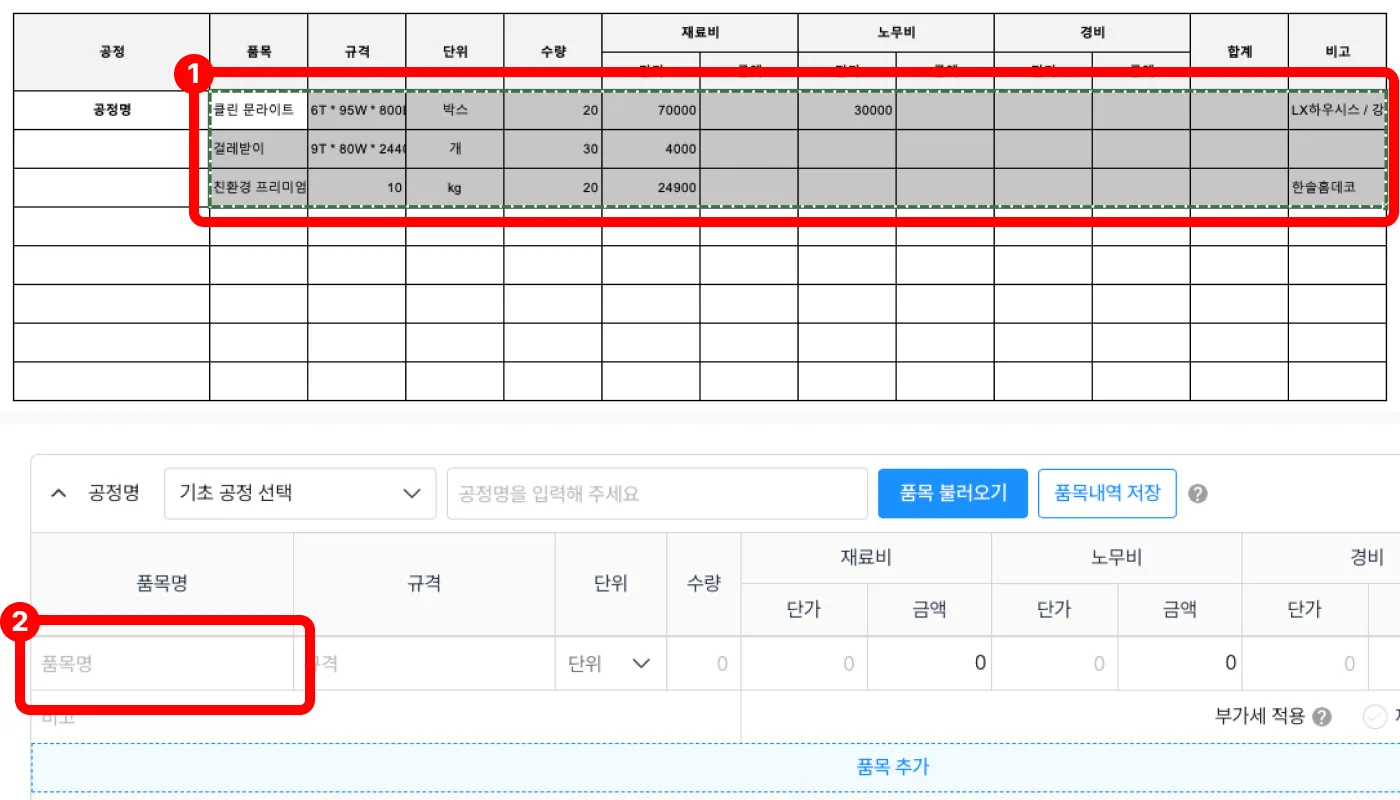
Paste from ExcelYou can enter items easily by copying and pasting from Excel.
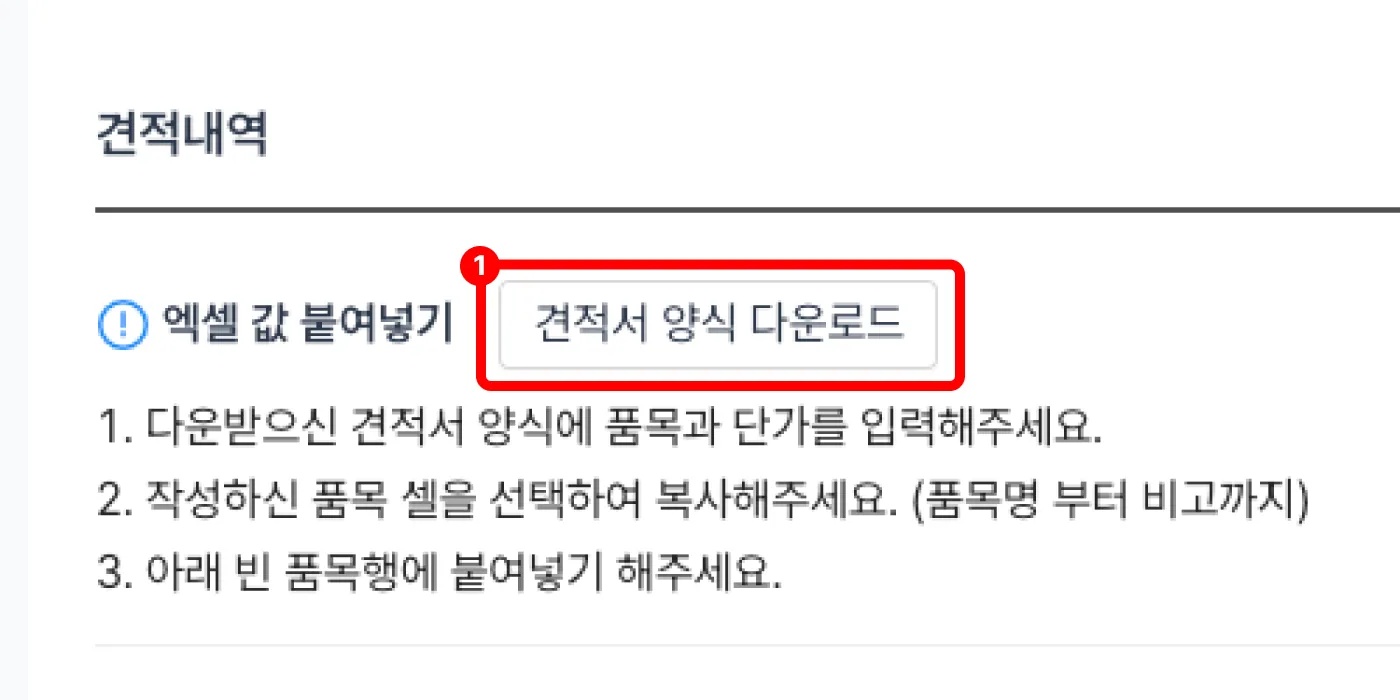
- Click the [Download quotation template] button on the right of the screen to download the Excel template.
- Copy the item list from Excel as in [Figure 1] and paste it into the empty item list as in [Figure 2].
- Select the items to apply VAT to.
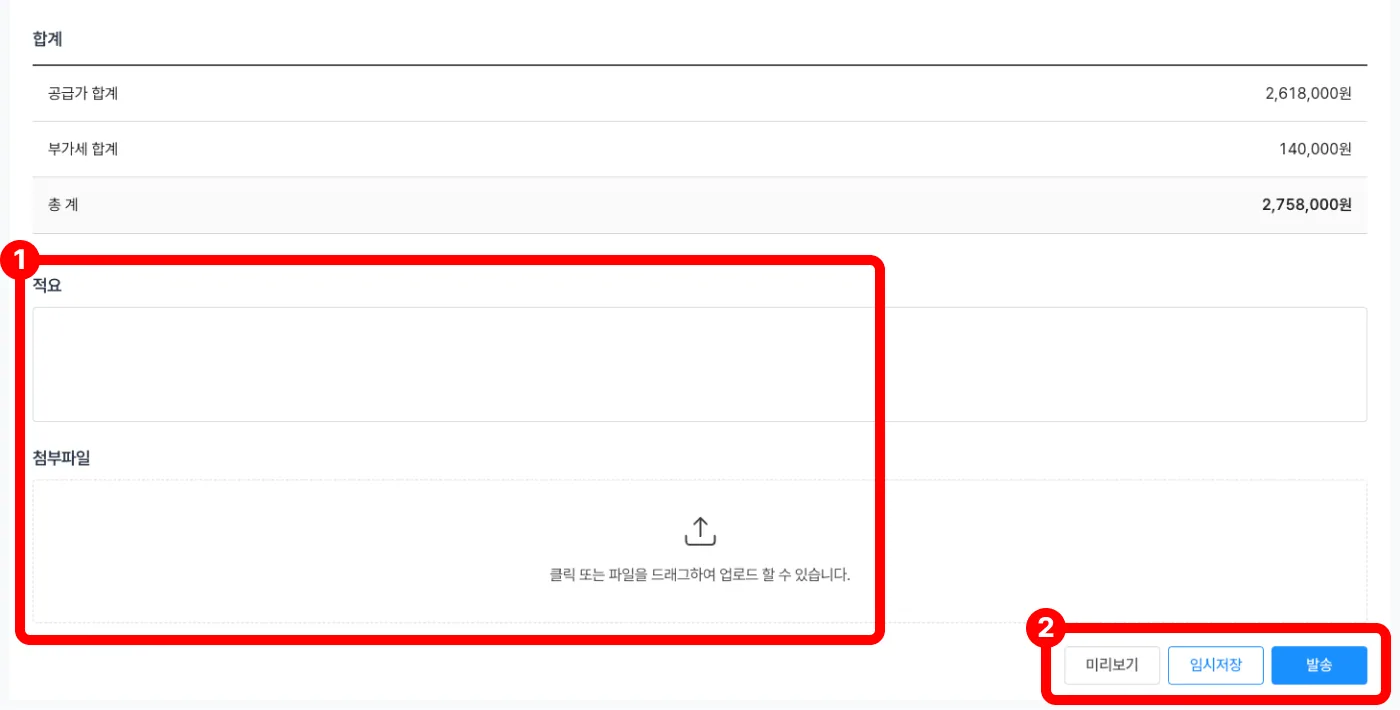
- When you finish entering the quotation, check the total.

- If needed, enter notes and upload attachments, then send the quotation.
Preview: Check the quotation that will be sent to the customer in advance.
Draft: Save the quotation you are writing as a draft.
Send: Send the quotation you wrote to the customer's phone number or email.