CaasWorks CAM
Using the app
- Launch the CaasWorks CAM app and allow the permissions in the order shown below.

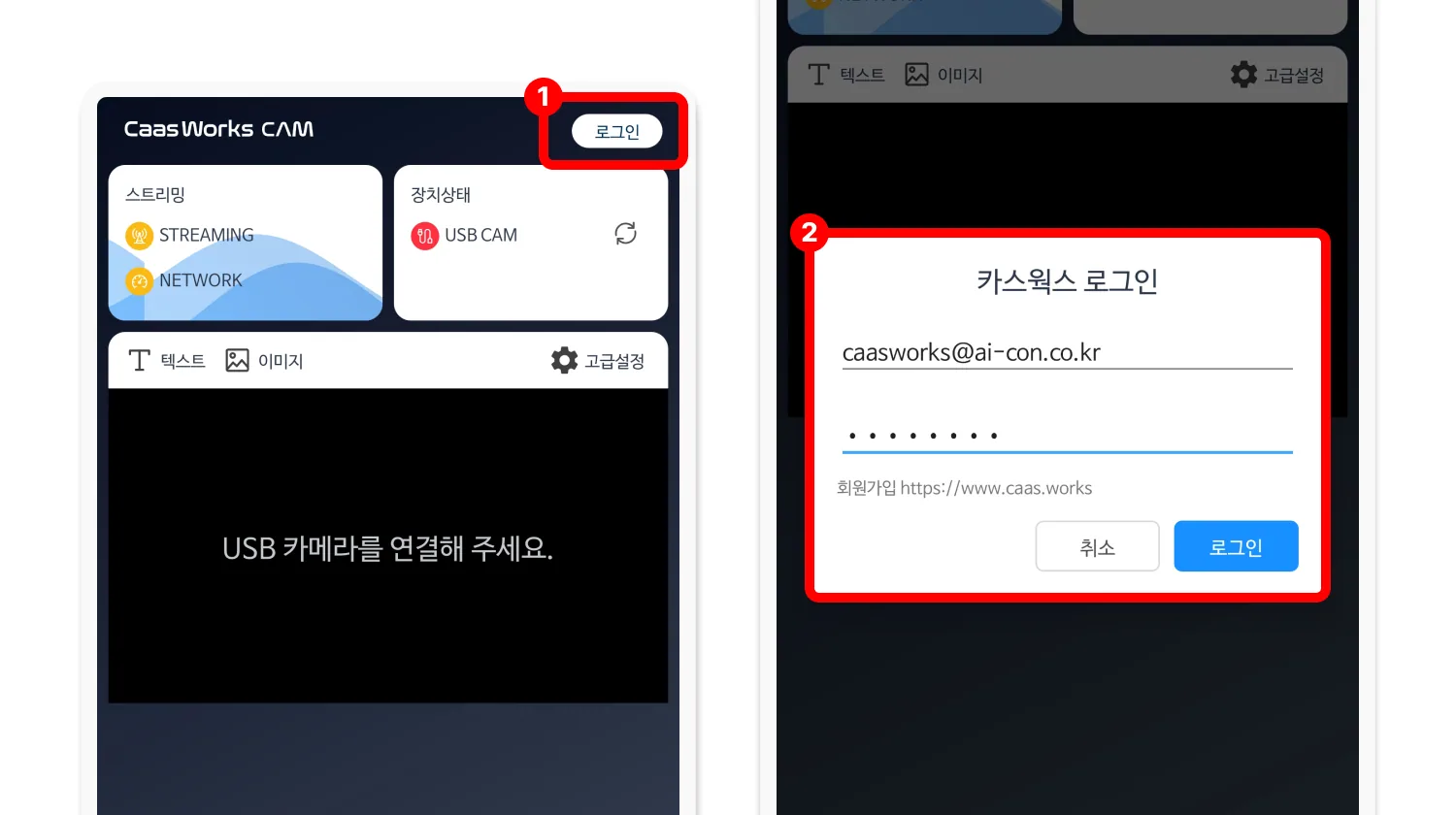
- Click the [Sign in] button at the top of the screen and sign in with your CaasWorks account.
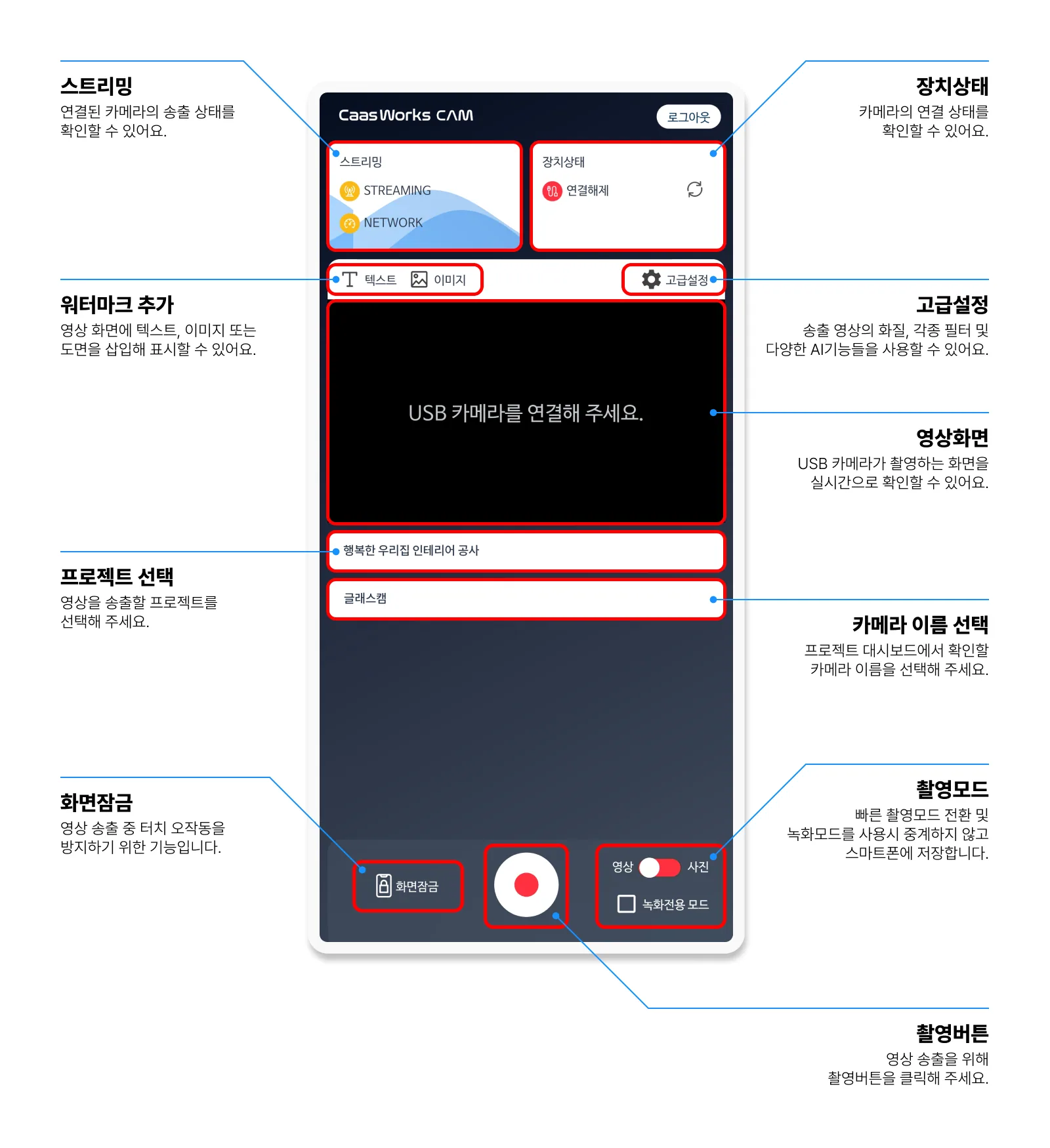
- The main screen of CaasWorks CAM is laid out like this.
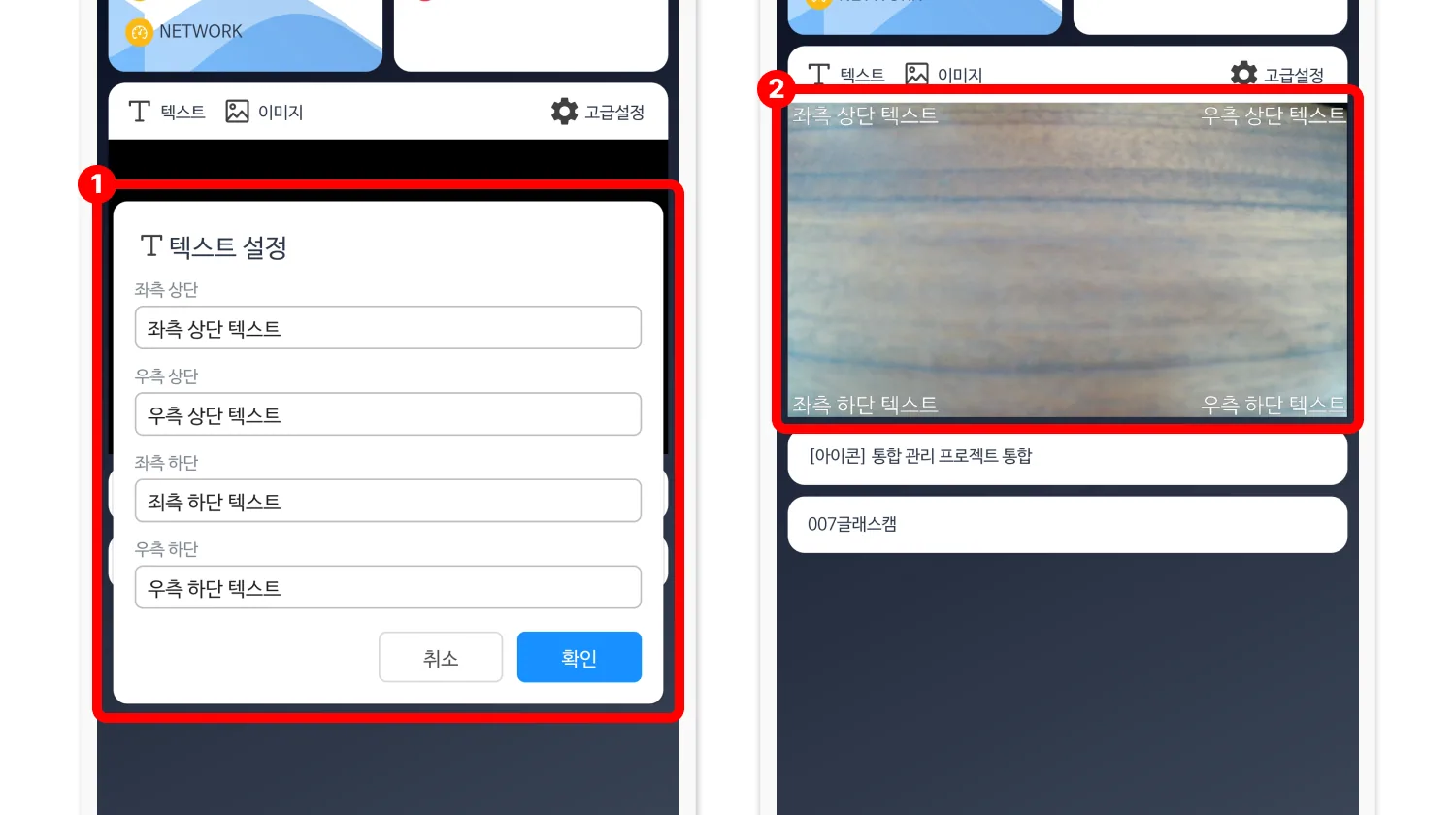
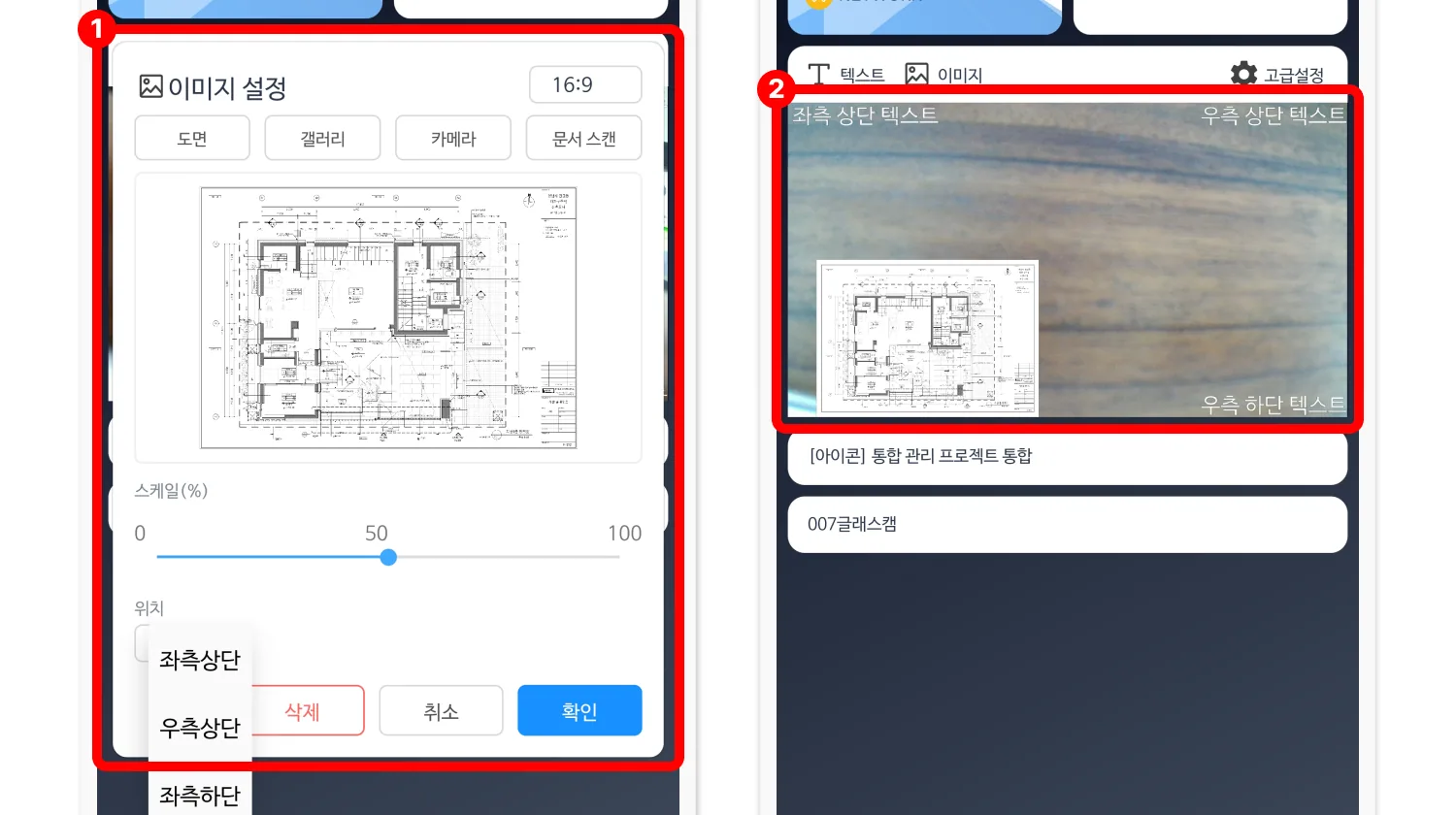
- Click the [Text] button to add text as a watermark at the top, bottom, left, or right of the video.
- Click the [Image] button to insert images or drawings into the video as a watermark.
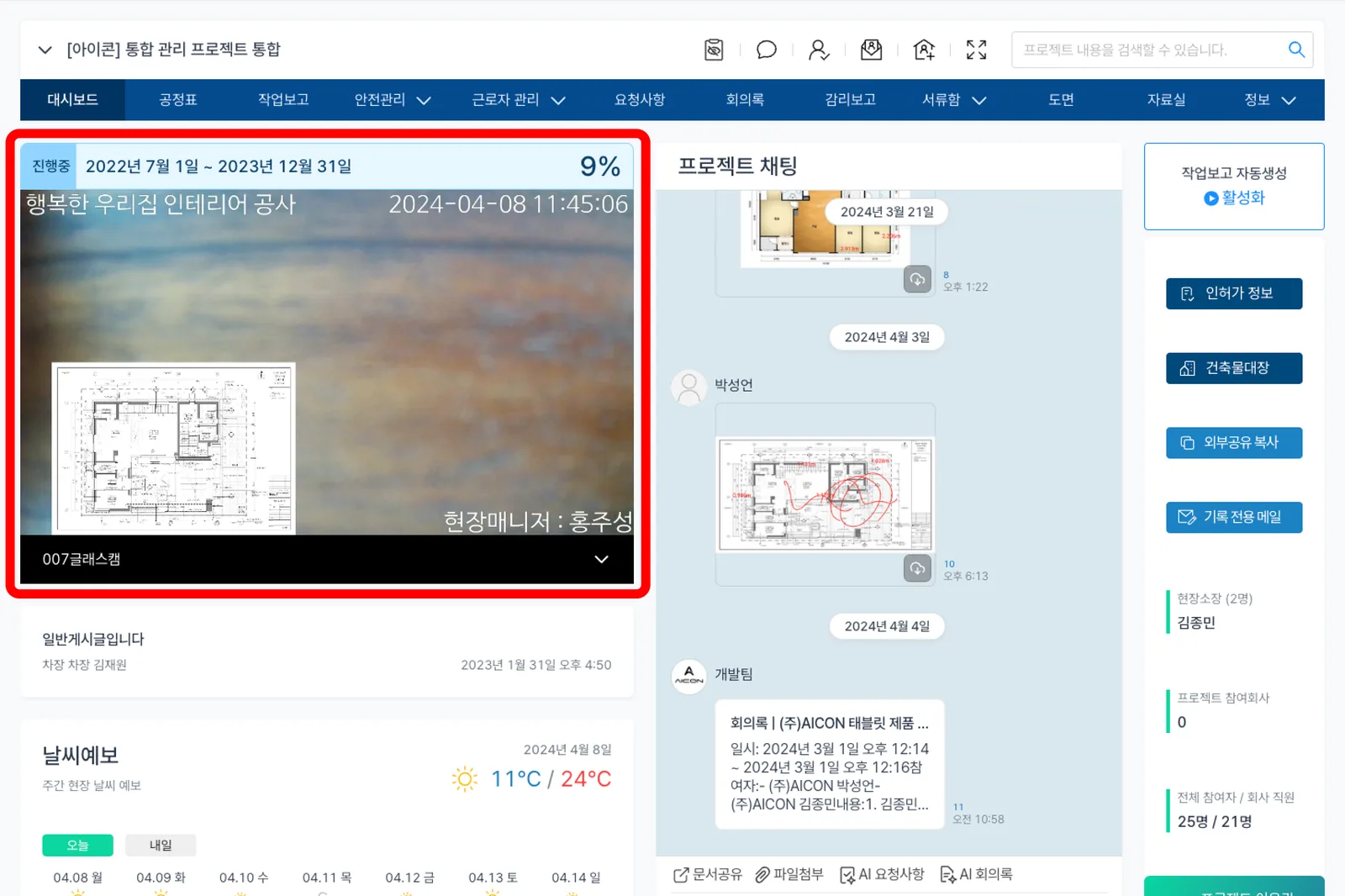
- You can view the video being streamed by selecting the camera name on [that project's dashboard].