Invite and accept companies
Last updated: 2026.11.9
You can invite companies related to the project, such as contractors, design offices, and clients, to collaborate.
Invite a company
- You can invite companies (partner companies) to work with in the project Settings > Invite company. The Invite company menu is shown only to the company that owns the project.
Click All menus on the left of the top menu bar, then click Invite company in the Settings category.
You can also open the same screen with the Invite company icon at the top right of the project screen, or with the Invite company button in Members.
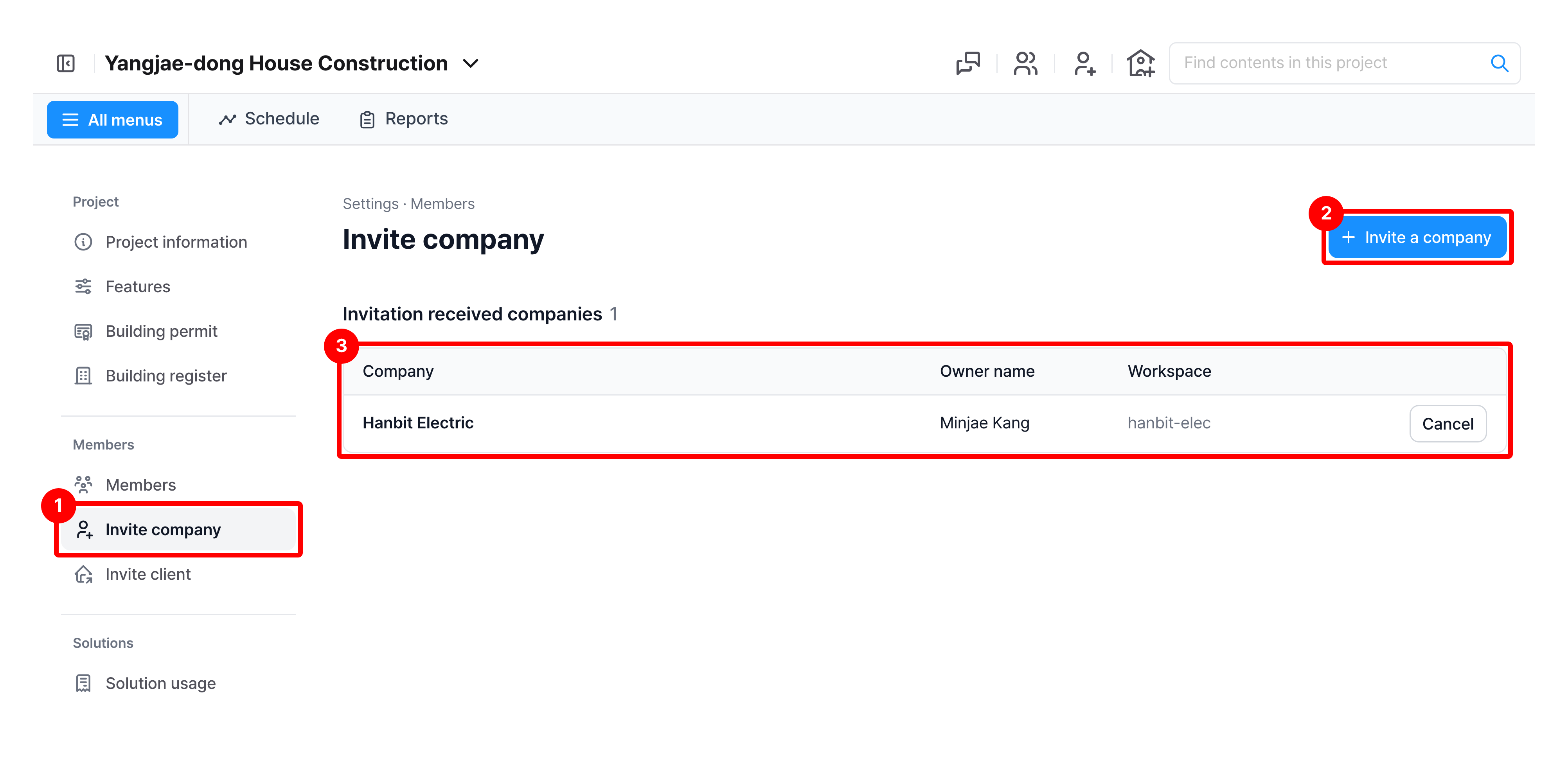
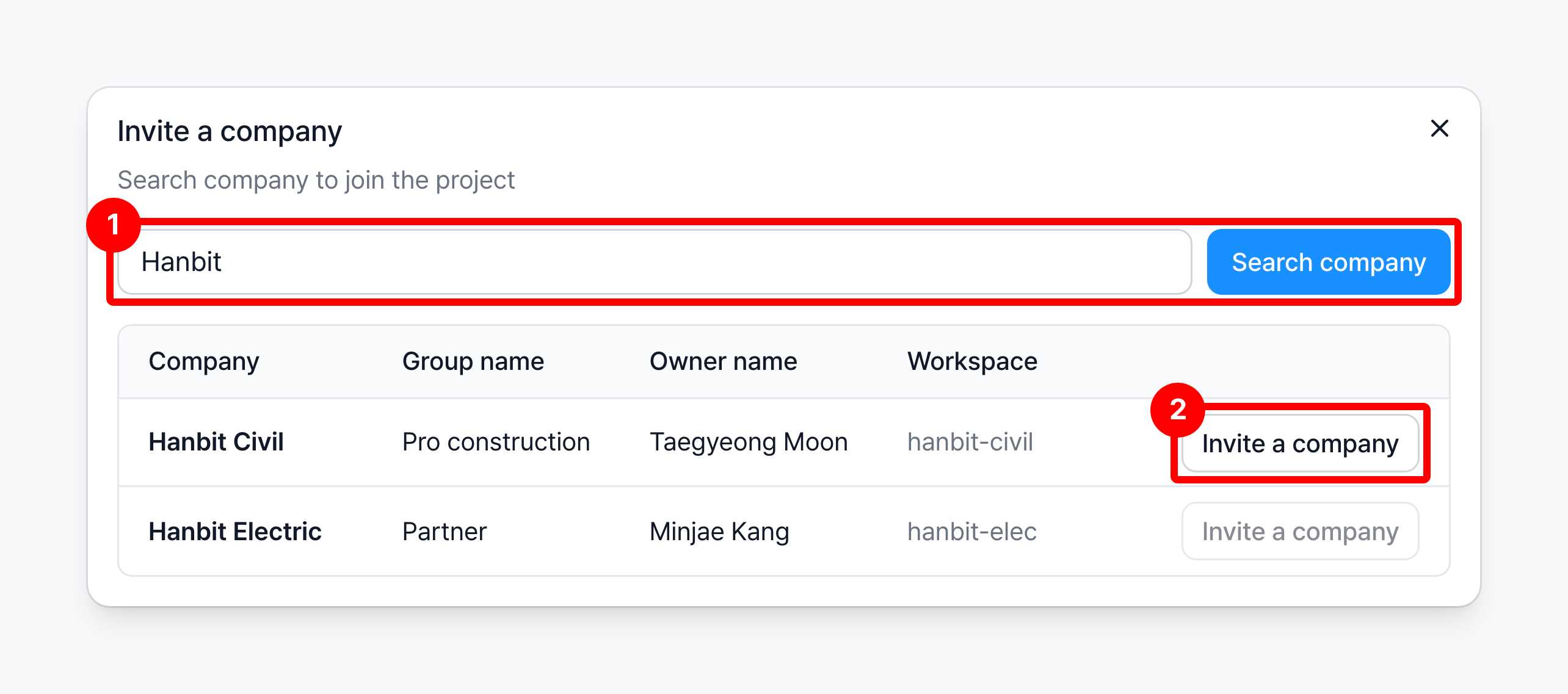
Click Invite a company, then search for the company by workspace, company name, or email. In the results, click Invite a company for the company to invite.
If no search results appear, the company may not be a CaasWorks member. Have them sign up, then invite them again.
You cannot click Invite a company for a company that has already joined or been invited.
Invited companies appear in the pending invitations list. To withdraw an invitation, click Cancel for that company.
When an invited company accepts or declines, it disappears from the pending list.
Accept a company invitation
- In the Project List menu, you can see the projects you are invited to and decide whether to join.
Only an admin can accept a company invitation.
What is an admin in CaasWorks? (User permissions) ➡️
- Click Accept.

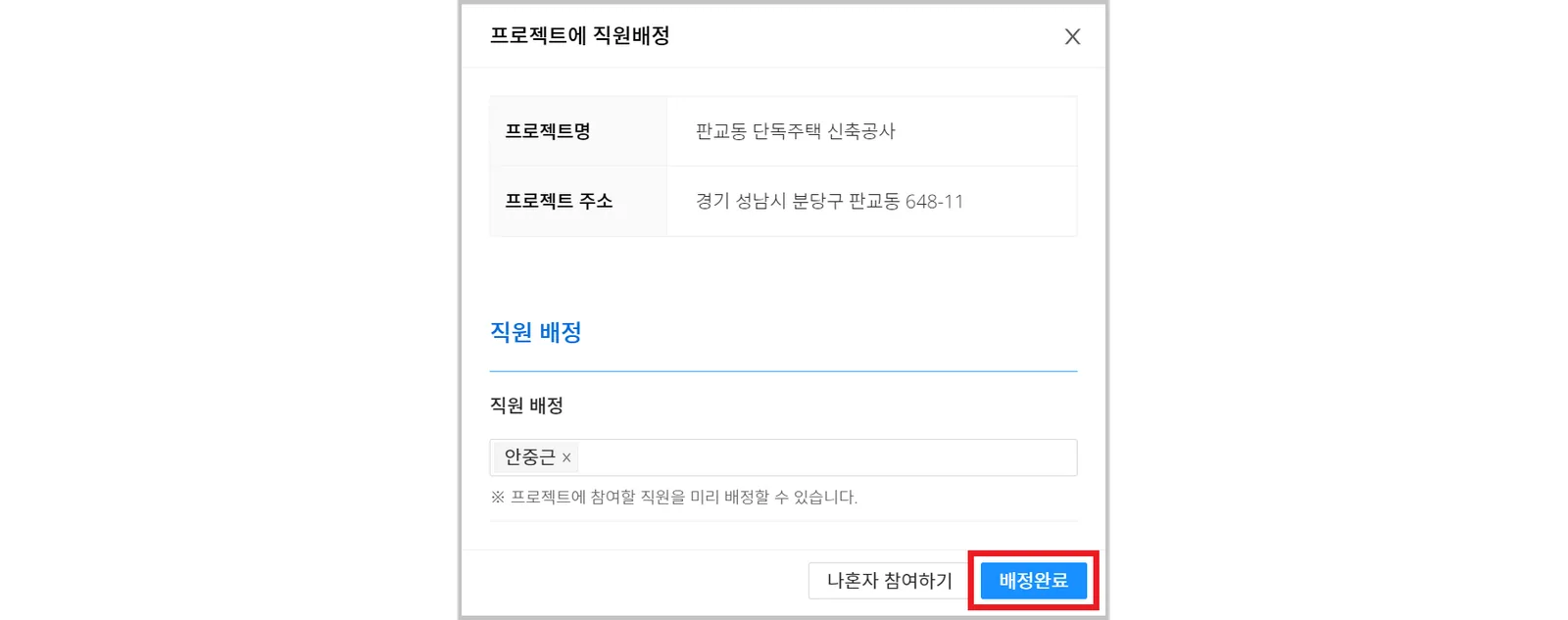
- Assign the employees in charge for the project, then click Assignment complete.
The person who accepts the invitation joins the project automatically.