Network Speaker
Play announcements through speakers on the site, either directly from the screen or automatically when safety equipment detects a hazard.
Control the speakers installed on the site from CaasWorks. You can play announcements you registered in advance from the office, or speak directly into a microphone. Once you set up rules, a broadcast goes out without anyone stepping in when a device such as a gas detector or a work stop button sends a signal.
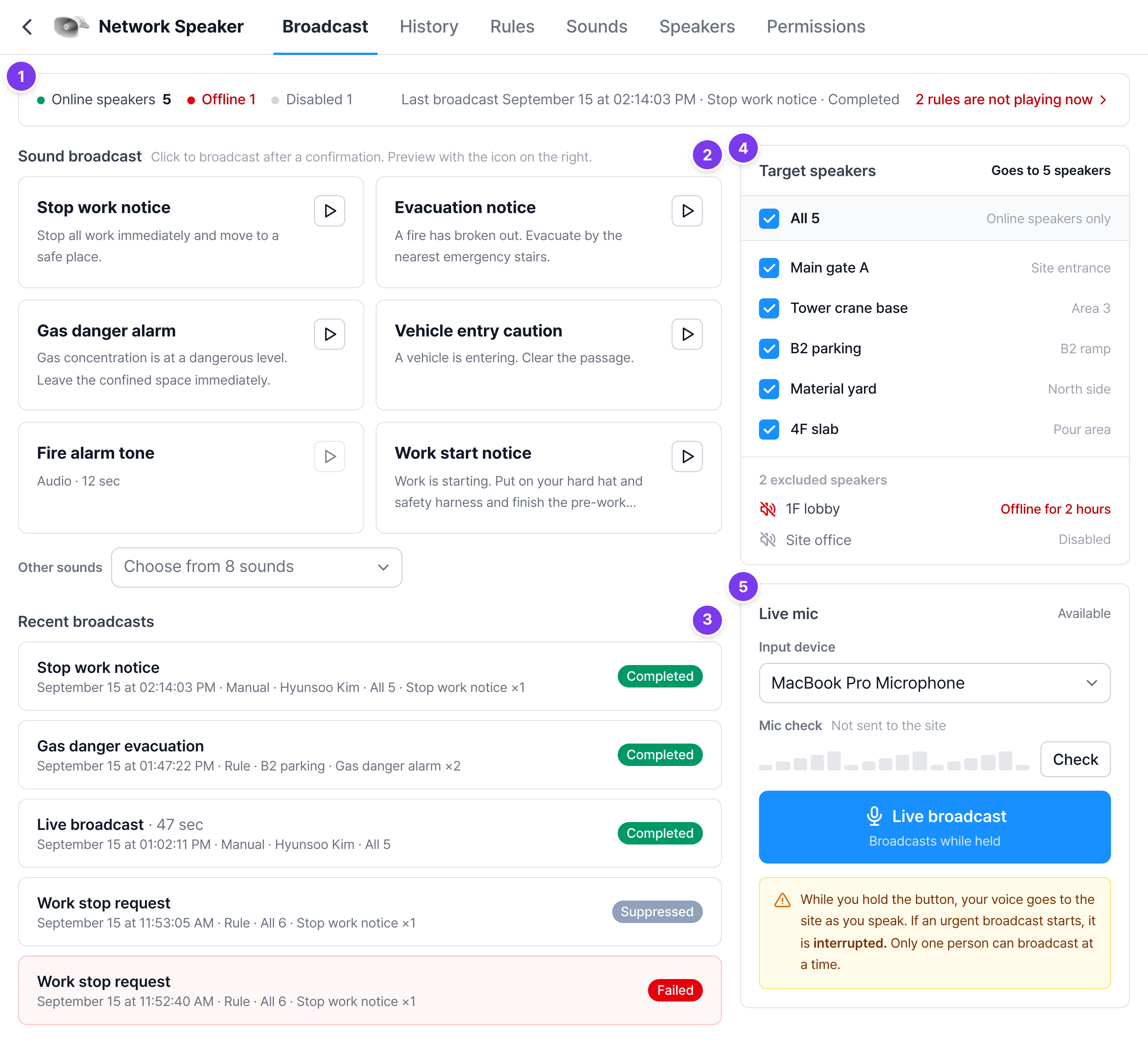
Tabs and required permissions
When you open the solution, tabs appear at the top. Features you have no permission for are not grayed out. They are removed from the screen entirely. If you can't see a button, you don't have the permission for it.
| Tab | What it does | Required permission |
|---|---|---|
| Broadcast | Pick a sound to play, or speak directly into a microphone | Manual broadcast for sound broadcasts, Live mic for the microphone |
| History | See when and what played, and which speaker failed if a broadcast failed | Access |
| Rules | Read, create, and edit automatic broadcast rules | Access to read, Edit rules to create and edit |
| Sounds | Register the text and audio to broadcast | Access to read, Add sound to add, edit, and delete |
| Speakers | Set the volume, allowed hours, zone, and location | Manual broadcast for volume and hours, Edit rules for zone and location |
| Permissions | Turn the permissions above on and off for each member | Visible to the project owner only |
If you see "You don't have access"
The owner hasn't given you access yet. The broadcast history records who played what and when, so only people the owner allows can open this solution. Ask the project owner.
Initial setup
If you just adopted the solution, set it up in this order. The owner, or a safety manager who has all four permissions, does this.
Assign permissions
On the Permissions tab, turn on Access and the permissions they need for the people who will handle broadcasts.
Check the speakers
On the Speakers tab, check that every speaker is Online, and use Test sound to hear whether sound plays on the site. Set the allowed hours and zones at this point too.
Add sounds
On the Sounds tab, register the announcements you use often, such as work start, stop work, evacuation, and gas danger.
Create rules
On the Rules tab, decide what to play through which speakers in which situation. Rules that play at a set time, such as a work start notice every morning, are also created here.
Play one and check the history
Play a sound on the Broadcast tab, then check that it is recorded as Completed in History.
Three speaker states
| Status | Meaning | When you broadcast |
|---|---|---|
| Online | Working normally | Sound plays if within allowed hours |
| Offline | The connection is lost. The duration is shown too, such as "Offline for 2 hours" | Automatically excluded from targets |
| Disabled | The operator turned off this speaker for this project | Never a target |
If a speaker stays offline, check its power and network and notify the operator. You can't bring a speaker back from the screen.
Good to know
- Each speaker plays separately. If you send to five speakers and one doesn't respond, the other four still play. History records the result for each speaker.
- Urgent broadcasts come first. Broadcasts started by a person are always Caution level, so they are interrupted when an urgent rule triggers.
- Stopped or failed broadcasts are not replayed. An old announcement playing late would only confuse the site more.
- You can broadcast from your phone too. What you can do in the CaasWorks mobile app is covered in Use the mobile app.