Automatic broadcast rules
Send a broadcast without anyone stepping in when safety equipment detects a hazard or a set time arrives.
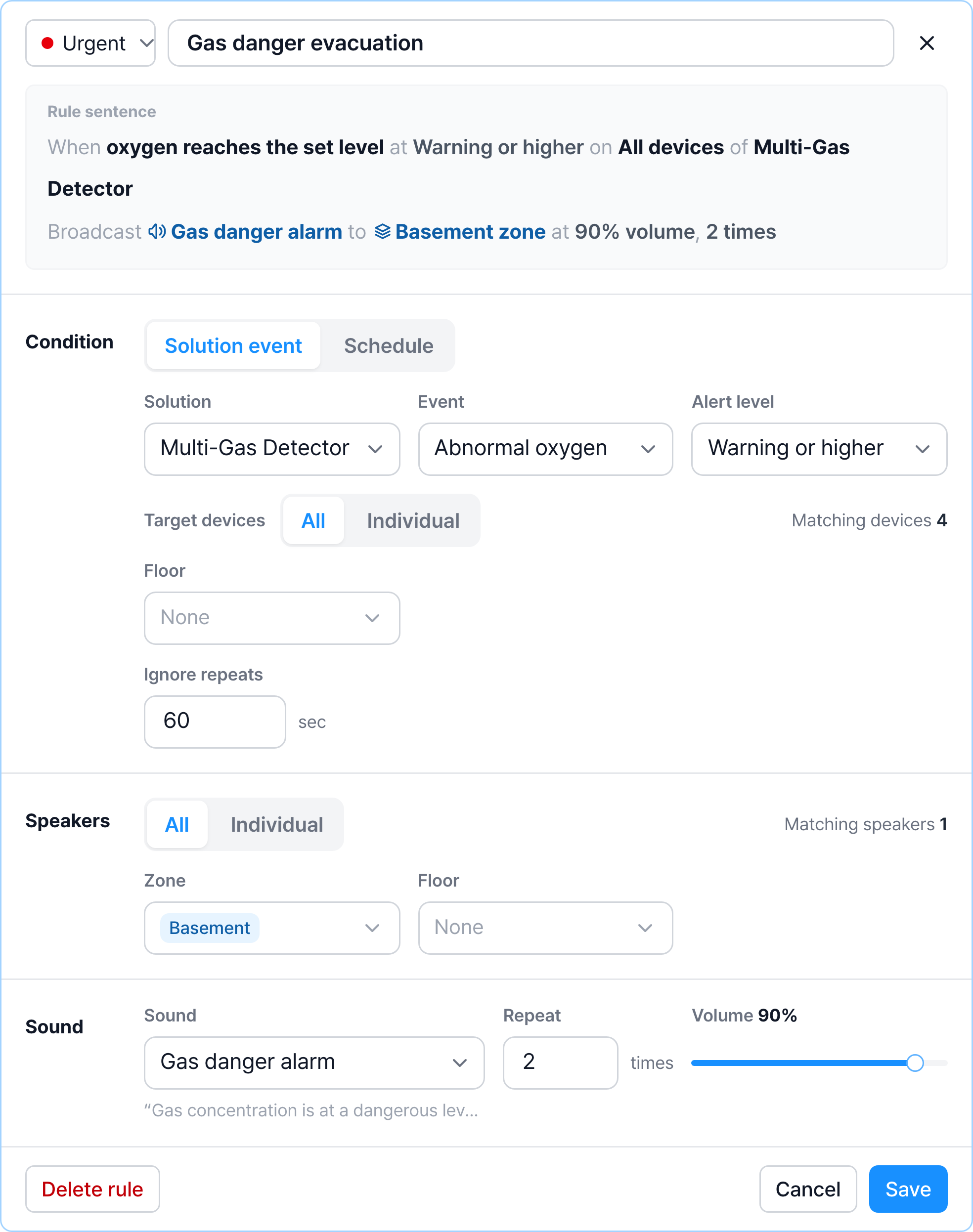
A rule is one sentence: "When oxygen reaches the Warning level on a Multi-Gas Detector, broadcast the Gas danger alarm twice to the speakers in the Basement zone." Once you create a sentence like this, it plays even at dawn.
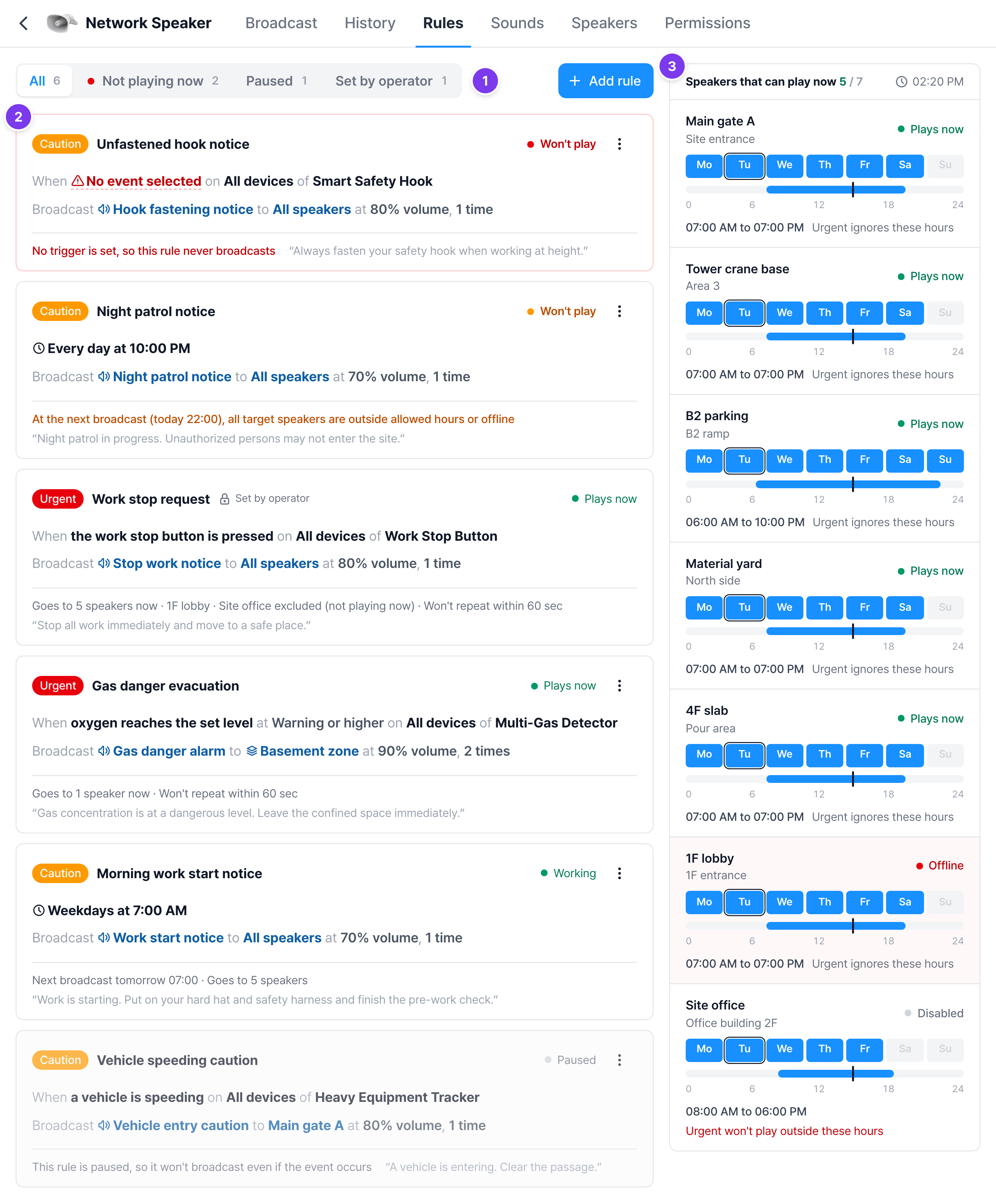
Read a rule card
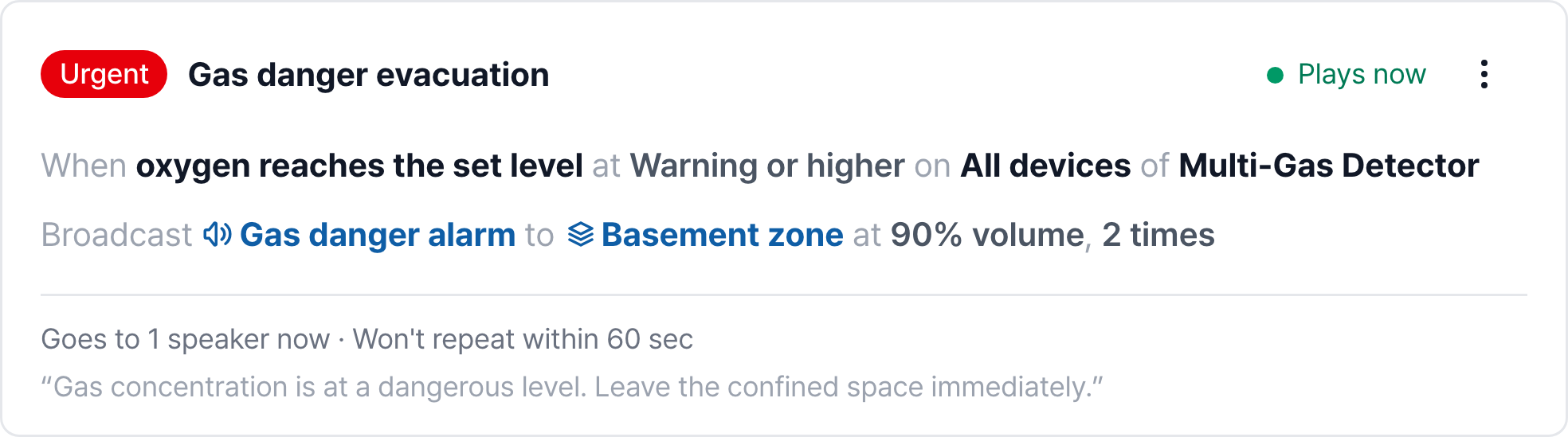
- Badge: Red Urgent, orange Caution. Urgent can play outside a speaker's allowed hours and interrupts broadcasts started by a person.
- Rule sentence: The first line is the condition and the second line is the action. Bold black text is what triggers the rule, blue text is which speakers play which sound, and gray text is the volume and repeat count.
- Status at the top right and description at the bottom of the card: Tells you whether this rule actually plays right now, taking speaker status and allowed hours into account. The quoted text next to it is the text that will actually play.
- Lock · Set by operator: A required safety rule set by the operator. It can't be edited, paused, or deleted.
Status
| Status | Meaning | What to do |
|---|---|---|
| Plays now | If the situation occurs, sound plays right now. How many speakers it goes to and which are excluded are shown below | Nothing |
| Working | The schedule rule will play correctly at the next broadcast time | Nothing |
| Not playing now | The target speakers are outside allowed hours or offline, so no sound plays right now | If it must play at night too, raise the severity to Urgent or widen the hours |
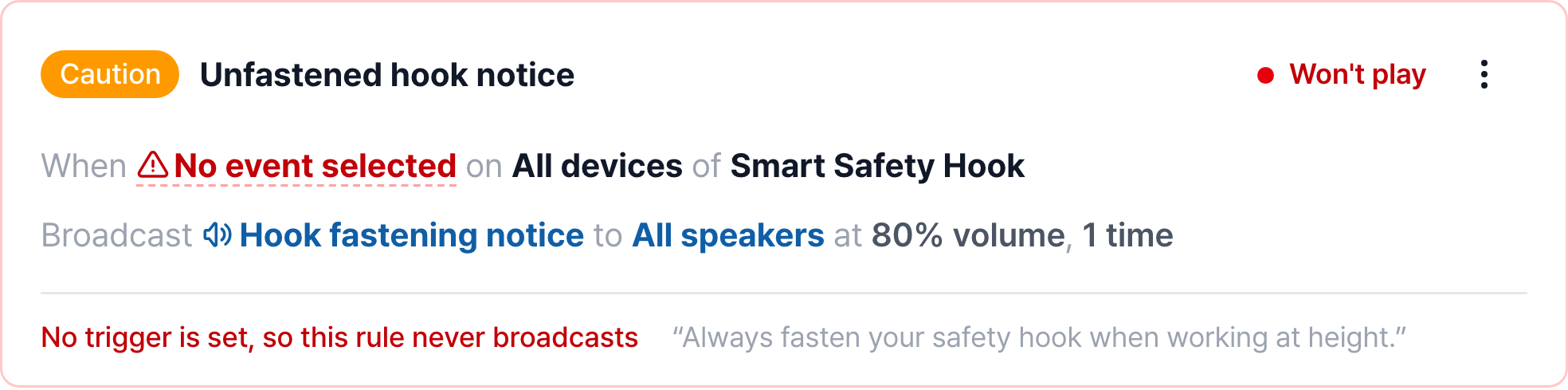
| Won't play | A setting is empty or the target it pointed to is gone, so it never broadcasts | Fix it right away |
| No upcoming run | The schedule rule has no time to play within the next week | Check the days and times |
| Paused | Someone paused this rule | To use it again, choose Resume this rule from the ⋮ menu |
For Won't play, the card border turns red and the empty piece stays in the sentence with a red dotted line.
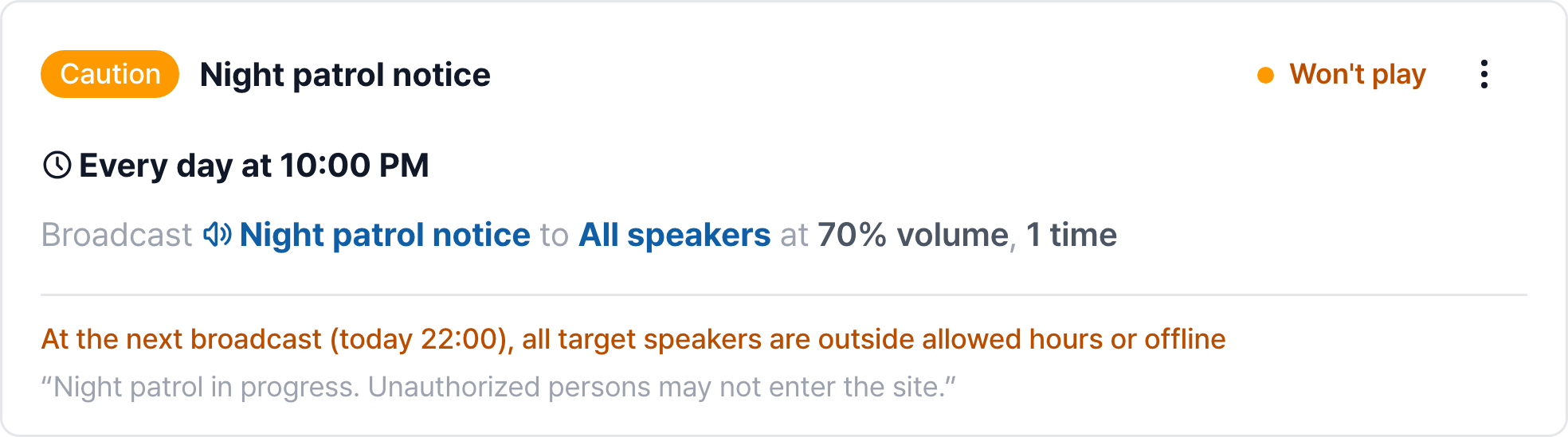
Schedule rules are judged by the next broadcast time. The rule below is set to play at 10 PM every night, but at that time every speaker is outside its allowed hours, so it doesn't actually go out.
Click Not playing now in the filters at the top to see only these rules. Keep the number at 0. They also always appear at the top of the list.
Create a solution event rule
A rule that plays when a device sends a signal. You need the Edit rules permission to see the Add rule button.
Click Add rule
An empty editing panel opens at the top of the list. The Rule sentence at the top changes as you fill in the fields below. Fill them in while checking in the sentence what you are creating.
Set the condition
With Solution event selected, fill these in order.
- Solution: The solution that sends the signal. Solutions marked with a lock are not adopted in this project and can't be selected.
- Event: The situations available for that solution. For example, the Multi-Gas Detector has a gas emergency signal, abnormal oxygen, and abnormal carbon monoxide.
- Alert level: Appears only for events with levels. Choose from which level to play among Caution, Warning, and Danger.
- Target devices: The default is All. To play only for specific devices, choose Individual and check the devices. You can also keep All and narrow it down by choosing only a Floor.
- Ignore repeats: If the same rule triggers again within this time (seconds), it doesn't broadcast. Devices keep sending signals while the hazard continues, so without about 60 seconds the same alarm repeats every few seconds.
When you choose an event, the severity is set automatically to match it. You can change it at the top left of the panel.
Set the speakers
- All: All speakers. Choosing a Zone or Floor narrows it to the speakers that match. If you choose both, only the speakers that match both remain.
- Individual: Choose speakers one by one.
Matching speakers N on the right is the number of speakers that will actually play. If it shows a red 0, this rule won't play.
If you target a zone, you don't need to edit the rule when you add more speakers to that zone later. Zones are created on the Speakers tab.
Set the sound
Set the Sound to play, Repeat (1 to 10 times), and Volume (0 to 100%). When you choose a sound, its actual text appears below.
Save
Click Save. If a field is missing, the button is blocked and the missing items are shown next to it, such as "Choose a solution, event, and sound to save".
Rules that play at a set time
Rules that play on time, such as a work start or break notice. Choose Schedule in the condition.
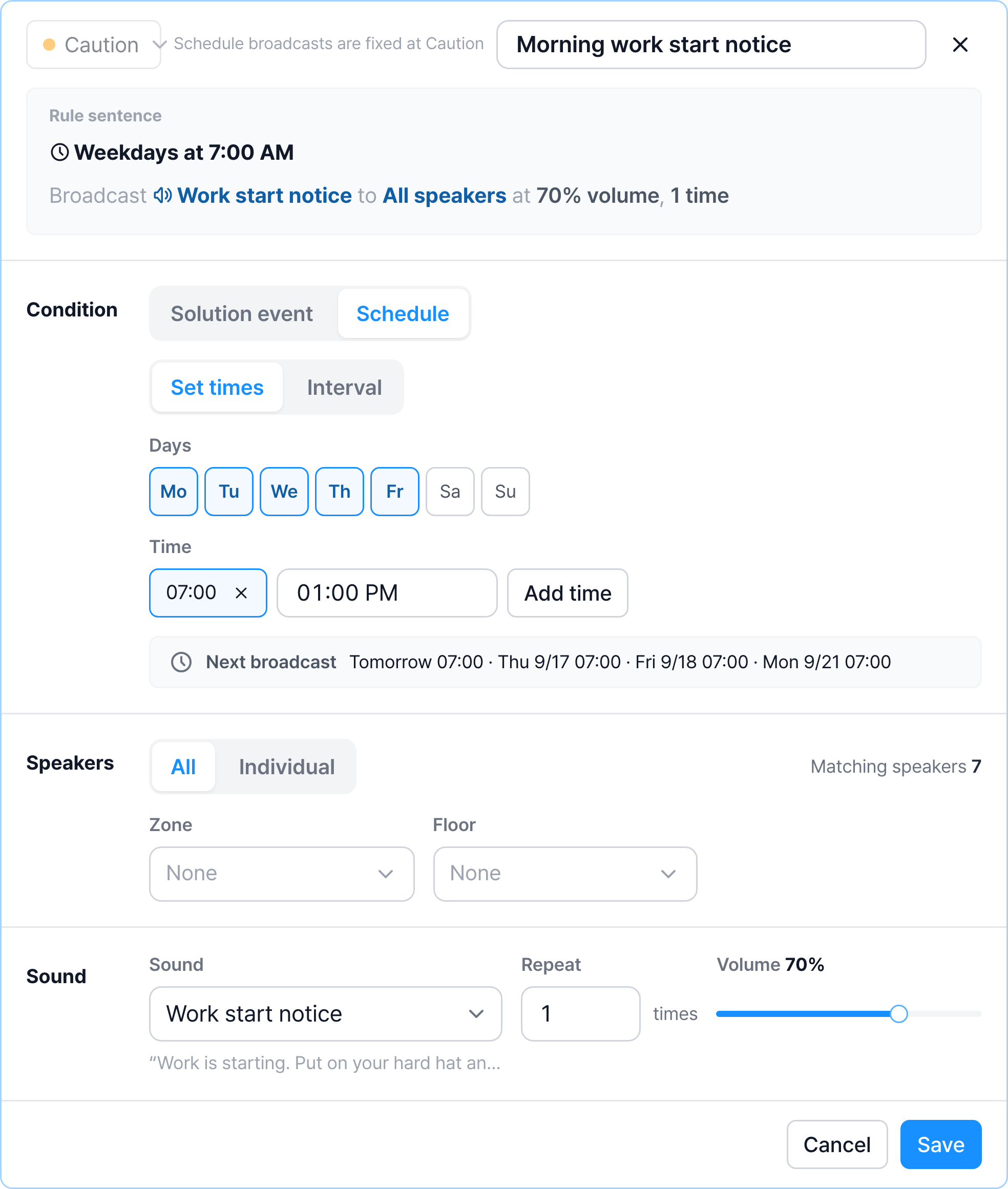
- Set times: Click the days, enter a time, and click Add time. To play several times a day, add more times.
- Interval: Choose an interval from 30 minutes to 12 hours. The interval is counted from midnight. With 2 hours, it plays at 0:00, 2:00, 4:00, and so on. If you enter days and start and end times in Active hours, it plays only within them. If left empty, it runs all day.
- Next broadcast: The next four play times are shown in advance. Check here that the times are what you intended.
The severity of schedule rules is fixed at Caution. So it doesn't play outside a speaker's allowed hours. For an early morning notice, check that the speakers' hours cover that time.
Edit, pause, delete
Use the ⋮ menu on the right of the card.
- Edit: The card expands into the editing panel. You can also click a piece of the rule sentence directly to open the panel with that field selected.
- Pause this rule / Resume this rule: Stop it for a while or turn it back on. A paused rule stays grayed out as Paused.
- Delete: It is deleted after you confirm "Broadcasts will no longer go out in this situation. Past broadcast history is kept."
When you can't edit
- There is no ⋮ menu or Add rule button: You don't have the Edit rules permission. You can only read rules. Ask the owner.
- Yellow notice "The operator has restricted rule editing for this project": Even with the permission, editing is blocked in this project. If you need a change, ask the operator.
- The card has a lock: It is a required rule set by the operator, so only that rule can't be edited.
Speakers that can play now
The panel on the right of the Rules tab shows whether each speaker can play sound right now. Check it together when looking for why a rule isn't playing.
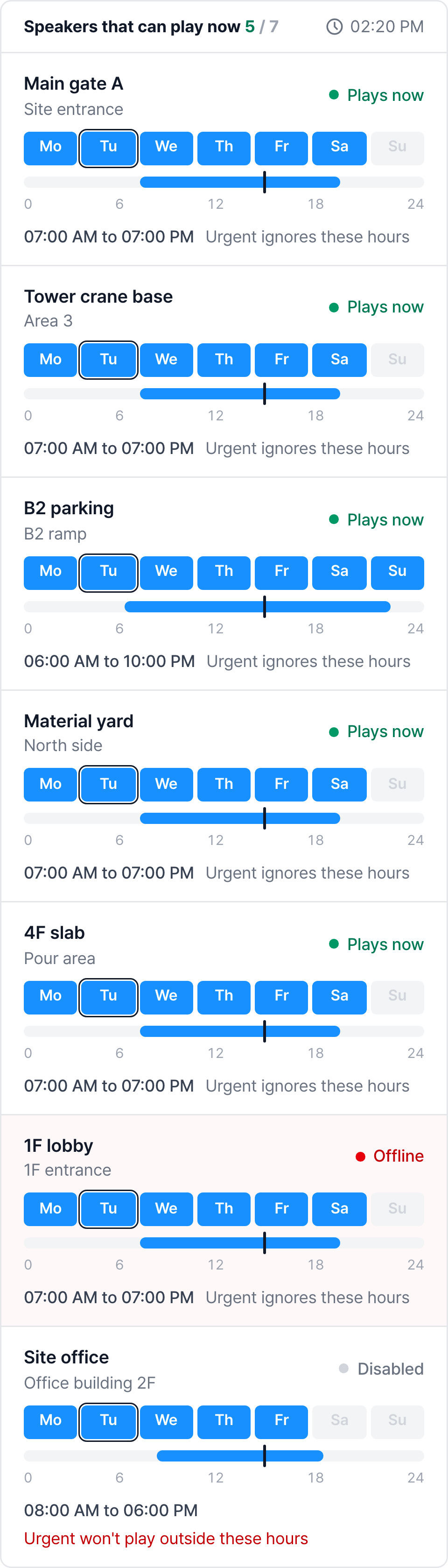
How to read it and how to change the hours are covered in Speakers · Allowed hours.