Use the mobile app
Broadcast to the site, view history, and pause malfunctioning rules in the CaasWorks mobile app.
When you need to broadcast right away while walking around the site, use the CaasWorks mobile app. Open Network Speaker in the project to find the Broadcast, History, and Rules tabs, and owners also see the Permissions tab. The required permissions are the same as on PC.
How it differs from PC
| Task | PC | Mobile |
|---|---|---|
| Sound broadcast · live broadcast | O | O |
| View history | Filter by period, result, source, and speaker, CSV export | Last 7 or 30 days, failed only |
| Rules | Create, edit, pause, delete | Pause and resume only |
| Add sound · speaker settings | O | No. Use PC |
| Permissions | O | O (owner) |
Broadcast a sound
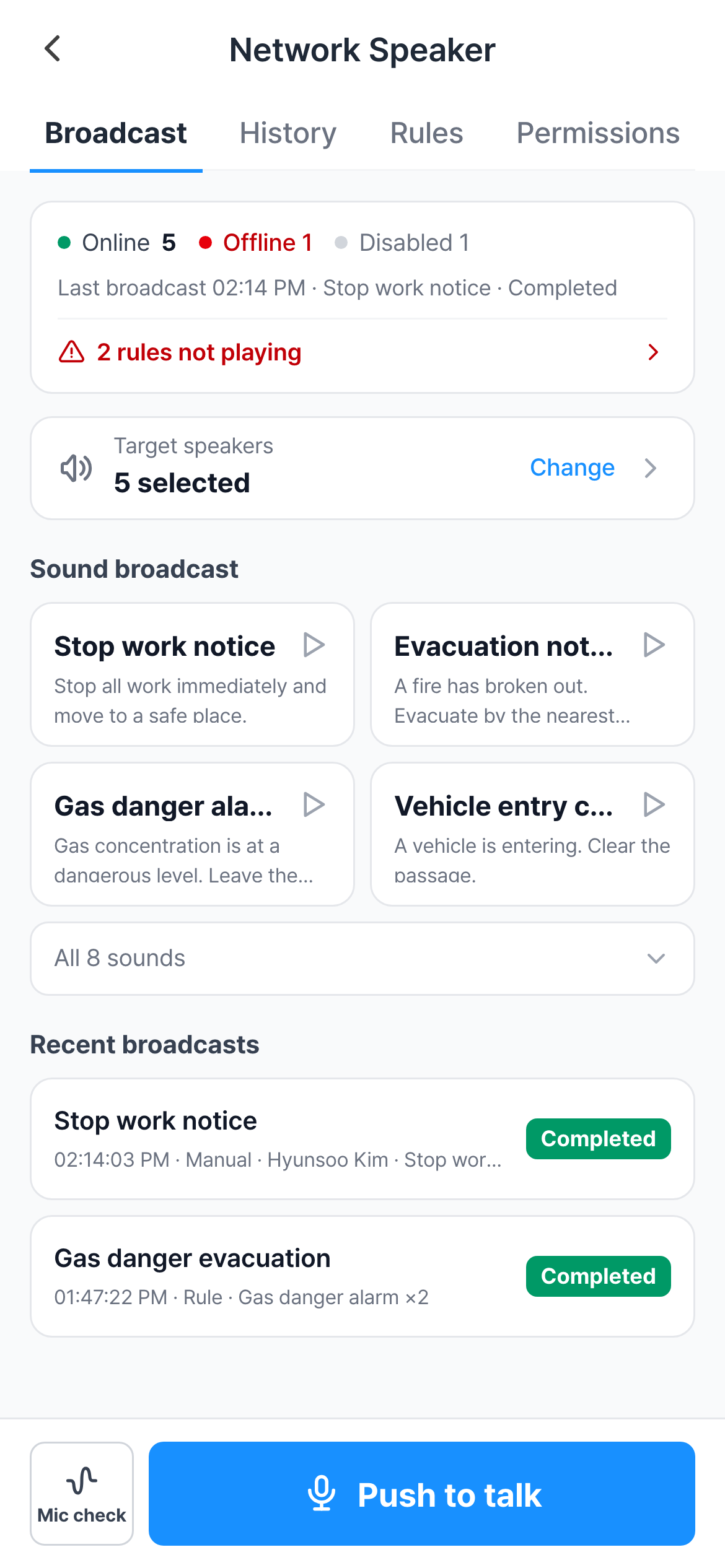
Check target speakers
The Target speakers row shows how many speakers it will go to, such as "5 selected". To change it, tap Change, check the speakers in the sheet, and tap Confirm. Offline or disabled speakers are shown separately at the bottom of the sheet with the reason and can't be selected.
Choose a sound
Up to four tiles are shown. For other sounds, tap All N sounds and choose from the list. ▶ at the top right of a tile is a preview that plays on your phone only.
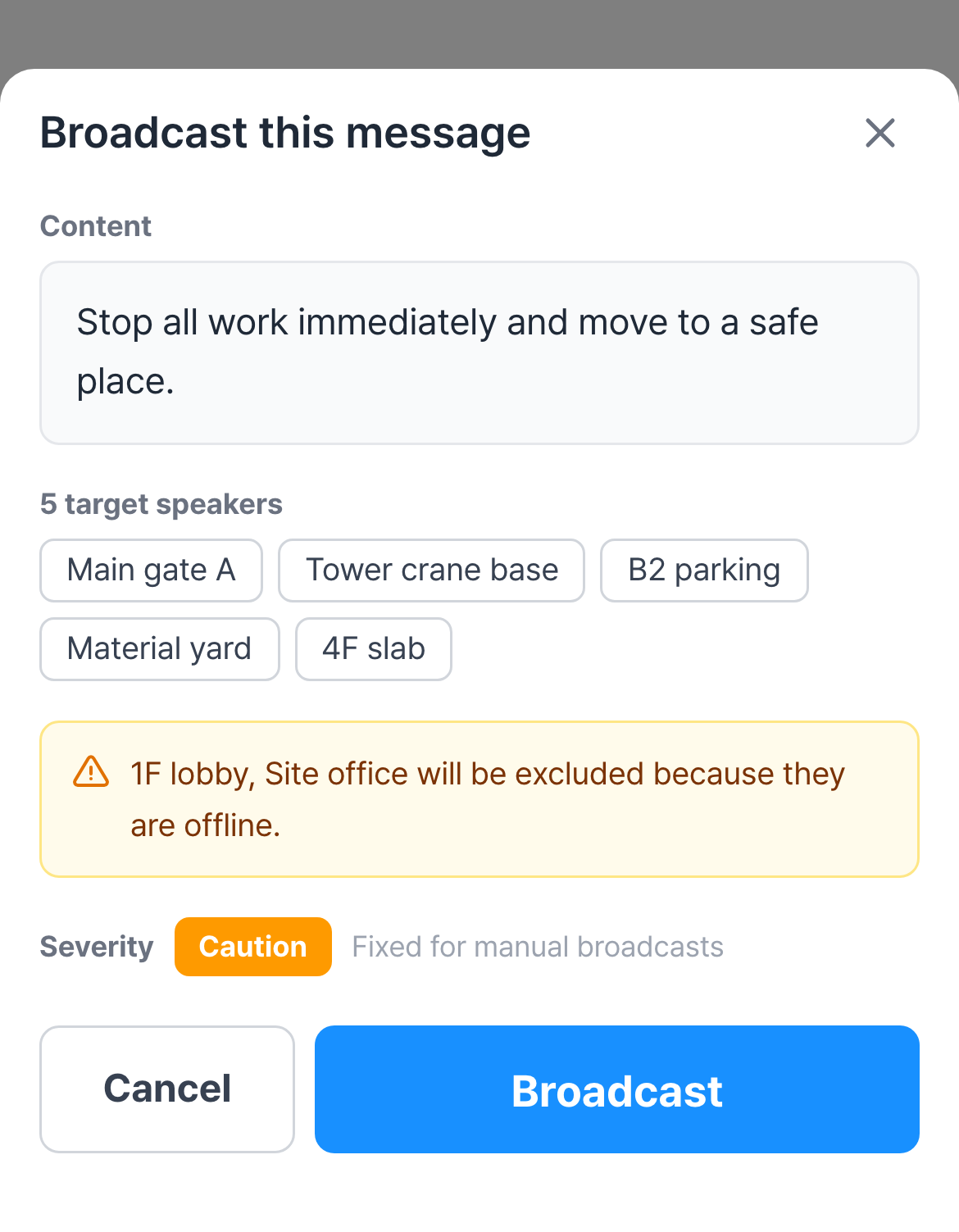
Broadcast from the confirmation sheet
Check the content, target speakers, and excluded speakers, then tap Broadcast.
Live broadcast
It broadcasts while you hold the Push to talk button at the bottom of the screen.
- If needed, tap Mic check on the left, speak, and see whether the bars move. It doesn't go to the site.
- Press and hold Push to talk. While the button fills up and shows Connecting, your voice doesn't go out.
- When the button changes to a red Live on air and the whole screen switches to the on-air screen, speak.
- Release to end.
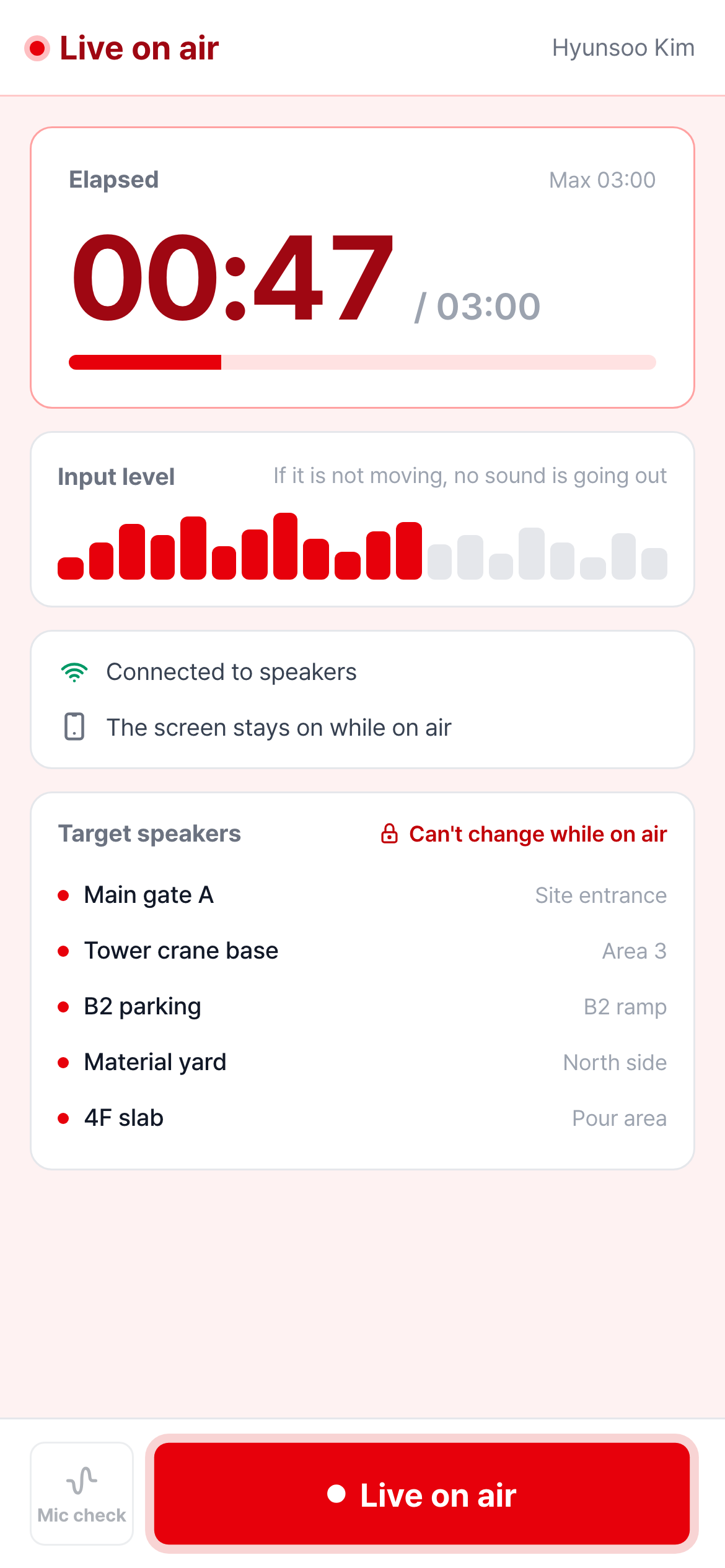
The on-air screen shows the elapsed time, input level, speaker connection status, and target speakers. The screen stays on while broadcasting.
- If you leave the app or the screen turns off, the broadcast ends and "The live broadcast ended because you left the app." appears.
- If someone else is on air, the button shows "Gildong Hong is on air" and can't be pressed.
- If a "Microphone unavailable" notice appears in place of the button, tap Open app settings, turn on the microphone for CaasWorks in your phone settings, and come back.
View history
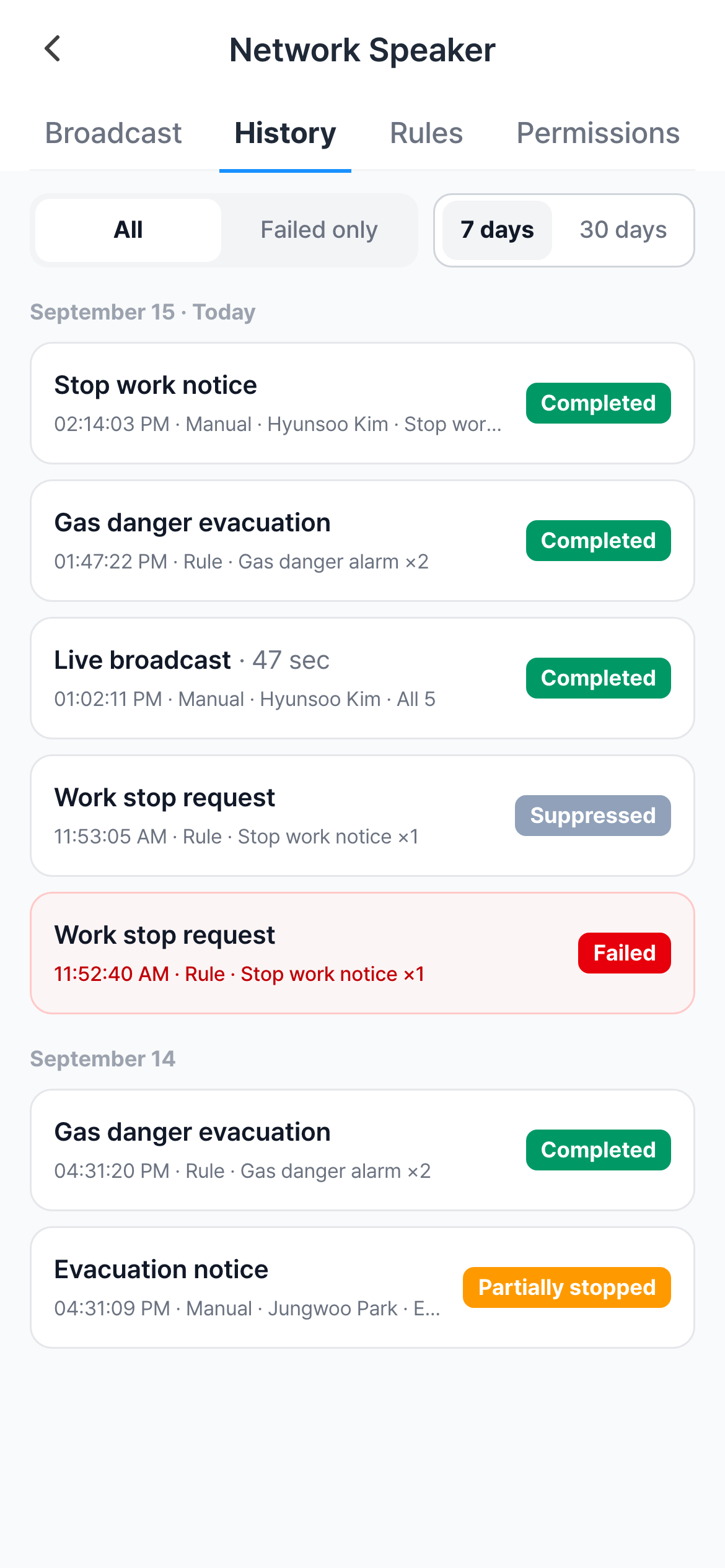
Use it to check whether a broadcast you just sent actually went out. You can filter only by All · Failed only and 7 days · 30 days. If you need a broad search, such as for an accident investigation, use History on PC.
Pause a rule
When a malfunctioning rule keeps playing, pause it right there on the site. If you have the Edit rules permission, each card shows a switch.
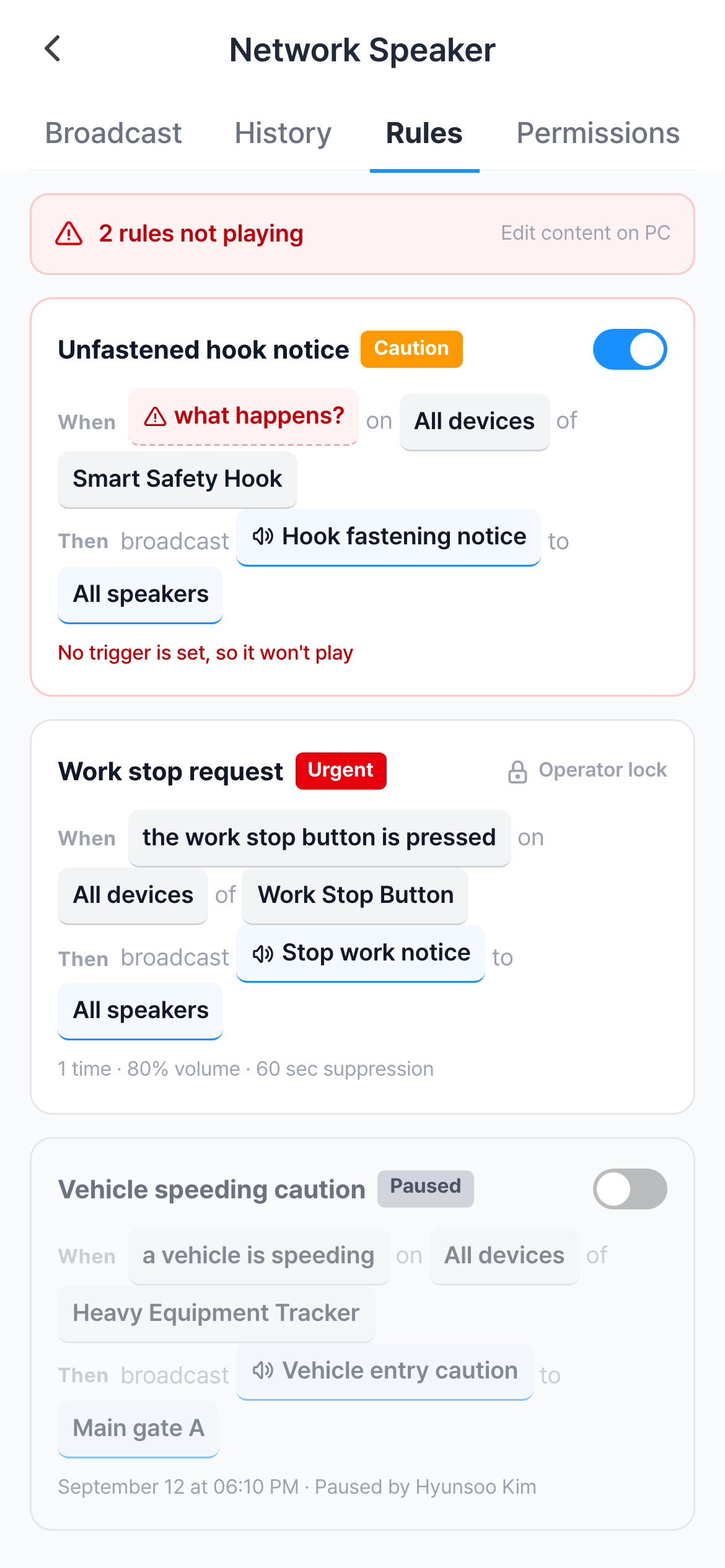
- Turn the switch off to make it Paused, and "Rule paused." appears. Who paused it and when is recorded at the bottom of the card.
- Turn it back on and "Rule resumed." appears.
- Rules showing Operator lock have no switch and can't be paused.
- If "You don't have permission to pause rules" appears instead of the switch, you don't have the Edit rules permission.
Editing the content of a rule is done on the Rules tab on PC.
Change permissions
On the Permissions tab, the owner taps a member and turns Access and the four permissions on and off with the switches in the sheet. The rules are the same as in Permissions.