Speakers
Set the output volume, allowed hours, zone, and location of each speaker.
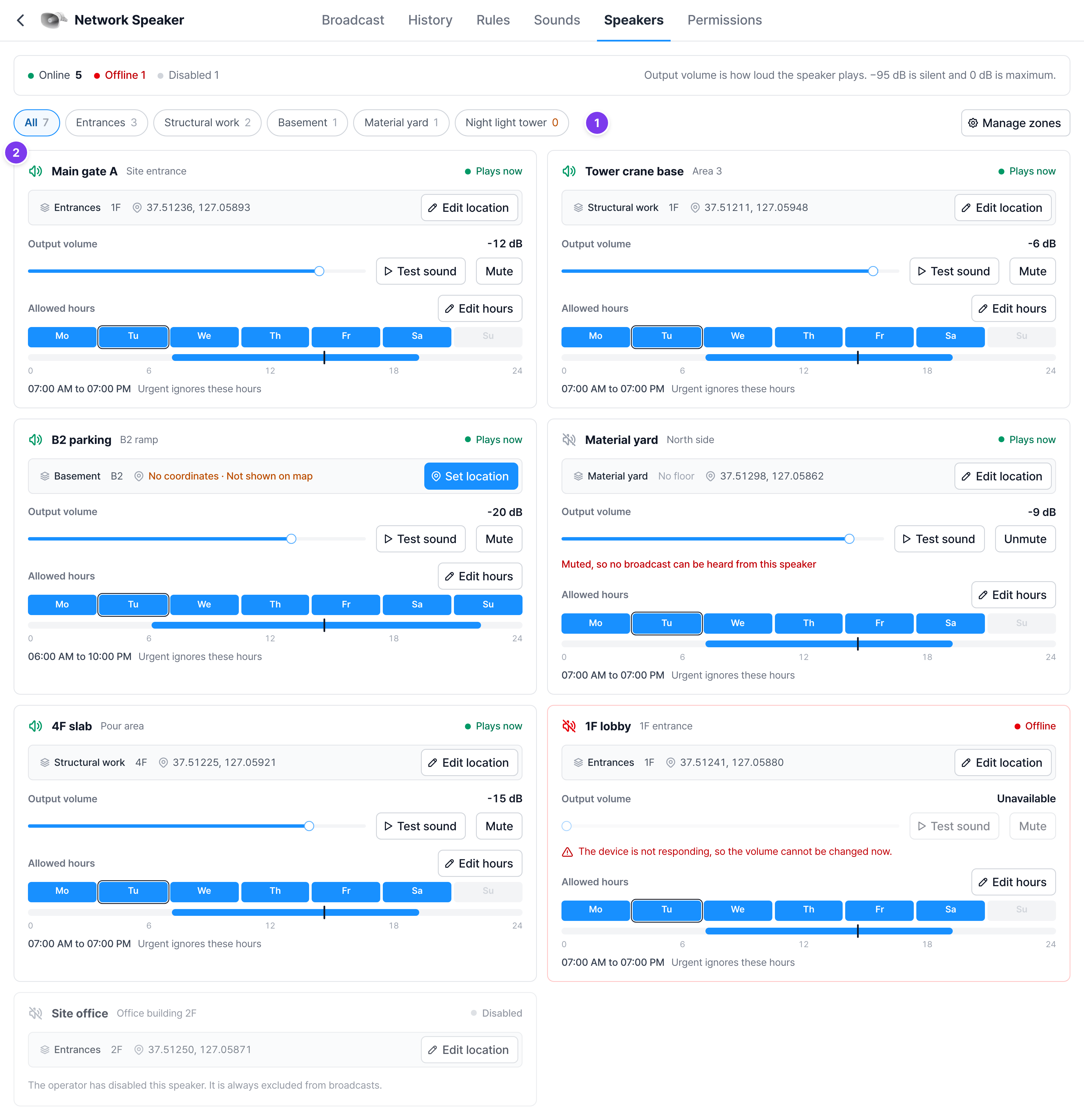
On the Speakers tab, you see the speakers placed on the site one by one. If a broadcast went out but nobody heard it on the site, check here first.
Required permissions
Access is enough to view. To change the volume, Test sound, Mute, and allowed hours, you need the Manual broadcast permission. To change the zone and location, you need the Edit rules permission. Without the permission, the buttons are blocked or don't appear.
Read a card
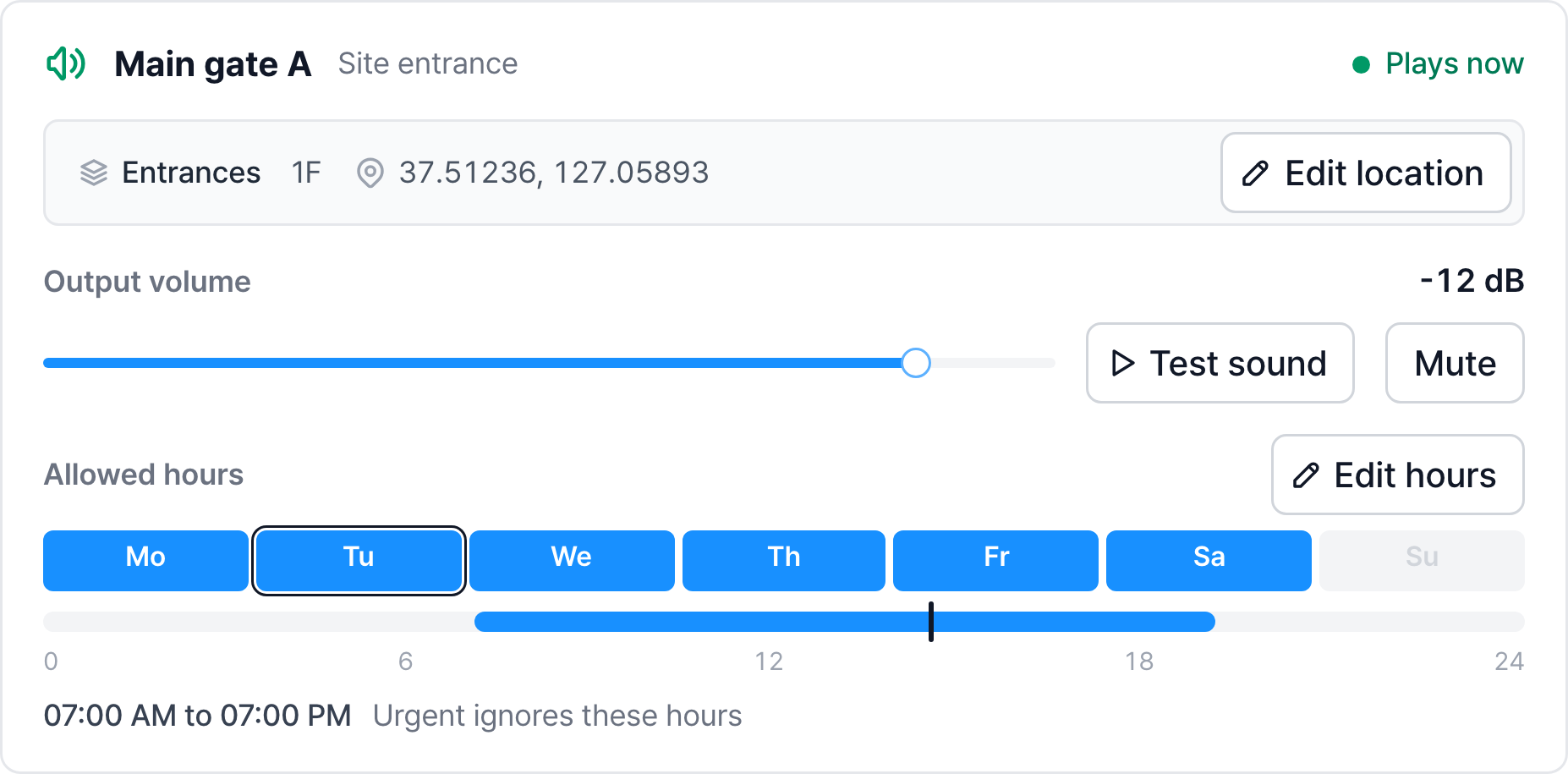
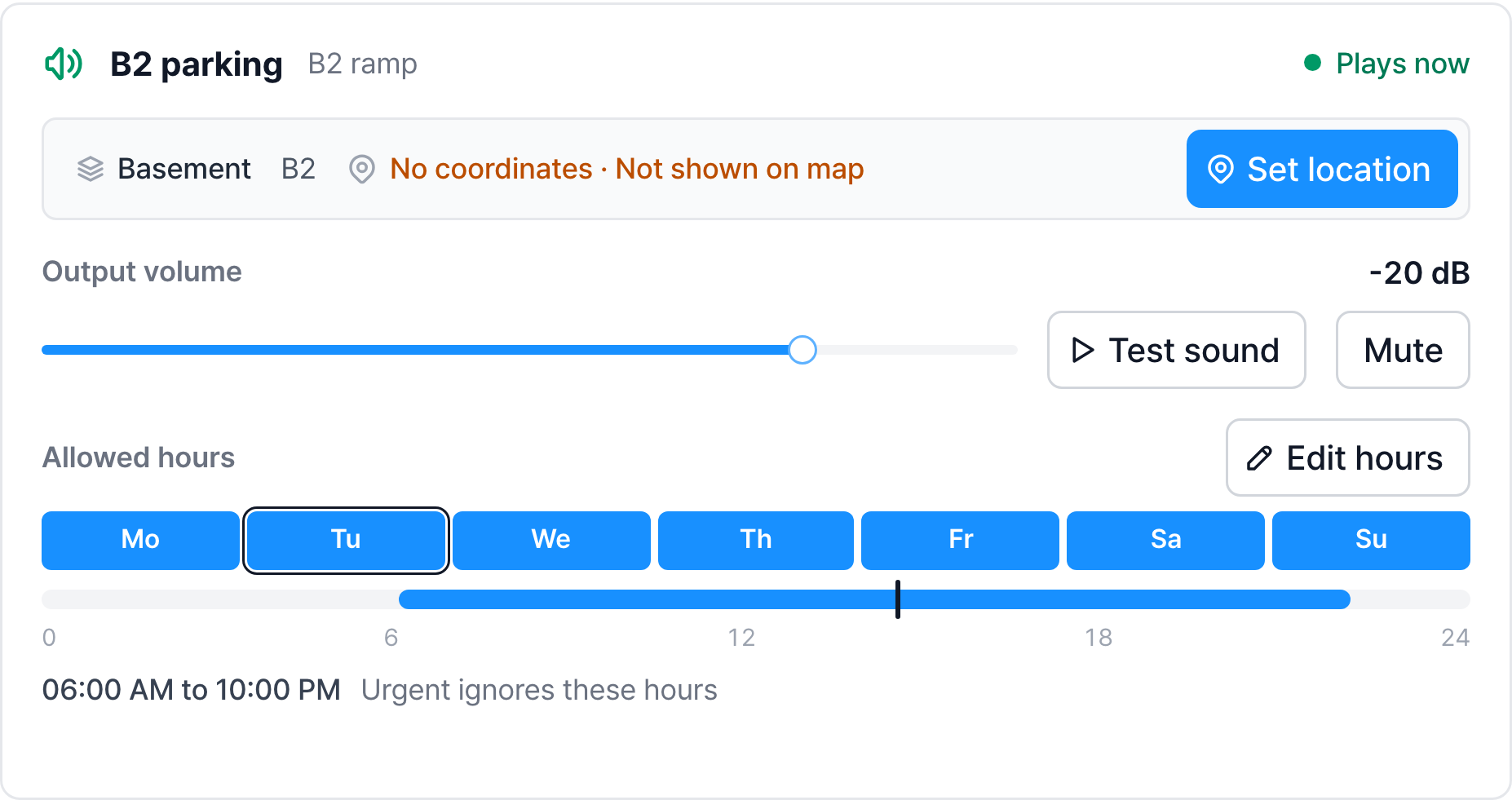
The status at the top right of the card tells you whether this speaker can play sound right now.
| Status | Meaning |
|---|---|
| Plays now | Online and within allowed hours |
| Urgent only | Outside allowed hours, so only urgent broadcasts play |
| Silent now | Outside allowed hours, and urgent broadcasts are also set to follow the hours |
| Offline | The connection is lost, so no broadcast plays |
| Disabled | The operator turned this speaker off, so it is always excluded from broadcasts |
Output volume
The loudness of the speaker device itself. −95 dB is silent and 0 dB is maximum. The volume (%) set in rules reduces sound within this value, so if the output volume is low, it sounds quiet even with the rule volume at 100%.
- Adjust: Drag the bar and release where you want, and it is applied to the device.
- Test sound: Sends a test tone to that speaker. When "Test sound sent. Check that it can be heard on the site." appears, ask someone on the site whether they heard it.
- Mute: Turns off only the sound and keeps the volume. A muted speaker's icon turns gray and a red notice appears. Click Unmute to restore it.
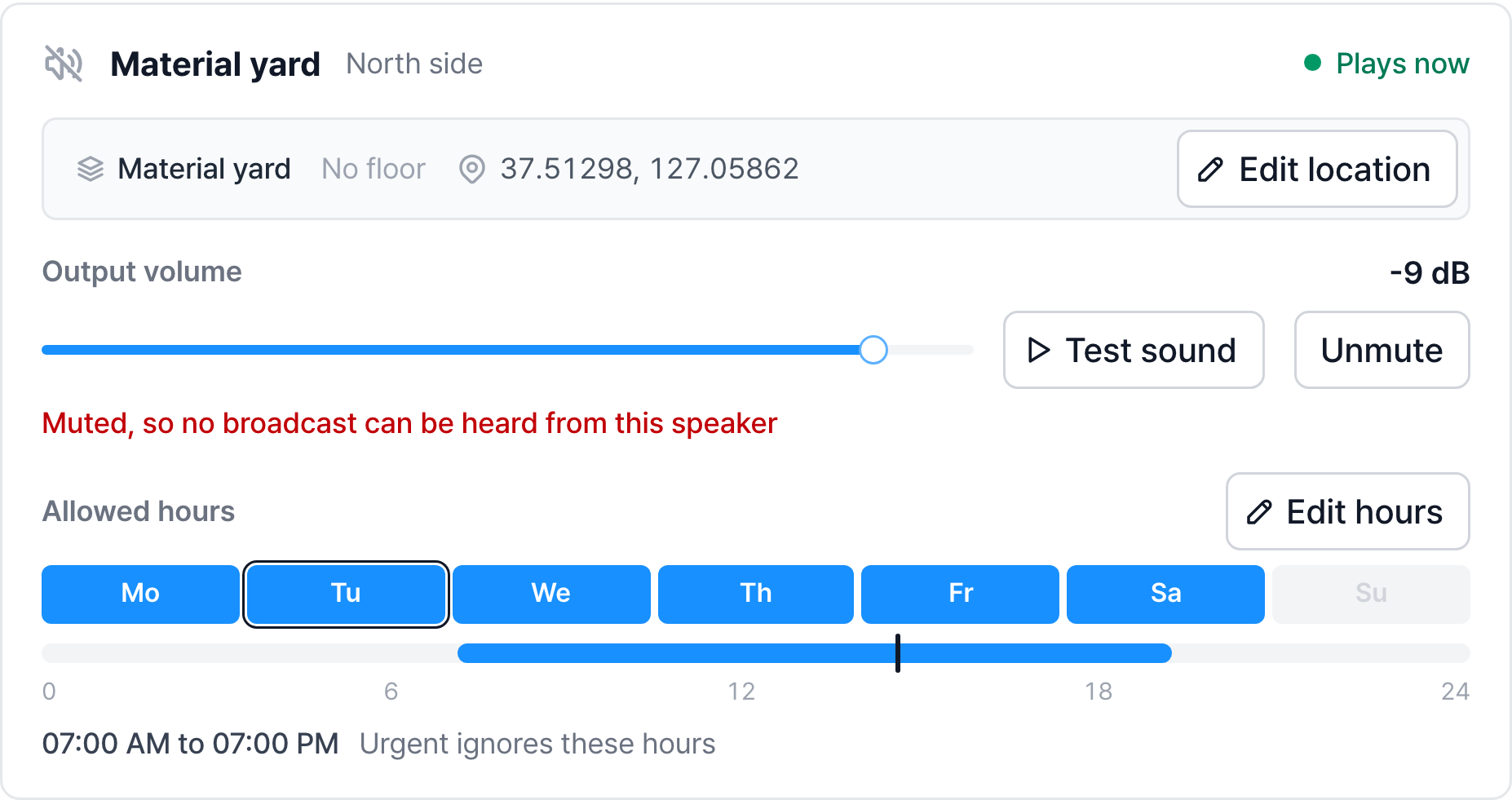
History shows Completed even if the volume is low or muted
This is because the speaker received and processed the broadcast normally. If someone reports "it says Completed but nobody heard it", check the volume and mute first.
Allowed hours
Set the days and hours when each speaker can play sound. This keeps a speaker next to living quarters from playing announcements at dawn. Even if a rule triggers, it doesn't play outside these hours, and history records it as Outside hours.
How to read
- Day chips: Seven chips starting on Monday. Blue chips are broadcast days, and the outlined chip is today.
- Bar: From 0:00 to 24:00. The blue section is when it can broadcast, and the black vertical line is the current time.
- Text below: The allowed hours and how urgent broadcasts are handled. If there is no time limit, it shows "All day".
Change
Set the days and hours
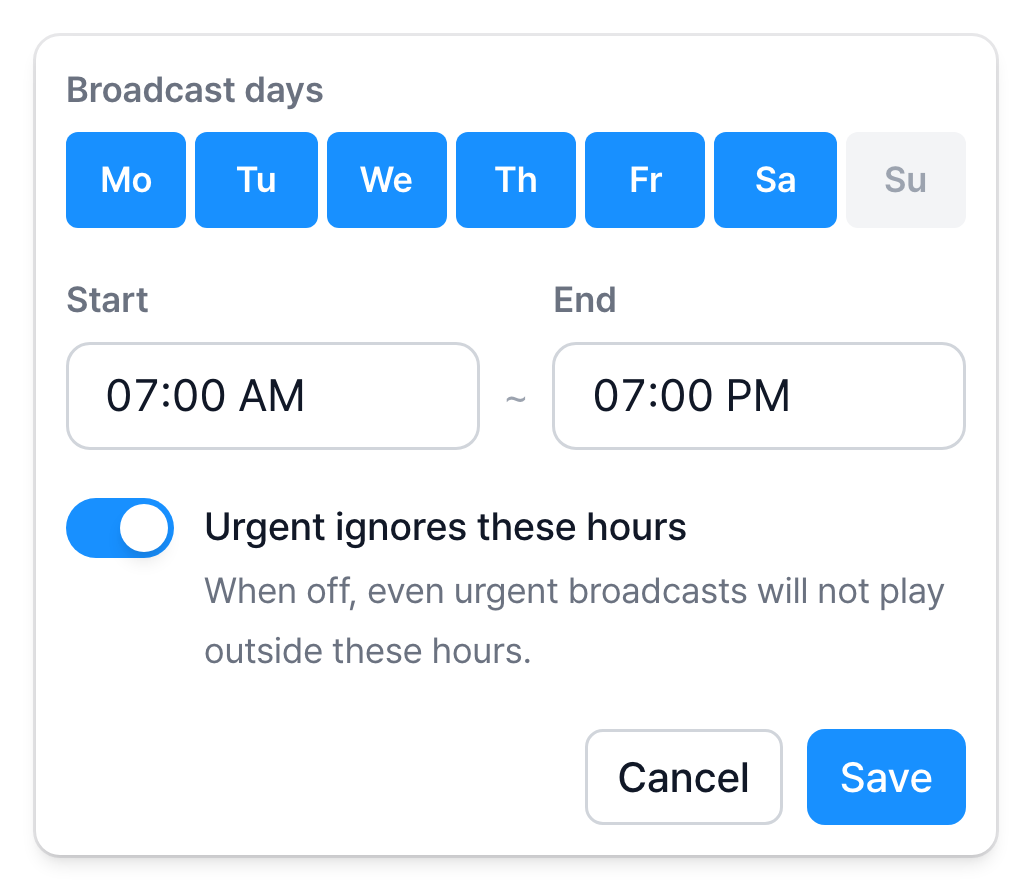
Click the days to broadcast and enter the Start and End times. Hours that cross midnight, such as 22:00 to 06:00, also work. In that case the bar is drawn in two pieces.
If you don't choose any day, the warning "If no day is selected, this speaker won't play on any day" appears.
Set how urgent broadcasts are handled
When Urgent ignores these hours is on, urgent rules play even outside the hours. This is the default, and keeping it on is safer considering accidents during night work.
When it is off, urgent broadcasts don't play outside the hours either, and the card shows "Urgent won't play outside these hours" in red. Turn it off only when you are sure nobody is on the site at those times.
Save
Click Save to apply the days, hours, and urgent setting at once.
Create zones
A zone is a name that groups several speakers. If a rule targets a zone, such as "broadcast to the Basement zone", you don't need to edit the rule when you add more speakers to that zone later.
Click a chip at the top to see only the speakers in that zone. The number on the chip is the number of speakers in it, and an orange 0 is an empty zone.
Click Manage zones to add or edit zones.
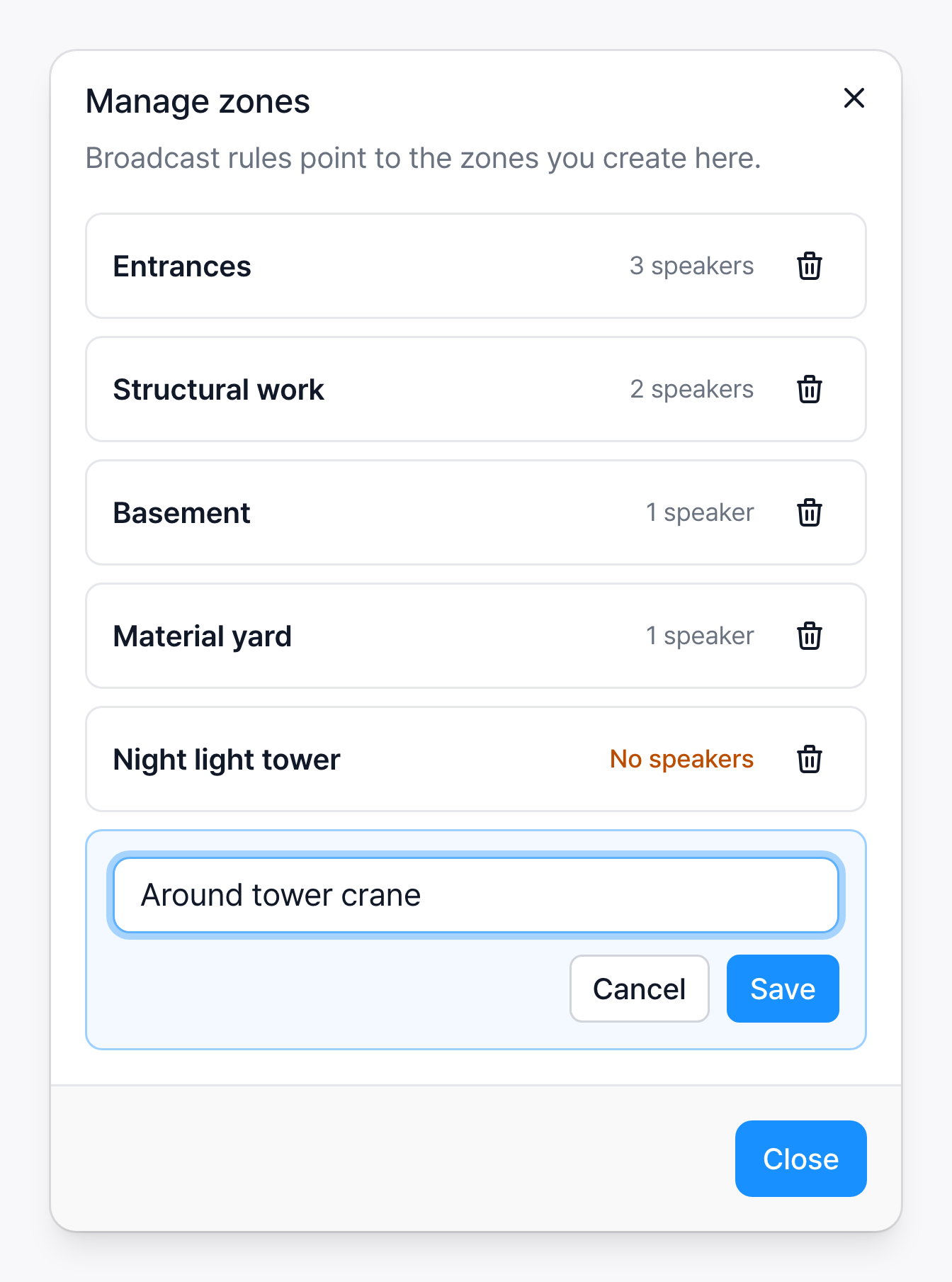
- Add a zone: Enter a name and click Save.
- Rename: Click the zone name in the list.
- Delete: Click the trash icon. The speakers that belonged to it become No zone, and rules that pointed to that zone stop playing. Before deleting, check on the Rules tab whether any rule uses that zone.
Set the location
Set which zone, which floor, and which coordinates the speaker is at. Click the gray row on the card or Edit location to open the window.
- Choose the Zone and Floor. If the project has no floor count set, enter the floor as a number. Enter basement floors as negative numbers, such as −1 and −2.
- Click the speaker's position on the map to fill in the latitude and longitude. You can also type them in the fields.
- Click Save.
A speaker without coordinates shows "No coordinates · Not shown on map" in orange, and the button changes to a blue Set location. The speaker appears on the safety dashboard map only after you enter coordinates.
Offline speakers
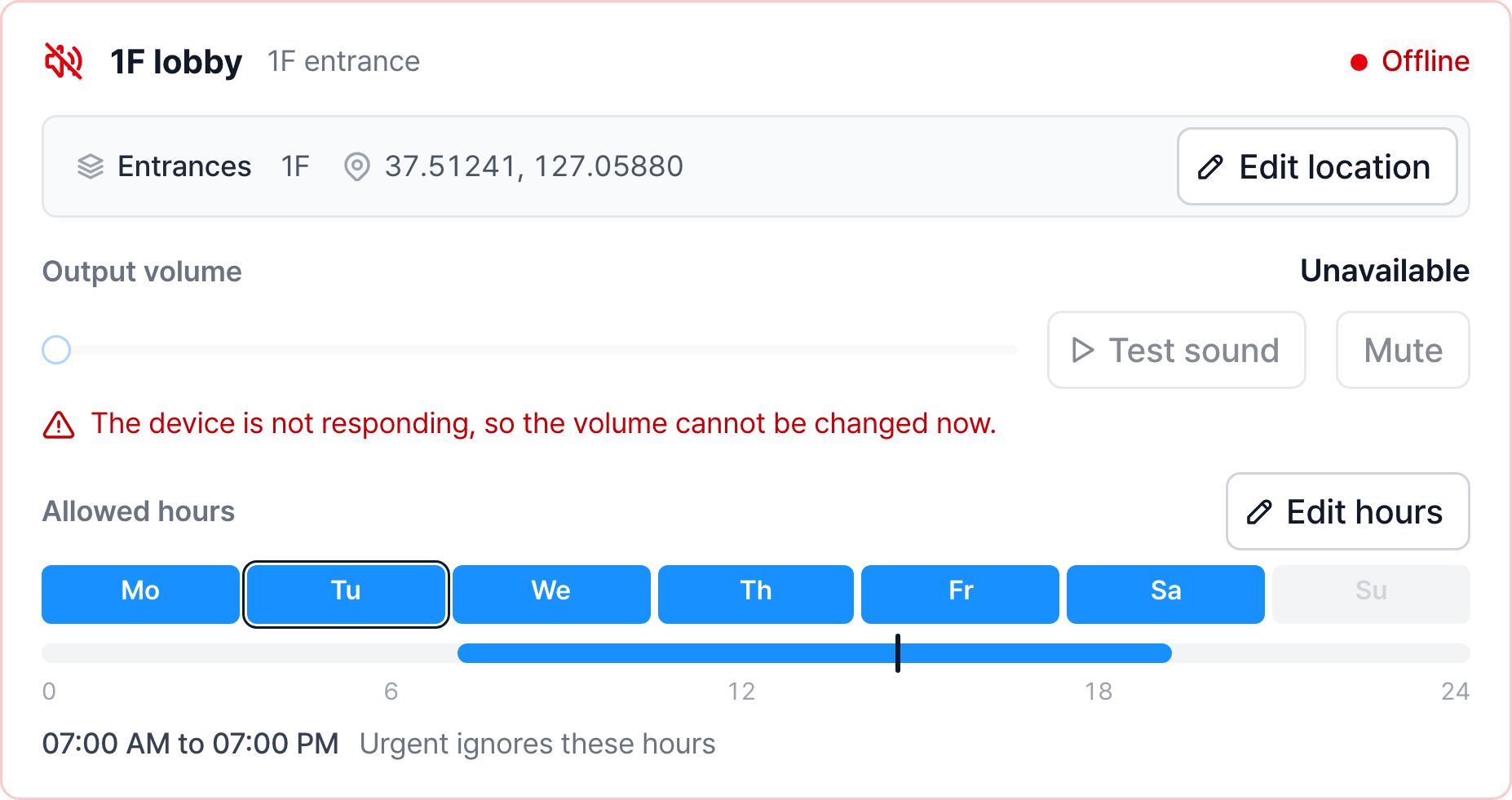
The device can't be reached, so the volume can't be read or changed, and it is automatically excluded from all broadcast targets. Check the speaker's power and network cable, and notify the operator if it continues.