Live mic
While you hold the button, your voice goes straight to the site.
Use it for situations a registered message can't cover, such as looking for someone or explaining what is happening right now. You do this in Live mic at the bottom right of the Broadcast tab.
There is no preview
From the moment you press the button and it changes to On air, everything the microphone picks up goes to the site. Nearby conversations go out too, so use it in a quiet place.
If you can't see the live mic area
You don't have the Live mic permission. Ask the project owner.
Broadcast
Check target speakers
It uses the same Target speakers panel as sound broadcasts. Check how many speakers it will go to and turn off the ones you don't need. See Broadcast a sound.
Choose an input device
Choose the microphone to use from the Input device list.
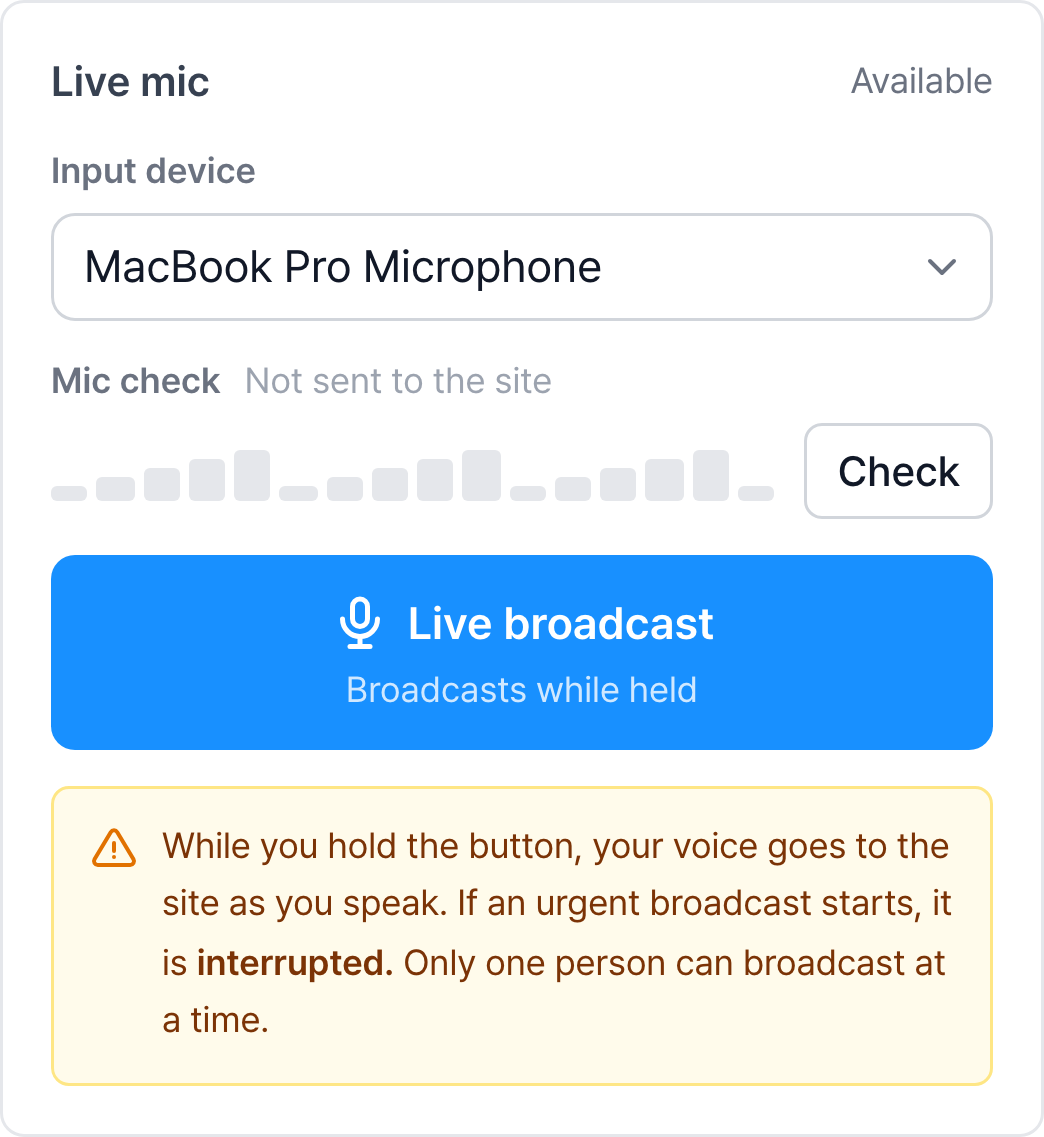
If the list shows only numbers such as "Microphone 1" instead of names, the browser hasn't been allowed to use the microphone yet. Once you allow it, the names fill in.
Check the microphone
Click Check and speak. If the bars move, sound is coming in. This check doesn't go to the site. It stops on its own after 20 seconds, or you can click Stop to end it.
If the bars don't move at all, choose a different input device and check again. If you broadcast with a dead microphone, no sound goes to the site.
Press and hold the button, and speak when it turns red
Press and hold the Live broadcast button. Instead of the mouse, you can focus the button and hold down the space bar or Enter.
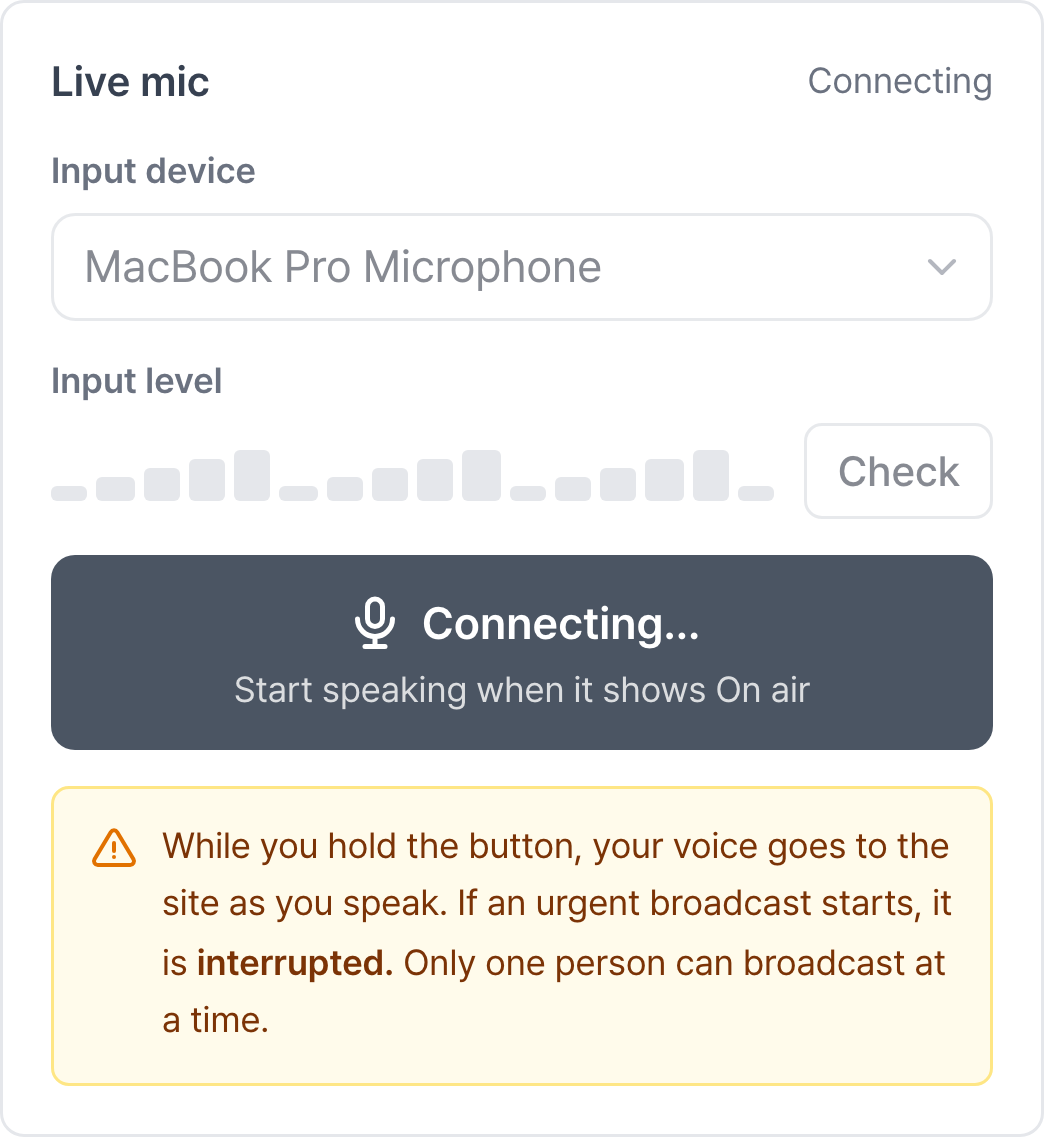
As soon as you press it, the button changes to a gray Connecting…. It is connecting to the speakers, so anything you say at this point does not go out.
When the button changes to a red On air 00:00, start speaking. The elapsed time and the max broadcast time are shown, and the input level bars move in red as you speak.
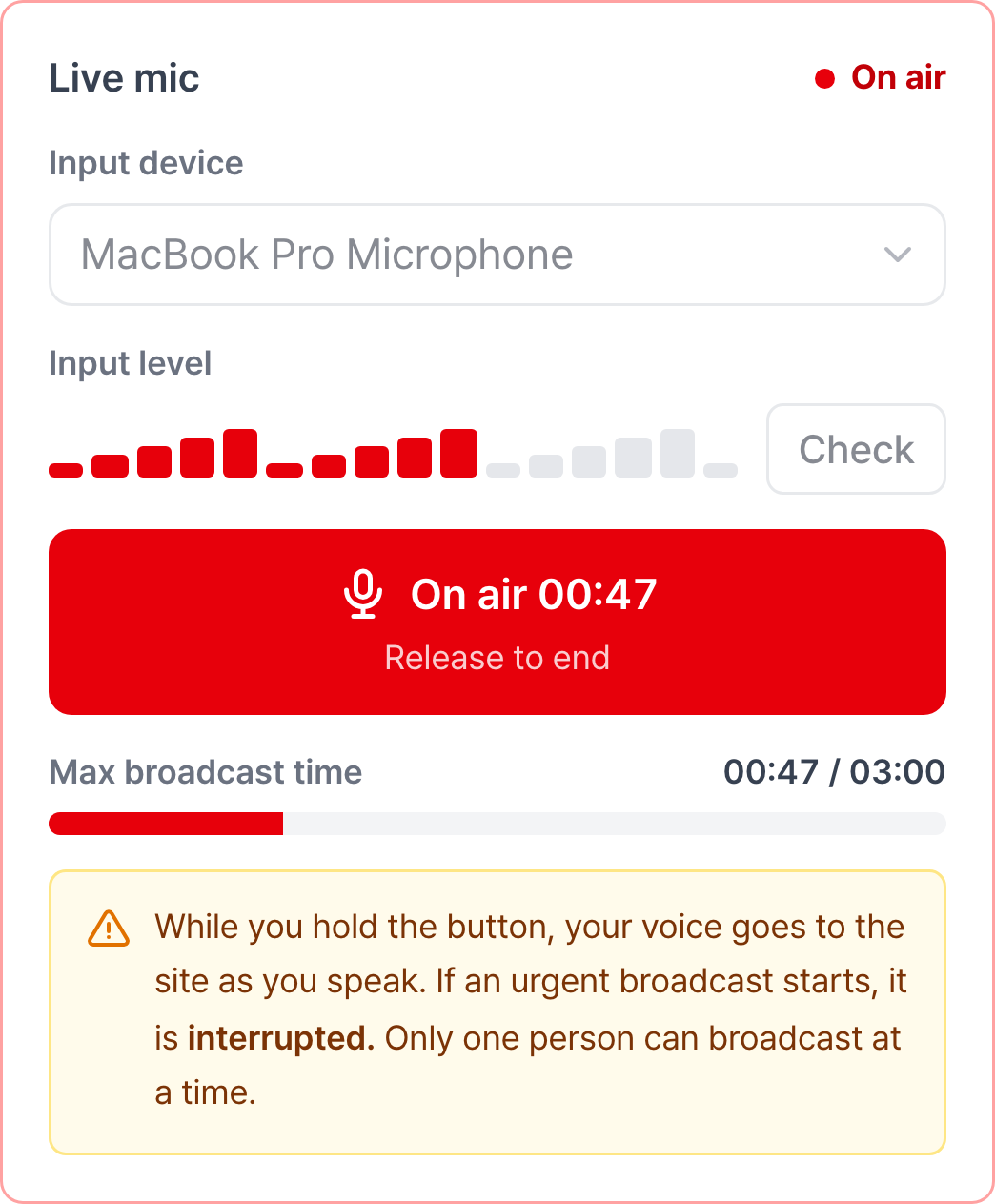
While broadcasting, you can't change the target speakers, and the sound tiles are grayed out.
Release to end
Release the button to end the broadcast. History records a Live broadcast and how long you spoke.
When it ends on its own
| What happened | Message on screen |
|---|---|
| You released before it connected | Broadcasts while you hold the button. Start speaking after it changes to On air. |
| An urgent rule started a broadcast | The live broadcast was interrupted by an urgent broadcast. |
| The max broadcast time was exceeded | Ended automatically after reaching the max broadcast time. Press again to keep speaking |
| A network or device problem occurred | The live broadcast ended due to an error. |
If you switch to another window or tab while holding the button, it ends immediately. This prevents the microphone from staying open because the release signal can't be received.
When you can't press the button
| What you see | Cause | Solution |
|---|---|---|
| "Gildong Hong is on air" at the top right | Only one person can do a live broadcast at a time | You can press it again when they finish |
| Target speakers is 0 | There are no speakers to send to | Turn on at least one target speaker |
| Red notice "The microphone can't be used at this address" | You opened a non-secure (non-https) address | Reconnect using your usual CaasWorks address |
| "Microphone permission was denied" | The browser blocked the microphone | Allow the microphone from the lock icon to the left of the address bar |
| "Couldn't open the microphone because another program is using it" | A program such as a video conferencing app is holding the microphone | Close that program and try again |
How it differs from a sound broadcast
| Situation | What to use |
|---|---|
| The same announcement every time, such as work start, breaks, or stop work | Sound broadcast. The same words play exactly every time |
| You need to explain what is happening right now or call someone | Live mic |
| It must play at night when nobody is around | Automatic broadcast rules |