Sounds
Register and manage the voice messages and audio files to broadcast.
Both sound broadcasts and automatic broadcast rules pick from the sounds registered here. Anyone with Access can see the list, but adding, editing, and deleting require the Add sound permission.
Add a voice message
Enter a sentence and it is turned into speech read in a human voice. This is enough for most announcements.
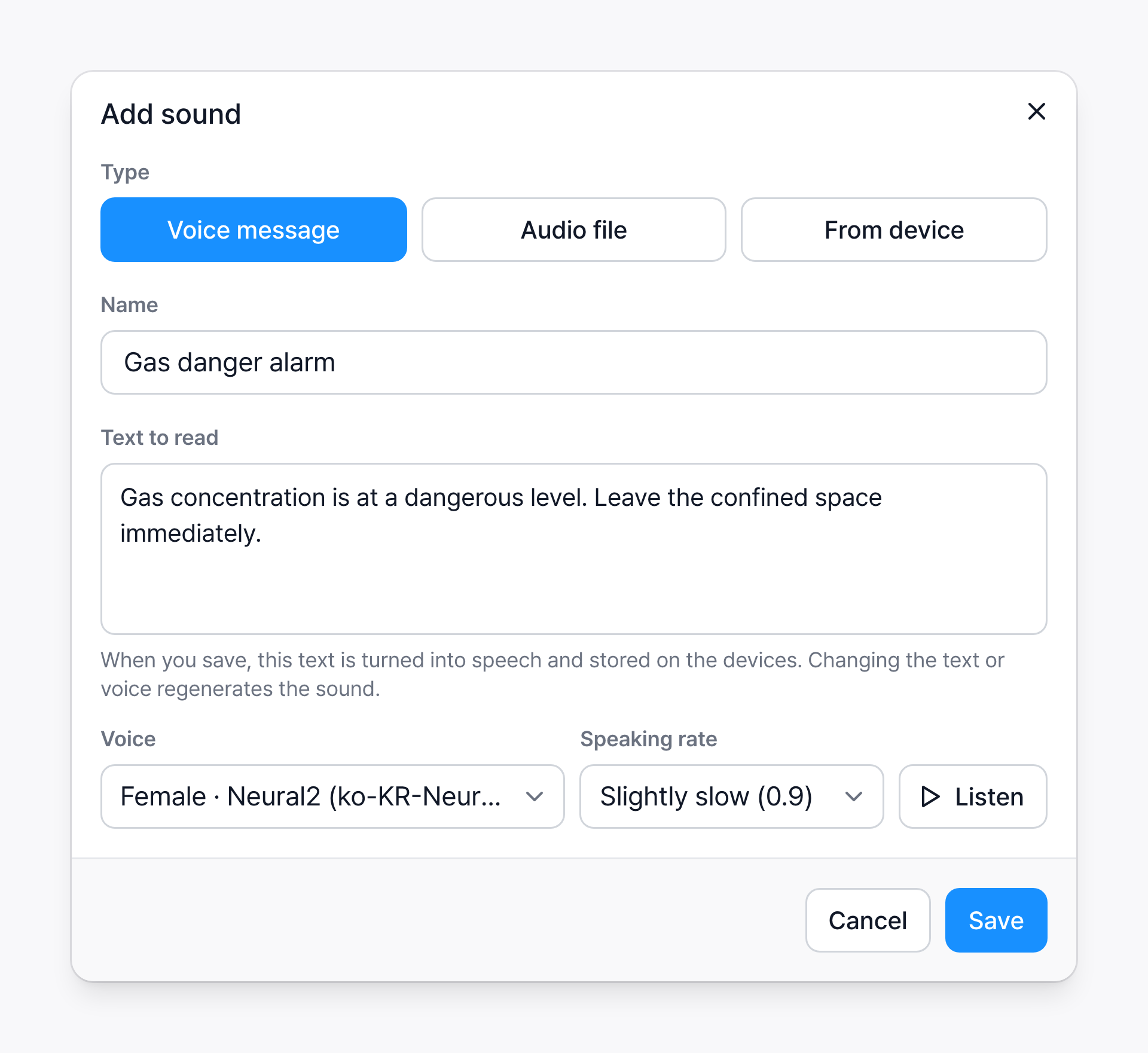
Enter the name and text
The Name is for recognizing the sound in the list and in rules. The Text to read is what will actually play.
Choose the voice and rate
Voice shows the gender and voice type first, such as "Female · Neural2". If you don't choose one, the default voice is used. Speaking rate ranges from slow (0.8) to fast (1.25). On a noisy site, slightly slow (0.9) is easier to hear.
Listen
Click Listen to generate the sound and play it without saving. Click again to stop. Listen to it once before saving.
Save
Click Save to generate the sound and store it on the speaker devices. Wait a moment until it finishes. If you change the text or voice later, the sound is generated again.
Add an audio file
Use this to play a siren or a prerecorded announcement as is. Choose Audio file as the type and click Choose file.
- You can upload mp3, wav, and m4a files.
- Keep files at 20MB or less. Speaker devices have little storage, so one large file takes up the space for other sounds.
- If you leave the name empty, the file name is used.
- When editing, if you don't choose a new file, the original audio stays and only the name changes.
Import from device
Registers a sound stored on the speaker device at installation as a sound. The file isn't uploaded again, so broadcasts are faster.
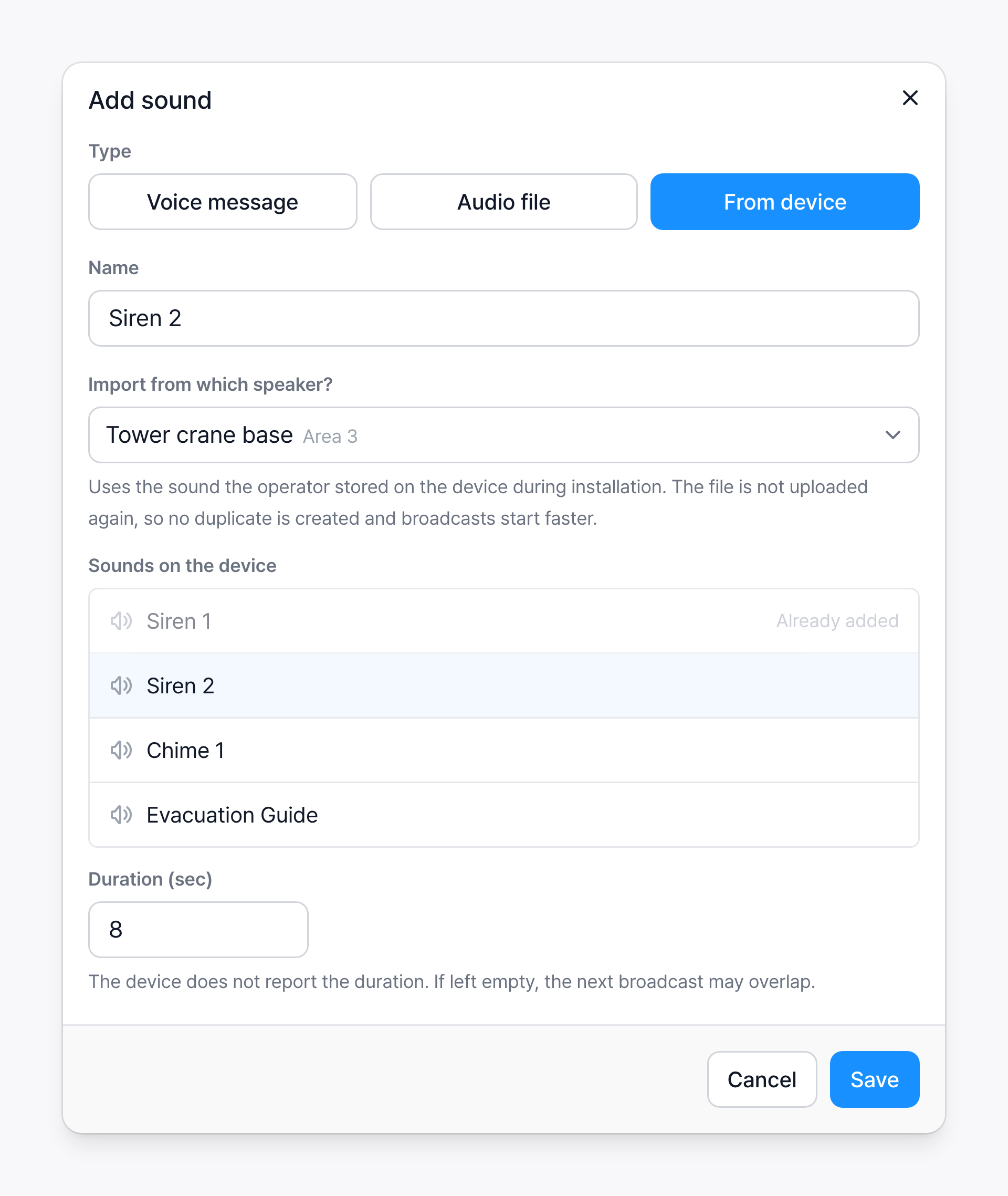
- Choose From device as the type.
- Choose a speaker in Import from which speaker? to see the list of sounds stored on that device. Sounds already added are grayed out as Already added.
- Click the sound to import and check the name.
- Enter the Duration (sec). The device doesn't report the duration, so if you leave it empty, the next broadcast may overlap.
- Click Save.
If the speaker doesn't respond, "Couldn't read the stored sounds because the device isn't responding" appears. Choose another speaker that is online.
Read the list
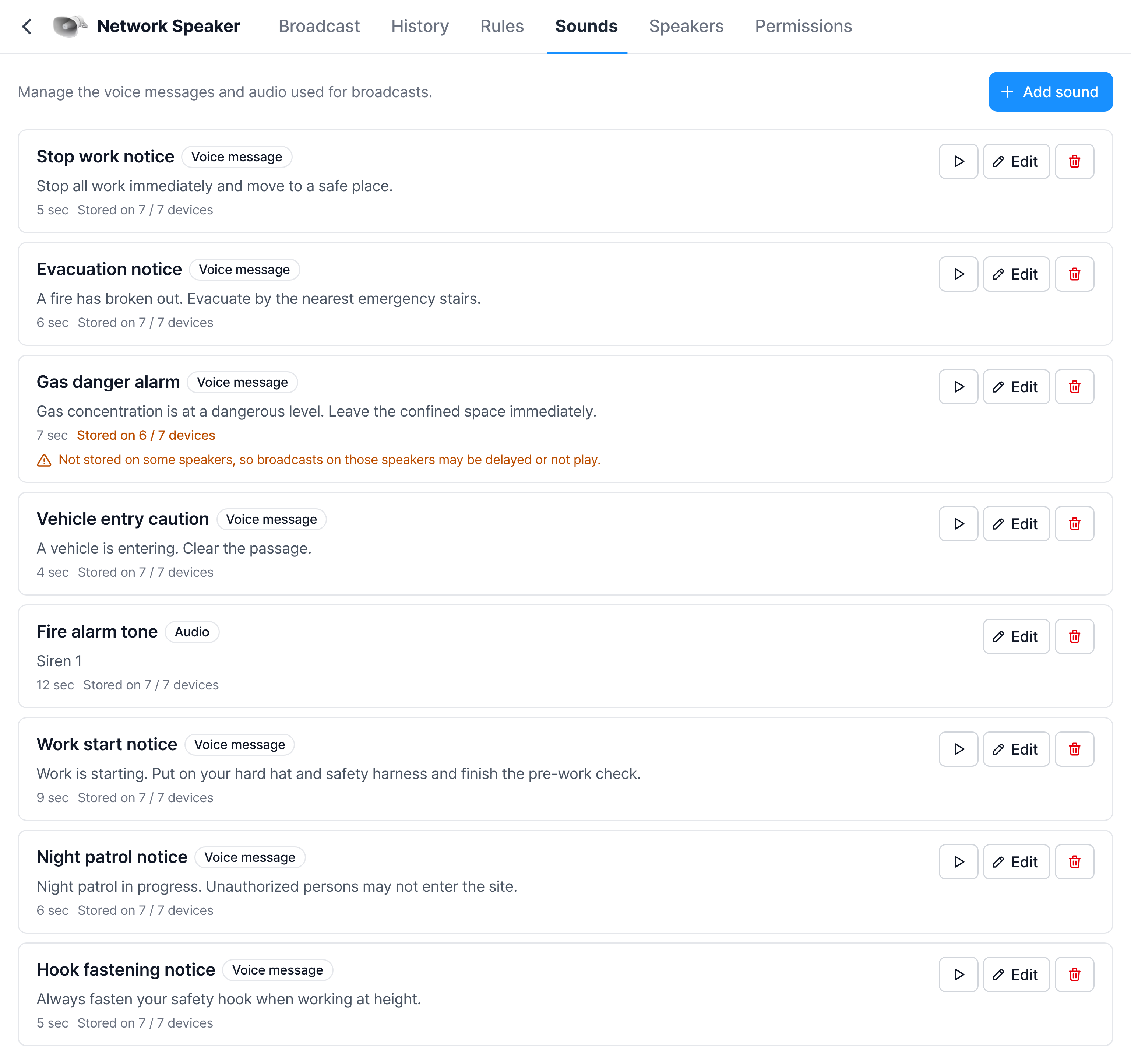
Below each sound, its length and Stored on N / M devices are shown. It means the sound is actually stored on N of M speakers.
Sounds stored on only some speakers show an orange warning. On the speakers where it isn't stored, the broadcast may be delayed or not play.

This usually happens because a speaker was offline in the meantime. It fills in when the speaker comes back online. If it continues for a long time, notify the operator.
Sounds without a ▶ button were imported from a device. The file exists only on the device, so you can't preview it here, and Edit only lets you change the name.

Edit and delete
- ▶: Preview it on this computer. If no sound comes from the speakers on the site but it sounds fine here, the problem is with the speaker or connection, not the audio.
- Edit: Change the name, text, voice, and rate. The type (voice message or audio) can't be changed, so register a new one.
- 🗑: Deletes after confirmation. A sound used by a rule can't be deleted, and the reason appears at the bottom of the screen. Edit the rules that use the sound first, then delete it.
Writing the text
- Keep it short so it can be understood on one hearing. Two sentences are enough.
- Include both the situation and the action. "Gas concentration is at a dangerous level. Leave the confined space immediately." is better than "Danger."
- Prepare frequently used announcements in advance, such as work start and end, break time, stop work, fire evacuation, gas danger, and heat wave rest.