Broadcast a sound
Pick a registered voice message or audio file and play it through the speakers on the site.
This is the most common task. On the Broadcast tab, check the target speakers, click a sound, review it once more in the confirmation window, and send it.
If you can't see the sound broadcast area
You don't have the Manual broadcast permission. Ask the project owner. Even without the permission, you can see the recent broadcasts list.
Broadcast
Check target speakers
Under Target speakers on the right, see how many speakers it will go to. At first, all online speakers are selected, and the count is shown at the top, such as "Goes to 5 speakers".
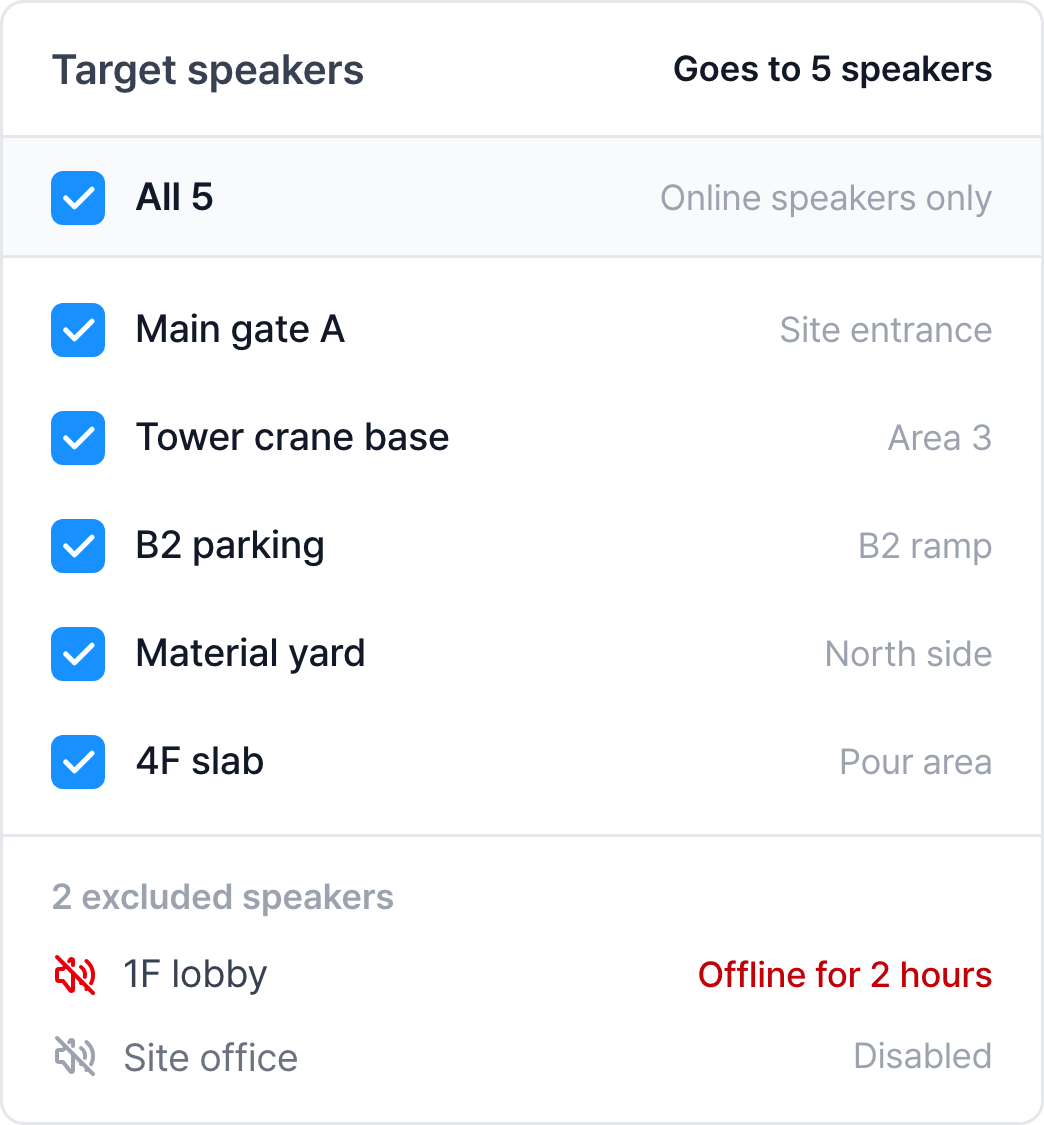
- To send to specific areas only, clear the checkboxes of the speakers you don't need.
- Click All N to turn them all on or off at once.
- Excluded speakers at the bottom are offline or disabled. They are excluded automatically and can't be selected.
Preview if needed
Click ▶ on the right of a sound tile to play it on this computer only. It doesn't go to the speakers on the site. Click it again to stop.
If ▶ is grayed out, the sound was imported from a device by the operator and the file exists only on the device. You can't preview it, but you can use it for broadcasts without any problem.
Click a sound
Click the name area of the sound to play. Each tile shows the text that will actually play, or the length if it is an audio file.
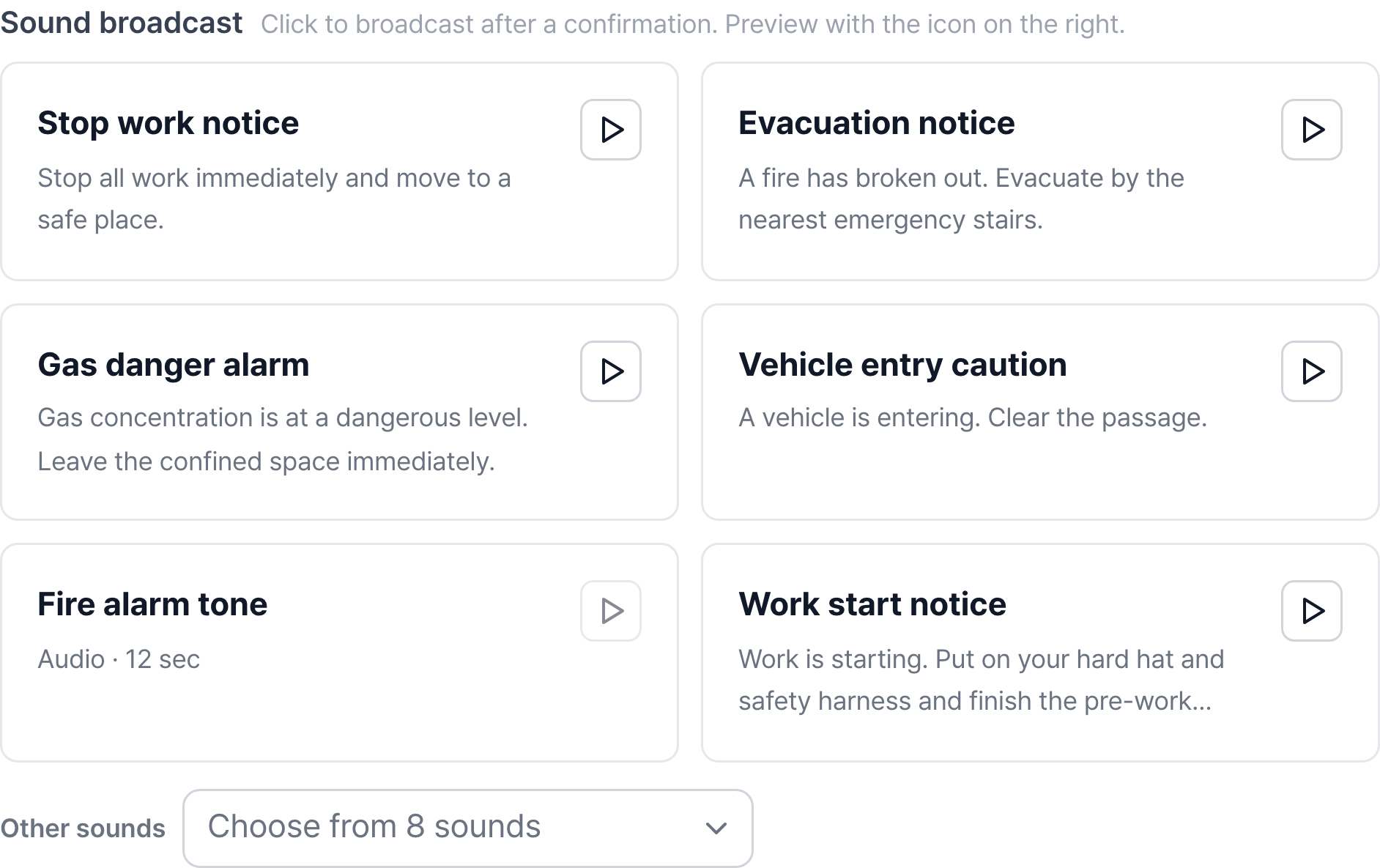
Up to six tiles are shown. Pick the rest from the Other sounds list below. The confirmation window opens as soon as you pick one.
Review and broadcast in the confirmation window
Because sound goes out across the whole site, it doesn't play right away but goes through a confirmation window. Check three things, then click Broadcast.
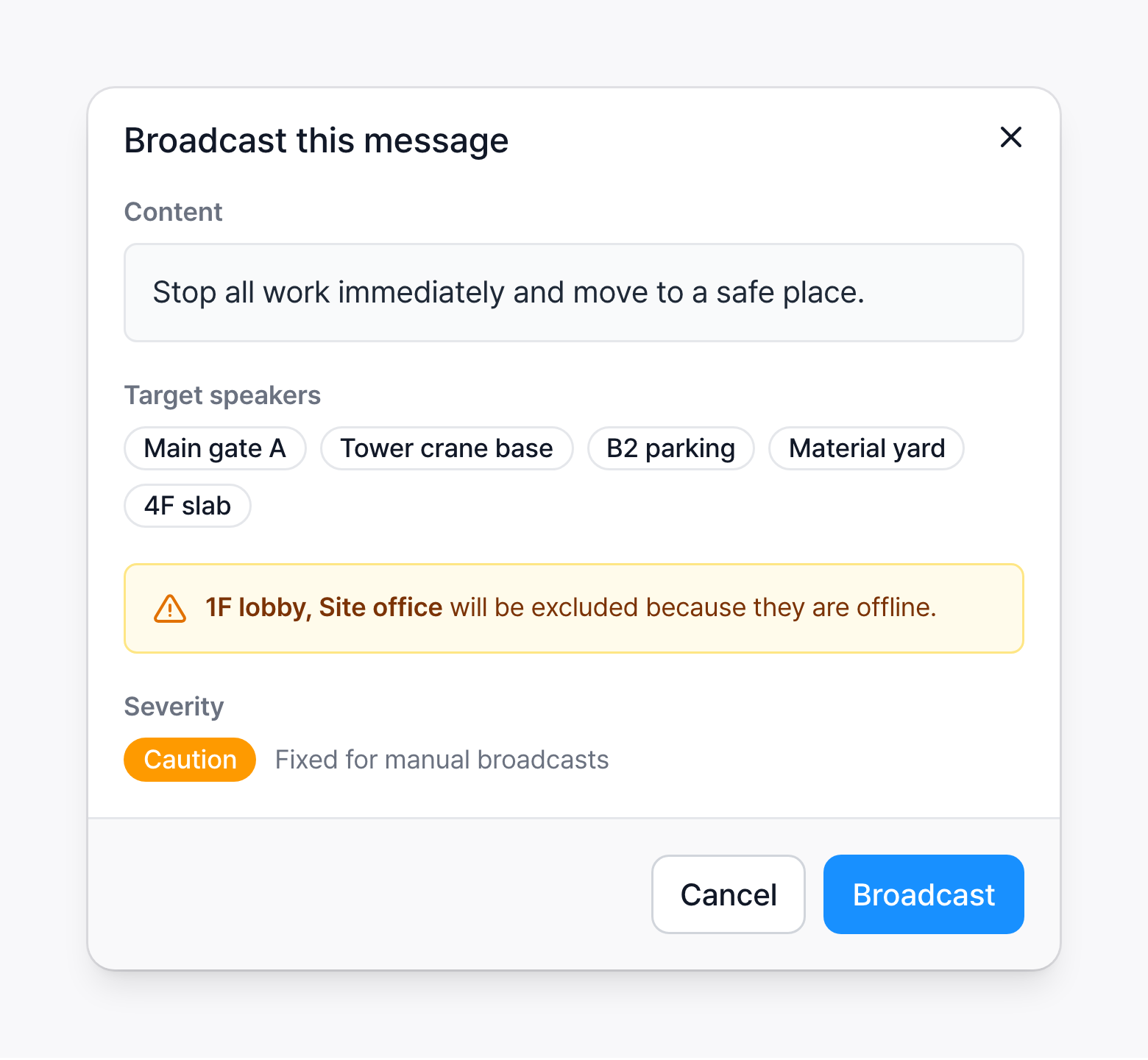
- Content: The full text that will actually play. For an audio file, the sound name is shown.
- Target speakers: The names of the speakers that will play.
- Yellow notice: If any speakers are excluded, it tells you with their names.
Severity is always fixed at Caution. If an urgent rule is broadcasting, it plays first.
Check the result
After you send it, the result briefly appears at the bottom of the screen. If everything played, you see "Broadcast sent. (Completed)". If some speakers failed, you see "Broadcast failed on 1F lobby. Check History."
The broadcast also appears at the top of Recent broadcasts. The five most recent are shown, and failed broadcasts are shown in red.
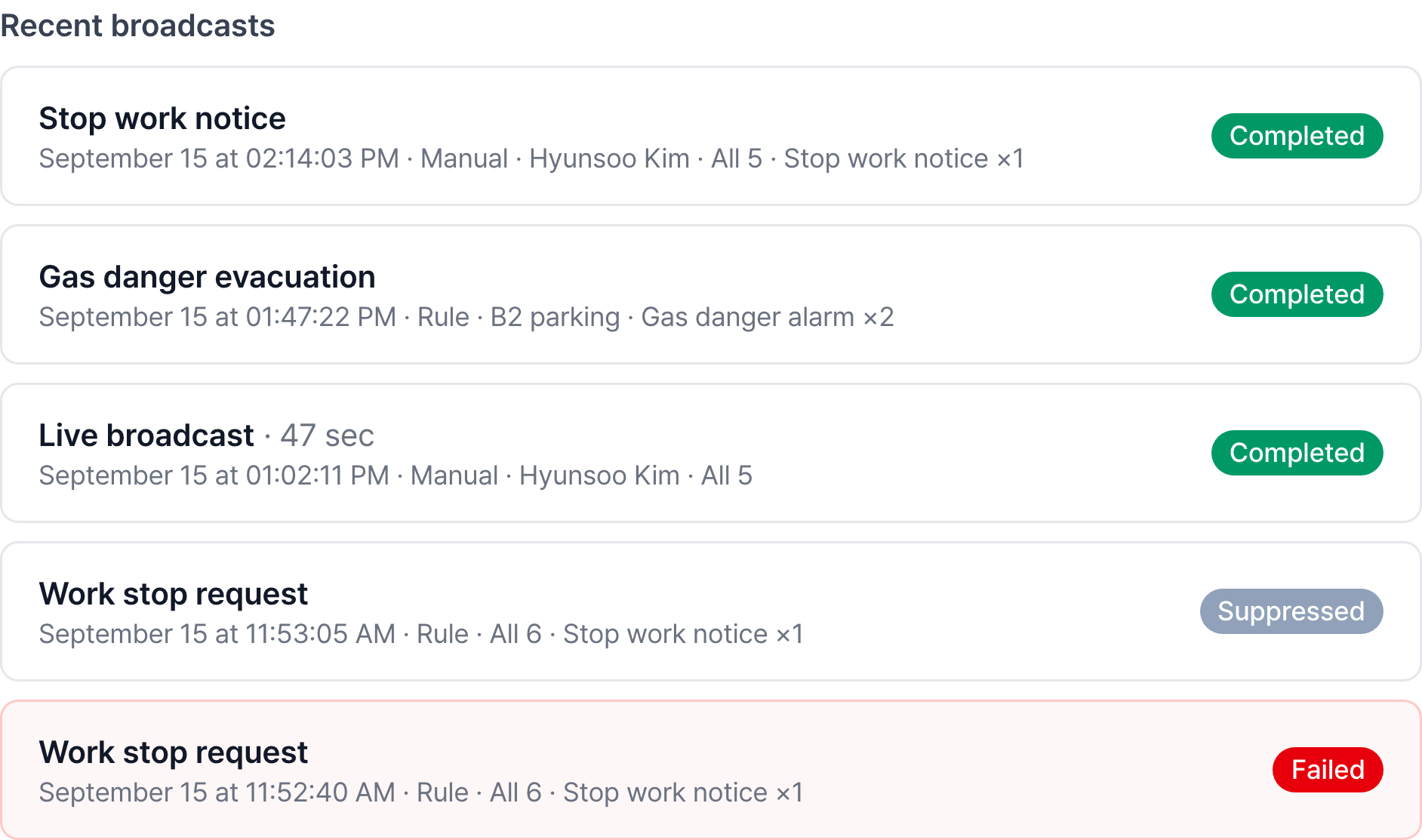
What each result means is covered in Broadcast history.
Read the status line at the top
The first line of the Broadcast tab tells you whether a broadcast can go out right now.

- The left side shows the number of online, offline, and disabled speakers.
- The right side shows the last broadcast that went out.
- If "N rules are not playing now" appears in red, click it. You go to the Rules tab, where you can see which rules aren't playing and why. Sound won't play even if the situation occurs, so check it right away.
You can't type and send a sentence on the spot
Sounds to broadcast must be registered in Sounds in advance. If you need to describe what is happening right now, use the Live mic.
Troubleshooting
| Situation | Cause | Solution |
|---|---|---|
| "No sounds registered" appears | There are no sounds | Register one on the Sounds tab first |
| Nothing happens when you click a tile | There are 0 target speakers | Turn on at least one speaker in Target speakers |
| All tiles are grayed out | A live mic broadcast is in progress | They unlock when the mic broadcast ends |
| The result is Outside hours | It was outside that speaker's allowed hours | Check the hours on the Speakers tab |
| Completed, but nobody heard it on the site | The output volume is too low or the speaker is muted | Check the volume and mute on the Speakers tab |