Broadcast history
Check when and what played, and why if something didn't play.
History is the record that a broadcast actually went out. It is where you check whether an alarm went out at the time of an accident, and where you verify that rules are working properly.
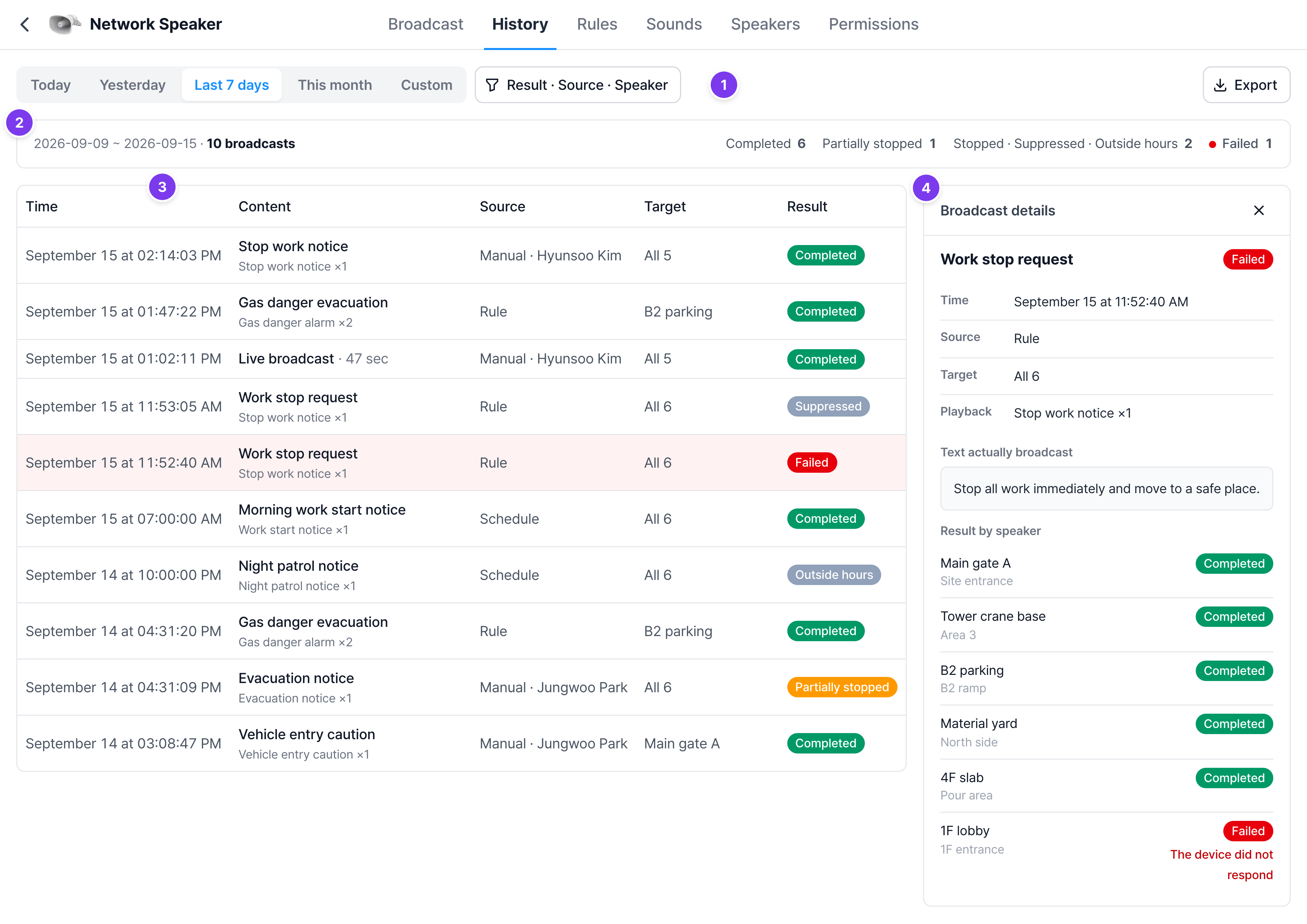
Six results
Not playing doesn't always mean something is broken. Only a red Failed needs action.
| Result | Meaning | What to do |
|---|---|---|
| Completed (green) | Played normally | Nothing |
| Partially stopped (orange) | Stopped on some speakers to make way for an urgent broadcast, and played on the rest | Nothing |
| Stopped (orange) | Stopped to make way for an urgent broadcast | Nothing. This is the intended behavior |
| Suppressed (gray) | The same rule had just played, so it was within the Ignore repeats time | Nothing. If it plays too often, increase the rule's Ignore repeats time |
| Outside hours (gray) | It was outside the speaker's allowed hours | If it happens often, review the allowed hours |
| Failed (red) | The speaker didn't respond | Check which speaker in the details, and check its power and network |
Failed broadcasts show the whole row in red in the list.
Find
Period
At the top, choose from Today · Yesterday · Last 7 days · This month · Custom. The default is Last 7 days. If you choose Custom, a date button appears next to it. Click the start date and end date in the calendar in order.
Result · Source · Speaker
Click the Result · Source · Speaker button to open a window for choosing filters. When filters are set, the button shows the count, and Clear filters removes them all at once.
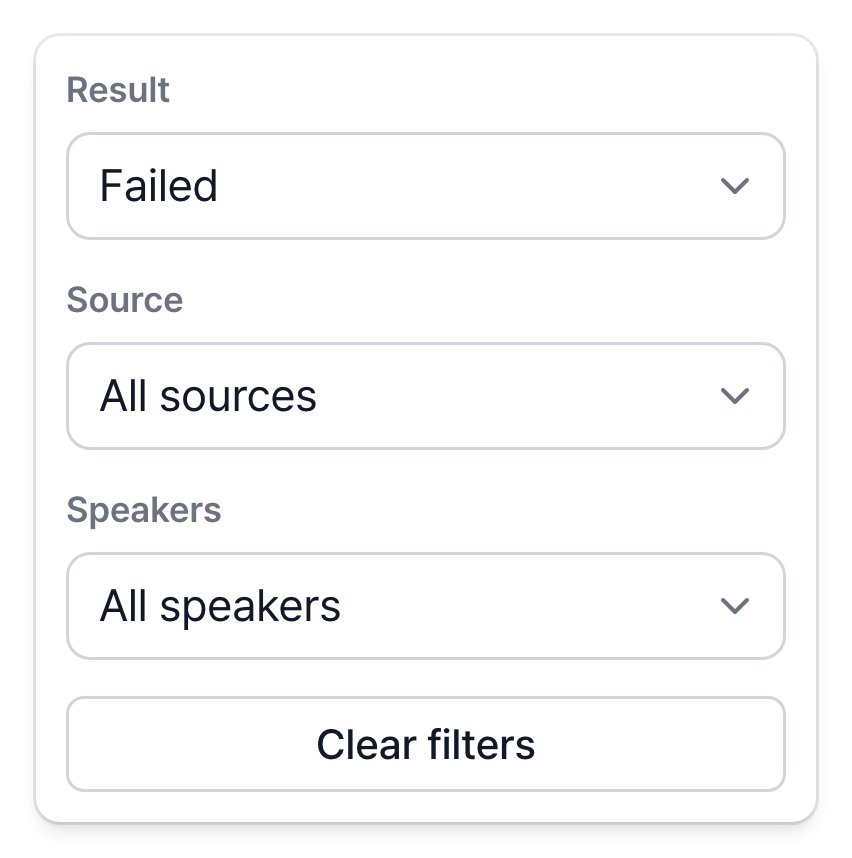
Source is where the broadcast started.
| Source | Meaning |
|---|---|
| Rule | A solution event rule triggered |
| Schedule | A schedule rule played at its set time |
| Manual | A person picked a sound or spoke into the microphone. The requester's name is shown too |
| Integration | Another solution requested it directly |
| Trial · Operator | A broadcast sent by the operator during installation or inspection |
Summary line
The selected period, the number of broadcasts, and the count for each result are shown. Click the red Failed number to show only failed broadcasts.

The list shows 50 items at a time. If there are more, click Show more at the bottom.
View one in detail
Click a row in the list to open Broadcast details on the right.
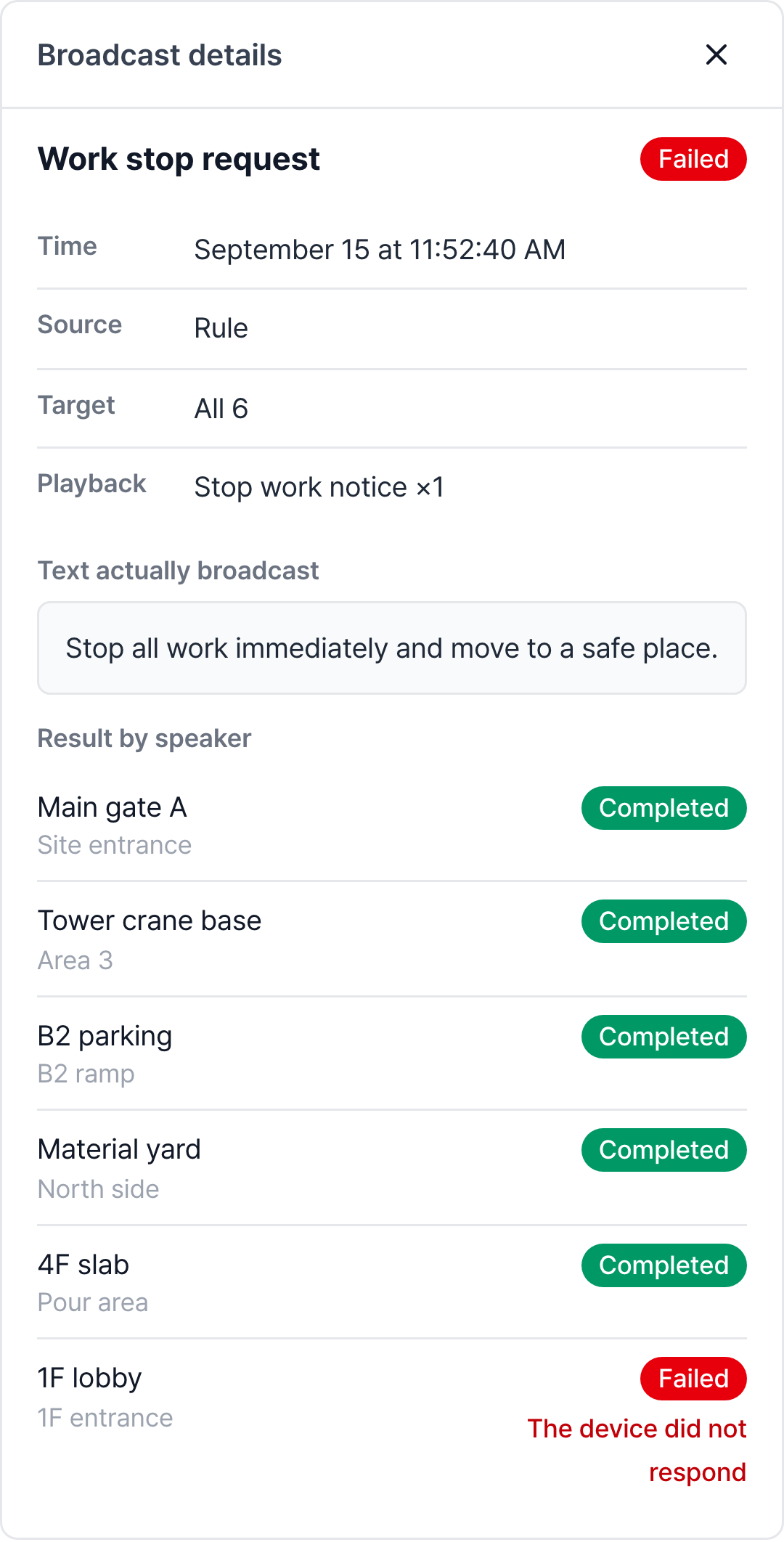
- Text actually broadcast: Exactly what played from the speakers.
- Live broadcast: For a mic broadcast, the length on air (seconds) is recorded instead of text.
- Result by speaker: Which speakers completed and which failed, and the reason if one failed.
Export
Click Export to save the current results as a CSV file. The file name is 방송이력_<start date>_<end date>.csv, and the columns are Time, Content, Source, Requested by, Target, and Result. Use it as is for safety inspection or accident investigation records.
How to find things in these situations
| Situation | How to find it |
|---|---|
| You need to check whether an alarm went out at that time | Choose that day with Custom and look in time order |
| You're not sure a new rule is working | Filter the source by Rule or Schedule |
| Someone reports that a speaker keeps not playing | Filter by speaker and check the results. If it says Completed but can't be heard, check the output volume |
| There are complaints that an alarm plays too often | See how many Suppressed results that rule has. If there are few, increase the Ignore repeats time |